
Build a Modular LED Matrix With Maciej Miklas's Complete Arduino Guide
Original writeup by Maciej Miklas
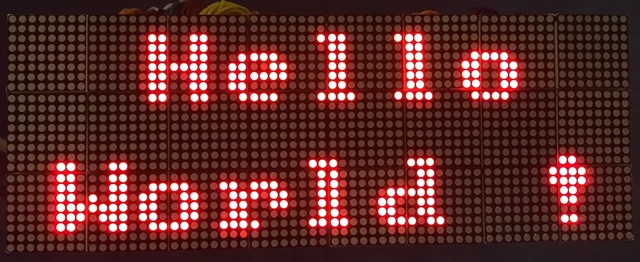
Image credit
Before you build
Choose this when you want to understand the display wiring and scrolling logic, not just install a finished sign. The creator's guide covers MAX7219 modules, matrix orientation, power, and the Display library. Its controller-pin examples and development environment are historical. Match the wiring to your actual Arduino, use the correct module supply, and do not power a whole display through a microcontroller output pin. The photographs show the original build, not a current parts kit or a test performed by this site. Verify the driver pin functions and actual LED matrix wiring; the original guide’s broad board-compatibility and common-anode/cathode descriptions are not universal electrical specifications.
- Difficulty (editorial)
- Intermediate
- Documentation
- Complete build guide
- Hardware
- Arduino, MAX7219, LED matrix
Read the original matrix wiring and provide a suitable low-voltage display supply; pin assignments are specific to the source build.
A full illustrated MAX7219 display guide: matrix wiring, power, chained modules, static graphics, and scrolling text, with the original diagrams and project photographs.
This project contains a driver for 8x8 LED Modules controlled via MAX722xx. It allows you to build a display of custom size that is only limited by the hardware itself. Vertical and horizontal sizes can contain up to 256 modules, but before reaching this limit, you would run out of Slave Select lines for controlling MAX chips or be limited by the amount of RAM. The fact is: you can handle a reasonable amount of MAX chips and build a display of custom size ;)
I've tested the whole idea on display, which consist of 8 LED Modules in horizontal and 3 in vertical position. It gives us 24 modules containing 1536 LEDs (88 * 38).
Hardware
Fritzing schematics are here: /doc/fritzing
First, let's start with the controller. Any Arduino will work. I've used Mega due to the large number of digital output pins. You could also use Nano with a shift register and alter a way of addressing Select Slave lines in Display::send(...).
You will need an extra power supply for driving LEDs, assuming you will use more than one LED Matrix.
Driving single LED Matrix Module
I've used the MAX7219 and 788BS LED Matrix. This is the one with a common anode. The schematic below illustrates the wiring of LEDs, MAX and Arduino:
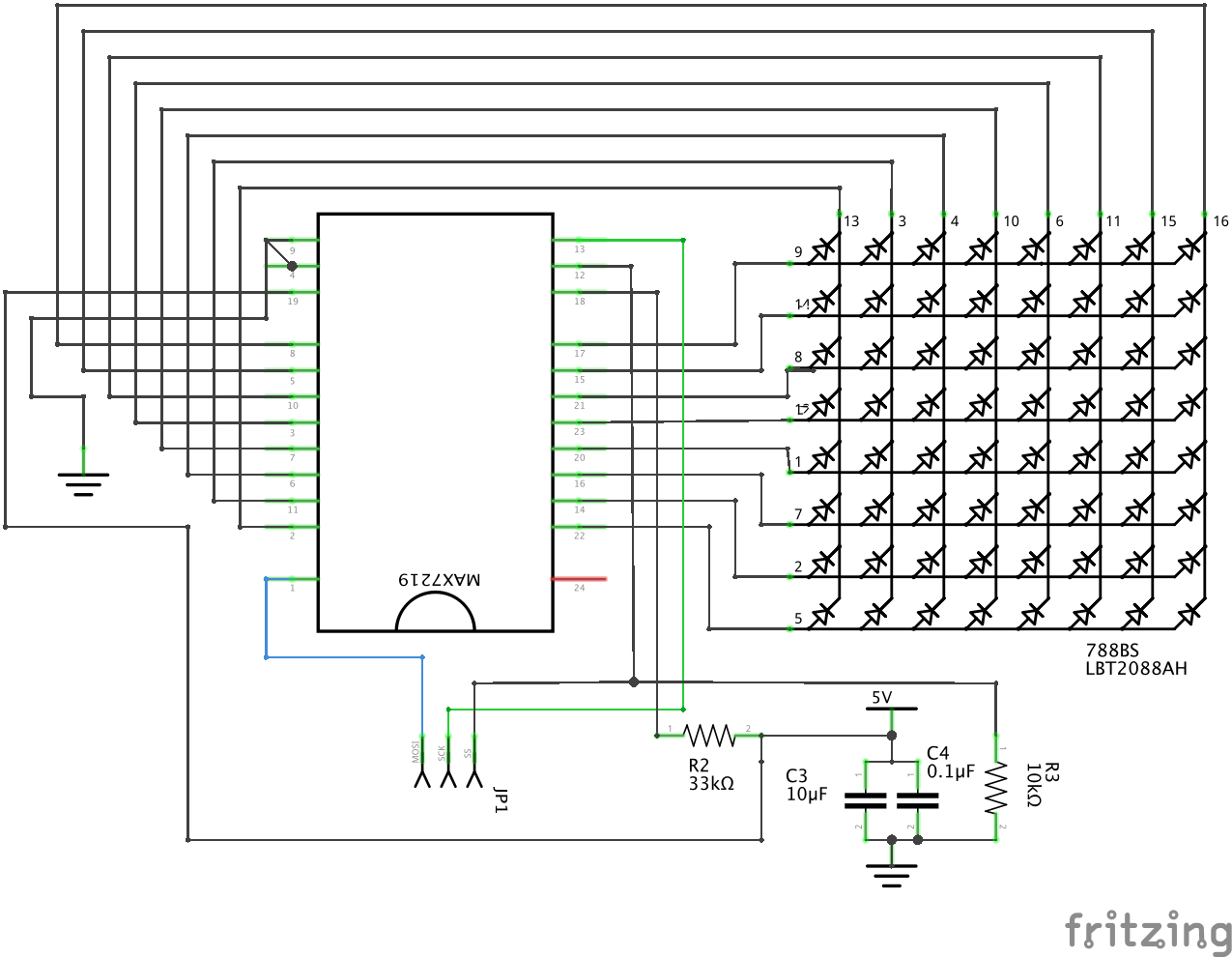
Image credit
doc/fritzing/MAX7219-788BS-LEDs_schem.png
Maciej Miklas; graphics created with Fritzing · Apache-2.0 + Fritzing CC BY-SA 3.0Unmodified source image.
This one is equivalent, but instead of single LEDs, we have a PIN layout of the LED Module:
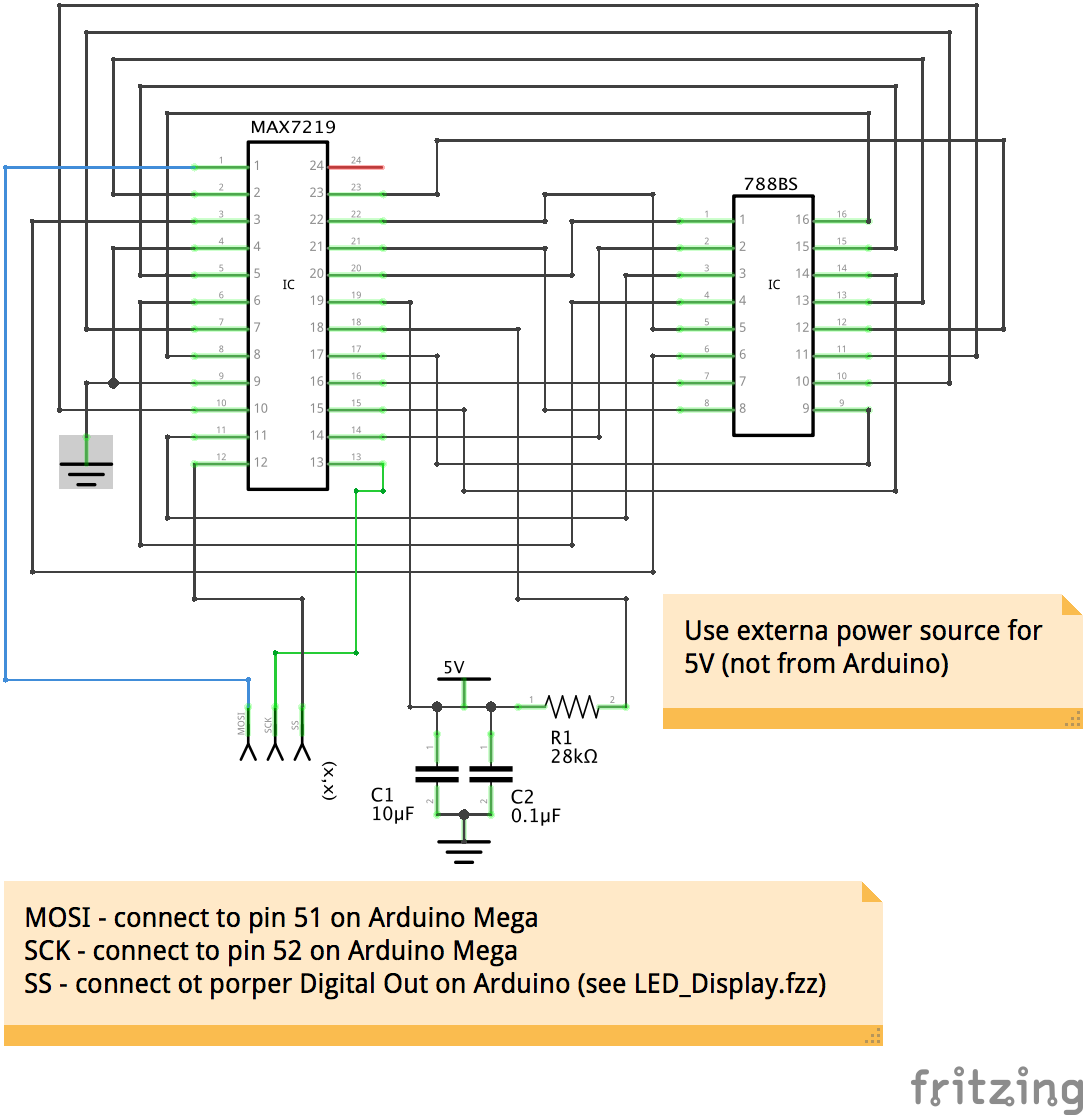
Image credit
doc/fritzing/MAX7219-788BS_schem.png
Maciej Miklas; graphics created with Fritzing · Apache-2.0 + Fritzing CC BY-SA 3.0Unmodified source image.
Your LED Module could have a common cathode. In this case, you must rewire the MAX chip's connection. You must remember that MAX has two sets of relevant pins: Dig0-Dig7 are supposed to be connected to cathodes (-) and SegA-SegG to anodes(+). Additionally, such a change will swap rows with columns within the sine LED module.
Connecting all LED Matrix
We have covered connecting a single LED Module to a MAX. Now we will combine multiple modules into one large display. Below is the physical display that I've used for testing and examples. Each LED Module has a label indicating its position and Select Slave line.
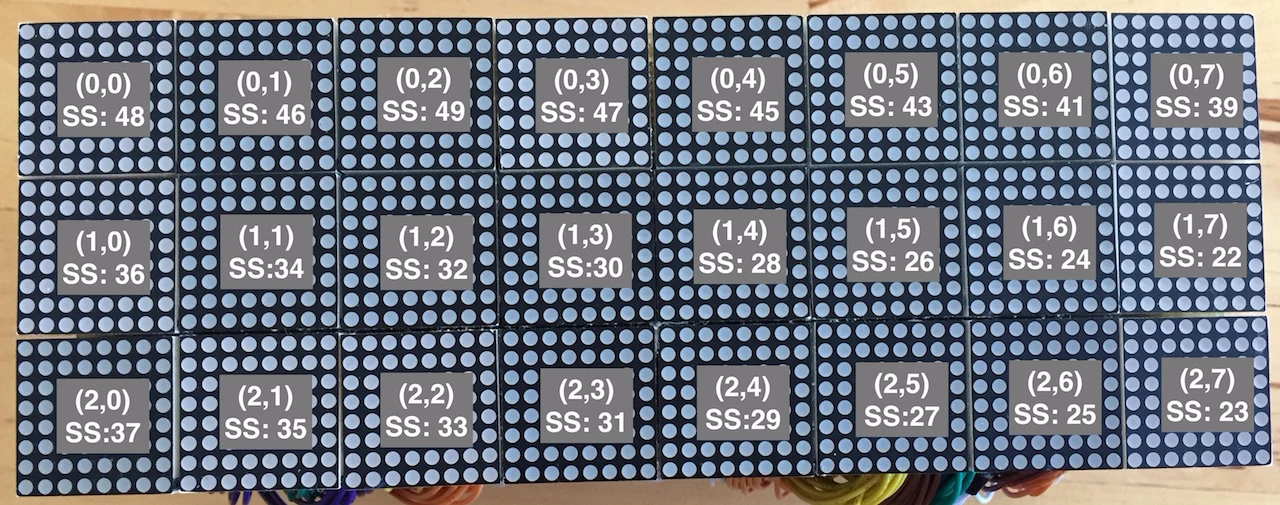
Image credit
Here is the wiring:
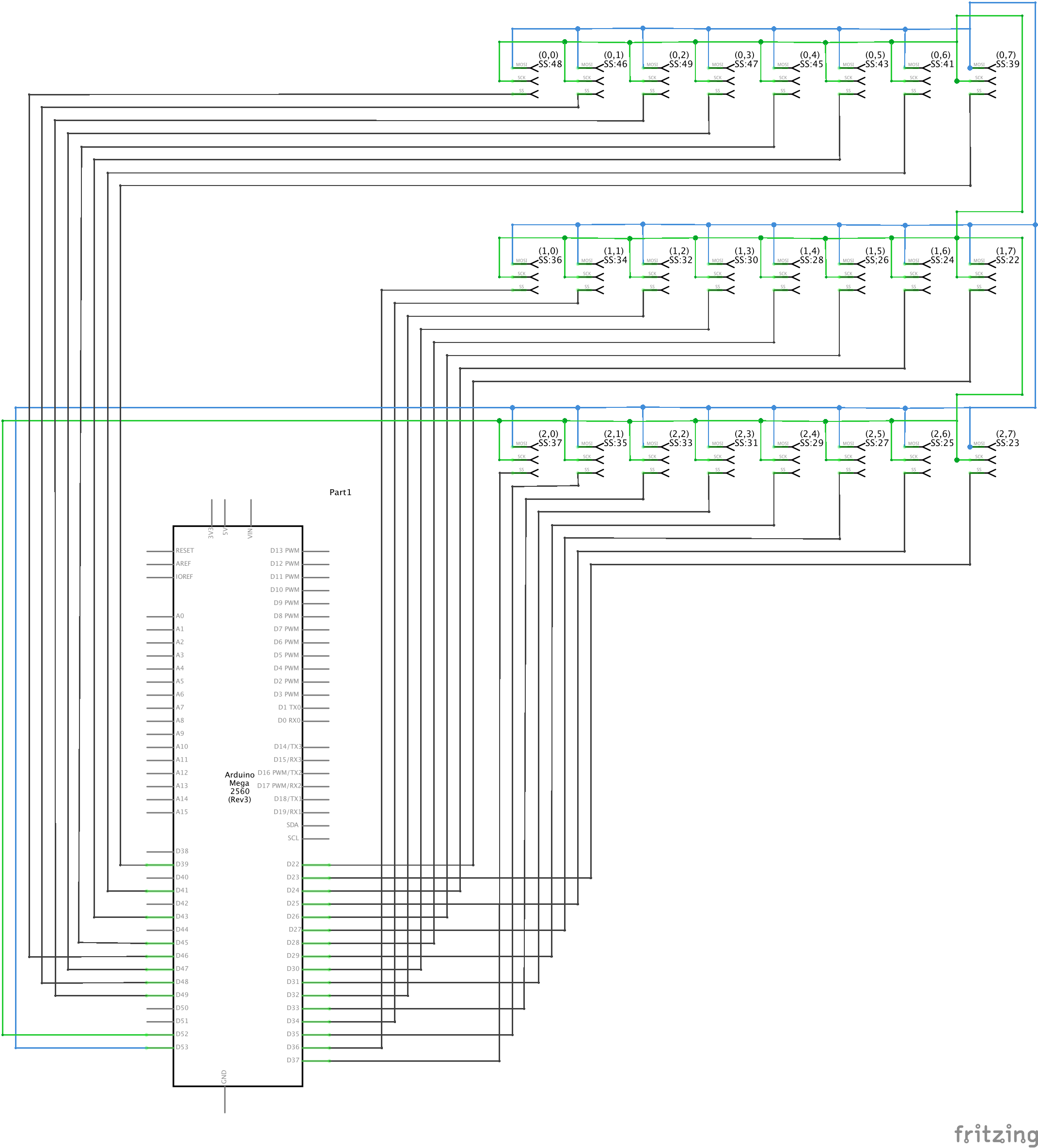
Image credit
doc/fritzing/LED_Display_schem.png
Maciej Miklas; graphics created with Fritzing · Apache-2.0 + Fritzing CC BY-SA 3.0Unmodified source image.
Each 3-PIN connector on the schematic above symbolizes one module described in the previous chapter (LED Matrix + MAX72xx).
All MAX722xx chips share common MOSI and SCK lines. MISO is not used. Each chip occupies a separate Slave Select line.
The position of LED Matrix on the schematic above directly corresponds to their location on the physical display I've used for testing. Additionally, each module has a description indicating its position and Select Slave line, so for example: (2,1) SS: 35 gives us a second module on the third row (counting from zero) and PIN:35 on Arduino for Select Slave line.
#Software
Compiling
We are using standard Arduino libraries, so they are already available. The only exception is ArdLog. You have to import this LIB into your IDE. It basically means you have to download the right release: https://github.com/maciejmiklas/ArdLog/releases/tag/v1.0.0 and unzip it into a folder, where you usually place external libraries. In the case of standard Arduino IDE on Mac, it's ~/Documents/Arduino/libraries. In the end, you should have the following structure:
$ pwd
~/Documents/Arduino/libraries/ArdLog

$ ls
ArdLog.cpp ArdLog.h   LICENSE    README.md
Communication with MAX72xxx
We are using the standard SPI library and Select Slave line on the MAX chip for addressing. MAX is configured in LED Matrix mode - so there is nothing special. The setup method can be found in: Display::setup()
Setting things up
The main class of our interest will be the Display - it's responsible for the setup of MAX chips and provides API for painting.
Before we start painting, it's necessary to set things up. The code below creates a 2D array containing Select Slave lines and initializes the display. The display consists of 3 rows, each with 8 LED Modules. You can choose any responsible size, but I will stick to this one.
The layout of the 2D array corresponds to the physical display: each LED Module has a dedicated MAX chip, and each chip has a dedicated Select Slave line. The first dimension of our array indicates the physical row on display, the second dimension indicates LED Module within this row, and the value contains the PIN number for the Select Slave line.
#include <Display.h>

Display *disp;

/**
 * Orientation of LED Kits (8x8 LED matrix) on display that I've used for testing.
 * The numbers indicate the Select Slave line of MAX7219.
 * 48, 46, 49, 47, 45, 43, 41, 39
 * 36, 34, 32, 30, 28, 26, 24, 22
 * 37, 35, 33, 31, 29, 27, 25, 23
 */
ss_t **ss;

ss_t** createSS() {
  ss_t **ss = alloc2DArray8(3, 8);

  // first row
  ss[0][0] = 48;
  ss[0][1] = 46;
  ss[0][2] = 49;
  ss[0][3] = 47;
  ss[0][4] = 45;
  ss[0][5] = 43;
  ss[0][6] = 41;
  ss[0][7] = 39;

  // second row
  ss[1][0] = 36;
  ss[1][1] = 34;
  ss[1][2] = 32;
  ss[1][3] = 30;
  ss[1][4] = 28;
  ss[1][5] = 26;
  ss[1][6] = 24;
  ss[1][7] = 22;

  // third row
  ss[2][0] = 37;
  ss[2][1] = 35;
  ss[2][2] = 33;
  ss[2][3] = 31;
  ss[2][4] = 29;
  ss[2][5] = 27;
  ss[2][6] = 25;
  ss[2][7] = 23;

  return ss;
}

void setup() {
  util_setup();
  log_setup();

  ss = createSS();


  // Test display consists of 8x3 LED Modules (3 rows, each one 8 Modules)
  disp = new Display(8, 3, ss);
  disp->setup();
}
There is one more method worth mentioning: log_setup(). The whole project has a precise logger - so that you can see what is happening. By default, it's disabled. To enable it consult its documentation: https://github.com/maciejmiklas/ArdLog
Painting on the display
The display consists of a few LED Modules, but from an API perspective, they are connected into one continuous canvas. You can place on this canvas bitmap at any position given by such coordinates:
 (0,0) -----------------------------> (x)
      |
      |
      |
      |
      |
      |
      |                            (x max, y max)
      v (y)
The paint method has following syntax: paint(pixel_t x, pixel_t y, pixel_t width, pixel_t height, uint8_t data). It allows you to paint a bitmap on given coordinates with limited width and height. So you can, for example, paint a bitmap on (3,4) that has 25x3 pixels. It might be larger than the actual display size - in this case, it will get trimmed.
It is evident and straightforward, but there is one catch - you must provide the correct data. It is a 2D array, where the first dimension indicates a vertical and second horizontal position on the display. Technically speaking data is a flat array of pointers, and each pointer points to an array representing one horizontal line on the display.
Moving over the first dimension of data traverses over lines of the display. The second dimension of data represents horizontal pixels within a single line, where each byte represents 8 pixels. Since our display consists of simple LEDs, they can be either in an on or off state, so each pixel is not defined by one byte but by one bit. To cover 16 pixels in a horizontal position, we need two bytes, 24 pixels require 3 bytes, and so on.
For example, to fully cover a display consisting of 8x3 LED kits (one used in our examples) we would need data[3][8]. Usually, you will take an array small enough to fit your bitmap rather than one that will cover up the whole display.
The paint(...) method updates the internal buffer. To send this buffer's content to MAX chips, call flush(). The idea is to allow you to display a few bitmaps on display and then paint the result. You can program a few independent routines to update different display parts and flush all changes simultaneously.
Communication with MAX chips is slow, and sending the content of the entire display with every flush() is time-consuming. You can speed up this process by enabling double buffering (set DEOUBLE_BUFFER in Display.h to true). In this case flush() method will send only bytes that have changed so that you can call flush() with every loop and do not have to worry about losing performance. The only drawback is increased RAM usage: we are creating a 2D array that allocates 8 bytes per each LED Kit plus a few pointers that are usually required to maintain arrays.
2D arrays in this project have reduced memory footprint because to create a dynamic 2D array, we are allocating a single continuous array with an offset (see: alloc2DArray8(....) in DisplayUtil.h).
Examples
Requires Libs
Examples use ArdLog, so you must import this lib into Arduino IDE. Here are the instructions: https://github.com/maciejmiklas/ArdLog
Simple Bitmap
In this example, we will display a simple static bitmap with 8x8 pixels:
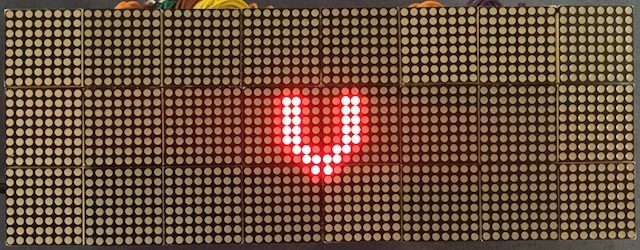
Image credit
Here is the Arduino sketch: SimpleBitmap, now lest go over it:
First, we have to initialize the display, as in the above chapter Setting things up. Next, we have to create data that can hold our bitmap - it will have 8x2 bytes. It gives us up to 8 lines and 16 horizontal pixels. But the size of our bitmap is 9x8 pixels (width x height), which will also be the size of the painted rectangle. It should be as small as possible so that you can place another bitmap next to it.
The display will only paint the rectangle given by width/height and not the whole data array.
void setup() {
  util_setup();
  log_setup();

  ss = createSS();

  disp = new Display(8, 3, ss);
  disp->setup();

  data = alloc2DArray8(8, 2);
  data[0][0] = B01100001; data[0][1] = B10000000;
  data[1][0] = B01100001; data[1][1] = B10000000;
  data[2][0] = B01100001; data[2][1] = B10000000;
  data[3][0] = B01100001; data[3][1] = B10000000;
  data[4][0] = B01100001; data[4][1] = B10000000;
  data[5][0] = B00110011; data[5][1] = B00000000;
  data[6][0] = B00011110; data[6][1] = B00000000;
  data[7][0] = B00001100; data[7][1] = B00000000;

  disp->paint(27, 9, 9, 8, data);
}

void loop() {
  util_cycle();
  log_cycle();

  // Paint method updates only the internal buffer, to send data to
  // MAX chips you have to flush the display.
  disp->flush();

  delay(100000);
}
Static Text
Now we will display static text. Actually, those are going to be two independent lines.
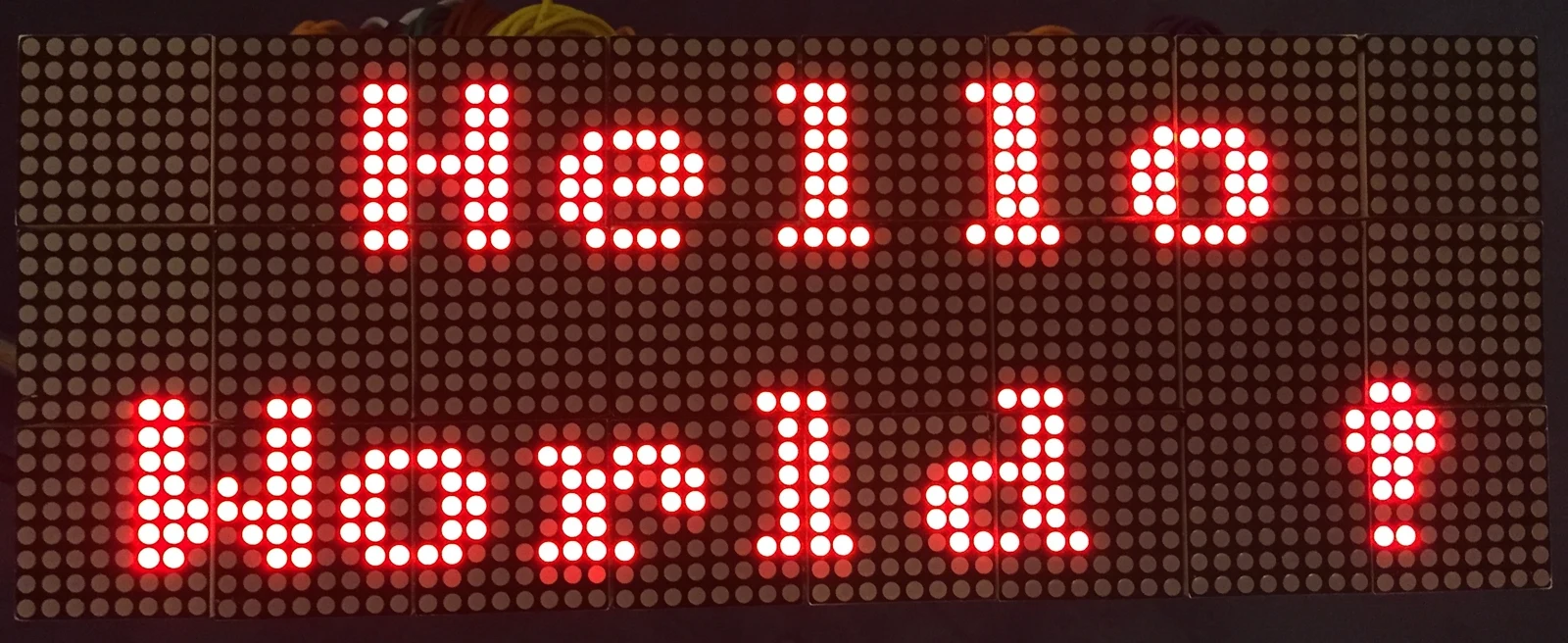
Image credit
Here you can find an Arduino sketch containing the whole example: StaticText.
Your sketch needs a setup method, as we've already seen above (chapter: Setting things up), so we will not discuss it again.
To display text, you should use StaticText8x8.
The font is defined in: Font8x8, each character has 8x8 pixels.
Your code could look like this one (plus initialization stuff from Setting things up):
StaticText8x8 *sta1;
StaticText8x8 *sta2;

void setup() {
  util_setup();
  log_setup();

  ss = createSS();

  disp = new Display(8, 3, ss);
  disp->setup();

  sta1 = new StaticText8x8(disp, 64);
  sta1->box(14, 2, "Hello");

  sta2 = new StaticText8x8(disp, 64);
  sta2->box(5, 15, "World !");
}

void loop() {
  util_cycle();
  log_cycle();
  disp->flush();

  delay(100000);
}
We have created two text areas, each one containing different text and being displayed one under another.
Single Scrolling Text
This time we will display an area containing text that will scroll from left to right. The link below has a youtube video - you can start it by clicking on it.
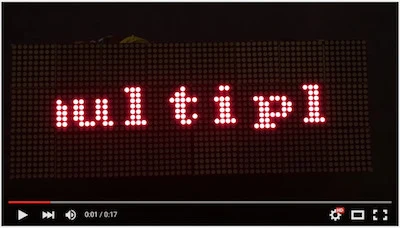
Image credit
doc/img/scrollingTextSimple_youtube.jpg
Maciej Miklas · Apache-2.0Resized without cropping and converted to WebP.
Lest analyze code (Arduino sketch):
Display *disp;

ScrollingText8x8 *message;
const char *textMessage;

void setup() {
  util_setup();
  log_setup();

  ss = createSS();

  disp = new Display(8, 3, ss);
  disp->setup();

  message = new ScrollingText8x8(disp, 48, 50, 5);
  message->init();
  textMessage = "This is an example of multiple scorlling areas ;)";
  message->scroll(8, 8, ScrollingText8x8::LOOP, textMessage);
}

void loop() {
  util_cycle();
  log_cycle();

  message->cycle();

  disp->flush();
}
The initialization of the display is the same as in the examples above, so it's omitted here.
To display scrolling text, we are using ScrollingText8x8. In setup(), we are creating an instance of this class and calling method scroll(...). This part only initializes scrolling but does not play the animation itself. To play the animation, you have to call cycle() and flush() in the main loop, and you must not have any additional delays there; otherwise, you might get jagged animation.
While creating ScrollingText8x8, we provided the animation's speed - actually, it's a delay of 50ms per frame. Now calling cycle() in the main loop will produce animation frames according to provided delay. When the time comes, method cycle() will update the display, and method flush() will send updated content to MAX chips.
The full implementation of ScrollingText8x8 is nonblocking and consumes the CPU only when something is to be done. Internally it uses using simple State Machine.
One last thing: You must keep text used for animation in global variable to avoid garbage collection. It's not being copied in scroll() to prevent memory fragmentation.
Scrolling Text Mixed
This example is similar to the one above, but we will display several scrolling areas now. To view the animation on youtube, click on the image.
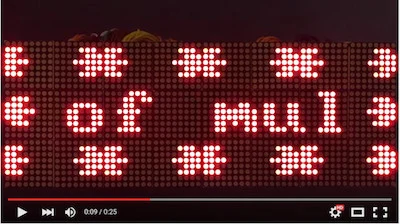
Image credit
doc/img/scrollingTextMixed_youtube.jpg
Maciej Miklas · Apache-2.0Resized without cropping and converted to WebP.
This code is similar to one with one scrolling area, but this time we have a few:
void setup() {
  util_setup();
  log_setup();

  ss = createSS();

  disp = new Display(8, 3, ss);
  disp->setup();

  uint8_t borderSpeed = 20;
  textUpDown = "* * * * * ";
  up = new ScrollingText8x8(disp, 64, borderSpeed, 1);
  up->init();
  up->scroll(0, 0, ScrollingText8x8::CONTINOUS_LOOP, textUpDown);

  down = new ScrollingText8x8(disp, 64, borderSpeed, 2);
  down->init();
  down->scroll(0, 16, ScrollingText8x8::CONTINOUS_LOOP, textUpDown);

  textLeftRight = "* ";
  left = new ScrollingText8x8(disp, 8, borderSpeed, 3);
  left->init();
  left->scroll(0, 8, ScrollingText8x8::CONTINOUS_LOOP, textLeftRight);

  right = new ScrollingText8x8(disp, 8, borderSpeed, 4);
  right->init();
  right->scroll(56, 8, ScrollingText8x8::CONTINOUS_LOOP, textLeftRight);

  message = new ScrollingText8x8(disp, 48, 50, 5);
  message->init();
  textMessage = "This is an example of multiple scrolling areas ;)";
  message->scroll(8, 8, ScrollingText8x8::LOOP, textMessage);
}

void loop() {
  util_cycle();
  log_cycle();

  up->cycle();
  down->cycle();
  right->cycle();
  message->cycle();
  left->cycle();


  disp->flush();
}
We have created a few instances of ScrollingText8x8, each containing different text and positions on the display. To play the animation, you have to call cycle() on each instance, but you have to call only once flush(). Each call on cycle() will update its part of the display, and flush will send the changed display to MAX chips.
Source and license
Original documentation: Maciej Miklas. Reproduced under Apache-2.0. Individual image credits identify any separately licensed media. The full original copyright and permission notice is retained in that license file.
Republished the complete README text. Reformatted HTML as Markdown, resolved relative links, and served repository images locally. Photos resized without cropping; diagrams retain source resolution. Externally hosted or separately unverified media is linked at its original location. Introductory selection notes are by Meteor Makers; the original author is not responsible for those notes.
Source revision: f95ed486710c. Retrieved 2026-10-29. This is a source snapshot, not a claim that the project was first published today or that its creator endorses Meteor Makers.
Keep exploring
A responsive fade is a timing problem, not a processor contest. JLed and Arduino examples show how to animate light while the rest of a small interface keeps working.
Image credit
doc/jled-wasm.png
Jan Delgado; graphics created with Fritzing · MIT + Fritzing CC BY-SA 3.0Resized without cropping and converted to a WebP reading preview. Full-resolution original remains available.
Jan Delgado's complete JLed guide and selected original example chapters, with wiring diagrams, timing plots, and the full LED demonstration animation.
Image credit
doc/jled-wasm.png
Jan Delgado; graphics created with Fritzing · MIT + Fritzing CC BY-SA 3.0Resized without cropping and converted to WebP for the project card.
The original anyon_e creation story: a removable mechanical keyboard, custom electronics, a 4K OLED display, power-system work, Linux bring-up, and a machined chassis.
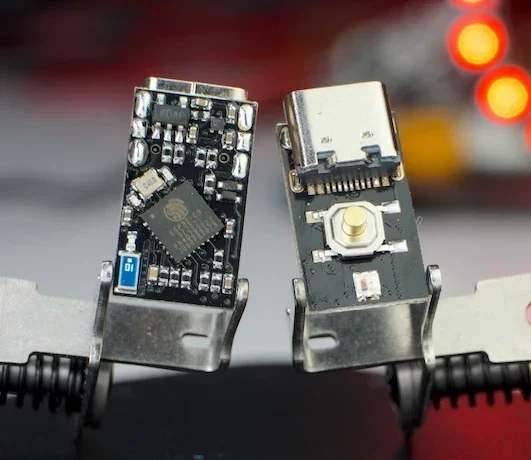
The creator's complete writeup covers latching power, GPIOs, battery connections, flashing, measured current traces and original hardware photos.
Image credit
docs/pc3t_tn_2.JPG
makermoekoe · MITResized without cropping and converted to WebP for the project card.