
AirCube: StuckAtPrototype's Open Air-Quality Monitor and Illustrated Build Guide
Original writeup by StuckAtPrototype and AirCube contributors
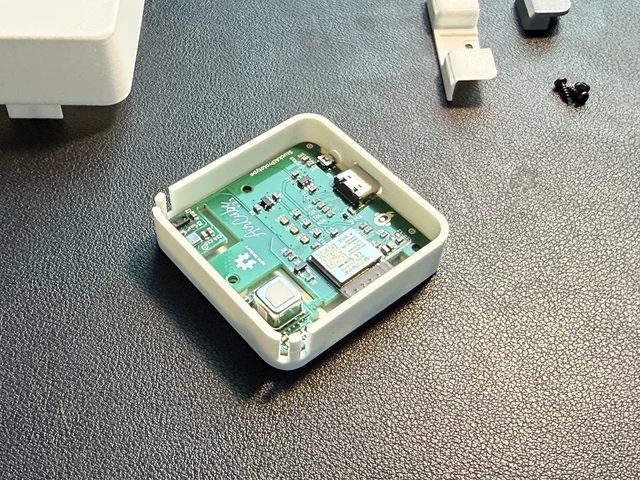
Image credit
mechanical/guide_images/pro_C.jpg
StuckAtPrototype, AirCube contributors · Apache-2.0Resized without cropping and converted to WebP.
Before you build
StuckAtPrototype's original project and contributor credits are retained below. These nine complete repository documents cover the overview, photographed Base/Pro assembly, firmware updates, Home Assistant, community SmartThings integration, development, Bluetooth protocol and firmware/web builds. Assembly begins with a populated PCB and printed parts; it is not a ten-minute PCB fabrication tutorial. Base eCO2 is a VOC-derived estimate, not a direct carbon-dioxide measurement. Pro adds an SCD41 true-CO2 sensor. Preserve the source's warm-up and calibration limitations: a green LED is not proof that a room is safe, and this is not a medical or certified life-safety instrument. The pictured open board is the Pro model. Release versions and vendor instructions are pinned to the reviewed source revision, not a promise that every future Home Assistant or SmartThings release behaves identically. No creator endorsement of this republication is claimed.
- Difficulty (editorial)
- Intermediate
- Documentation
- Build guide
- Hardware
- ESP32, Environmental sensors
A populated Base or Pro PCB, printed enclosure parts, a data-capable USB cable and the exact integration's prerequisites.
The creator's complete assembly, firmware, Home Assistant and integration documentation, with real Base and Pro build photographs.
AirCube
See your air. AirCube is a desktop air quality monitor with built-in Home Assistant support over Zigbee or Bluetooth (BLE). Every model tracks temperature, humidity, eCO2, eTVOC, and VOC Level; AirCube Pro also measures true CO2 and ambient light. A glanceable LED shows the current air quality.
Works standalone out of the box. Pairs with Home Assistant in minutes. Other platforms are supported through community-contributed extensions.
AirCube Web -- Live readings, history and firmware updates in your browser. Nothing to install.
Watch the overview -- What AirCube does and why it's open source, in under three minutes.
StuckAtPrototype Labs -- Step-by-step video walkthroughs: ZHA setup, Zigbee2MQTT setup, and updating firmware from the browser.
AirCube -- Assembled AirCube
AirCube Populated PCB -- AirCube Populated PCB
Getting Started
1. Plug it in -- Connect the USB-C cable to any USB port or charger. AirCube powers on automatically.
2. Wait for warm-up -- The air quality sensor needs about 3 minutes to stabilize after power-on. During this time, the LED may not reflect accurate readings.
3. Read the color -- Once warmed up, the LED tells you everything:
| LED Color | Air Quality |
|---|---|
| Green | Good |
| Yellow | Moderate |
| Orange | Poor |
| Red | Bad -- consider ventilating |
The color shifts smoothly as conditions change. No app needed -- just glance at it.
Firmware 1.5.0 and above drive the LED from canonical VOC Level (TVOC-derived, absolute). The color is a smooth green-to-red gradient -- same feel as older firmware, but tied to fixed indoor-air bands instead of the relative AQI-S baseline. See LED Reference for the exact mapping. Firmware 1.4.3 and below used the same gradient shape, but driven by AQI-S instead.
4. Adjust brightness -- Press the button to cycle through brightness levels.
That's it. AirCube works out of the box with no setup, no accounts, and no Wi-Fi.
Base vs. Pro
Both models use the ScioSense ENS161 for VOC Level, eCO2, and eTVOC. Choose Pro when you also want a direct CO2 measurement and automatic LED dimming based on room light.
| Feature | Base | Pro |
|---|---|---|
| VOC Level, eCO2, and eTVOC | ENS161 | ENS161 |
| Temperature and humidity | ENS210 | Sensirion SCD41 |
| True CO2 | -- | Sensirion SCD41 (NDIR) |
| Ambient light | -- | VCNL4040 |
| Automatic LED dimming | -- | Yes |
| LED air-quality source | VOC Level | Whichever is worse: VOC Level or true CO2 |
eCO2 vs. true CO2: eCO2 is an estimate derived from detected VOCs. The Pro's SCD41 measures CO2 directly using NDIR, while the ENS161 still detects odors and fumes that a pure CO2 sensor can miss.
What AirCube Measures
| Measurement | Range | What It Tells You |
|---|---|---|
| VOC Level | 0 -- 500 | TVOC-derived score against fixed indoor-air bands (firmware 1.5.0+; 0--500 scale in 1.5.1+) |
| AQI-S (deprecated) | -- | Legacy relative VOC score. As of firmware 1.5.0 this always reports 0 over USB serial -- kept only for compatibility. Use VOC Level instead. |
| eCO2 (equivalent CO2) | 400 -- 65,000 ppm | Estimated CO2 level derived from detected VOCs |
| CO2 (Pro only) | 400 -- 5,000 ppm | True CO2 concentration from the SCD41 (direct NDIR measurement) |
| eTVOC (equivalent Total VOC) | 0 -- 65,000 ppb | Total volatile organic compound concentration |
| Temperature | Room temperature in Celsius | |
| Humidity | 0 -- 100 % | Relative humidity percentage |
| Illuminance (Pro only) | Ambient light in lux; also used to dim the LED automatically |
Understanding the readings
AirCube Base uses a ScioSense ENS161 gas sensor and an ENS210 temperature/humidity sensor. AirCube Pro uses the ENS161 alongside an SCD41 for true CO2, temperature, and humidity, plus a VCNL4040 ambient light sensor.
eCO2 (ppm) -- Estimated CO2 derived from detected VOCs, not a direct CO2 measurement. Useful for judging ventilation; also picks up odors and fumes a pure CO2 sensor would miss.
eTVOC (ppb) -- Total volatile organic compounds in the air. Spikes after cooking or cleaning are normal; sustained high readings mean you should ventilate.
VOC Level (0--500) -- TVOC mapped to a fixed indoor-air scale (firmware 1.5.1+). Linear ramp between band edges; TVOC-only (eCO2 does not affect VOC Level). Reported over Zigbee and USB serial.
| Rating | LED color | VOC Level | TVOC (ppb) |
|---|---|---|---|
| Excellent | Green | 0 -- 15 | 0 -- 65 |
| Good | Green → lime | 15 -- 50 | 65 -- 220 |
| Moderate | Lime → yellow | 50 -- 100 | 220 -- 650 |
| Poor | Yellow → orange → red | 100 -- 200 | 650 -- 2,200 |
| Unhealthy | Red | 200 -- 500 | 2,200 -- 5,500 |
On Base hardware, the LED color is derived from TVOC/VOC Level alone (eCO2 does not drive the LED). VOC Level is linear between band edges, so the LED fades smoothly. See below for Pro's CO2 arbitration.
AQI-S (deprecated, USB serial only) -- A legacy ScioSense relative score from firmware before 1.5.0. As of firmware 1.5.0, AQI-S is deprecated and always reports 0 -- it's kept in the serial output only for compatibility with older tools. Use VOC Level, eCO2/eTVOC, or true CO2 (Pro) instead.
VOC Level drives the LED color on Base hardware. On Pro, the LED shows whichever is worse -- VOC Level or CO2 Level (from the true CO2 reading). See LED Reference.
Warm-up and initial start-up
The ENS161 needs about 3 minutes of warm-up in standard mode before readings stabilize. On the very first power-on of a new sensor the initial start-up takes about 1 hour as the sensor conditions itself. Readings during these periods may be inaccurate -- the LED and status flag will indicate when the sensor is ready.
Built-in vs. community
Maintained by StuckAtPrototype: firmware, hardware, desktop app, and the Home Assistant integration documented in HOME_ASSISTANT.md.
Community-contributed: integrations built and shared by the community. They live in this repo and are welcome, but StuckAtPrototype does not test or ship them. They may require extra setup and can break when a vendor updates their platform. See Community extensions.
Home Assistant Integration
AirCube was designed for Home Assistant. It connects over Zigbee -- no USB cable to your server, no cloud, no Wi-Fi credentials to configure. Plug it in, hold the button for 3 seconds to start pairing, and six core entities show up: temperature, humidity, eCO2, eTVOC, VOC Level, and brightness.
AirCube Pro adds two more: true CO2 (SCD41) and illuminance (VCNL4040). Both are exposed in ZHA and Zigbee2MQTT 2.x -- eight entities total on a Pro.
Once connected you can:
- Track air quality over time with built-in history graphs
- Set up automations -- turn on a fan when eCO2 gets too high, send a notification when VOC Level spikes
- Monitor every room -- each AirCube pairs independently, name them however you like
You'll need: a Zigbee coordinator dongle (we recommend the SONOFF ZBDongle-E, ~$13) plugged into your Home Assistant machine.
Works with ZHA (built-in) and Zigbee2MQTT.
Video walkthroughs: Set up AirCube with ZHA · Set up AirCube with Zigbee2MQTT
Full setup guide: Connecting AirCube to Home Assistant
No Zigbee dongle? AirCube also works over Bluetooth
AirCube boots into BLE mode by default (until you pair it to Zigbee) and broadcasts standard BTHome data -- temperature, humidity, CO2, and TVOC. If your Home Assistant instance has a Bluetooth adapter or an ESPHome Bluetooth proxy nearby, it can often pick up these readings passively, with no pairing step and no Zigbee hardware at all. Building a custom BLE client? See the BLE GATT Protocol reference.
Community extensions
The integrations below are community-contributed. They are not maintained by StuckAtPrototype and compatibility with vendor hub or app updates is not guaranteed.
SmartThings (Samsung Zigbee hub) — community-contributed
Some users run AirCube on a Samsung SmartThings Zigbee hub over Zigbee (no Wi-Fi configuration on the device). The hub must support SmartThings Edge.
By default, the SmartThings app may only show temperature and humidity until you install the community AirCube Zigbee Edge driver from this repository and assign it to the device.
Full setup guide: Connecting AirCube to SmartThings (pairing, SmartThings CLI, driver channel, verification in the app and Advanced Web App).
Troubleshooting: If you only see temperature and humidity, install the AirCube Zigbee Edge driver from smartthings/aircube-zigbee/ and assign it to the device. Details are in SMARTTHINGS.md.
Connect to Your Computer
Plug the AirCube into your computer with a data-capable USB-C cable to see live readings, charts, and history.
In your browser -- nothing to install
AirCube Web connects over USB straight from Chrome or Edge: live readings, LED brightness, history with CSV export, and firmware updates. Click Connect, pick your cube, and you're in.
Download the app
Check the Releases page for a ready-to-run Windows .exe -- no install required.
Or run from source
git clone https://github.com/StuckAtPrototype/AirCube.git
cd AirCube/scripts
pip install -r requirements.txt
python aircube_app.py
Select your serial port, click Connect, and you'll see live data.
Tip: Prefer a minimal taskbar-only view? See the companion AirCube Tray repo -- a lightweight Windows system-tray app that shows VOC Level as a live, color-coded number in your taskbar. It ships its own installer.
Firmware Updates
The current firmware is v2.0.7. It keeps the cube responsive when plugged into a charger or closed port, and on Pro units it disables SCD41 automatic self-calibration (replaced by a 425 ppm fresh-air calibration) and detects a CO2 channel that has stopped reporting. See the v2.0.7 release notes.
Flash it now with AirCube Web or read the Firmware Update Guide for step-by-step instructions.
Video walkthrough: Updating the AirCube is easy (web UI) -- under two minutes, start to finish.
All releases: GitHub Releases
Assembling Your AirCube
Building one yourself from printed parts and a populated PCB? All you need is three M2 x 5 mm screws and a small Phillips screwdriver -- about ten minutes of work.
Assembly Guide -- photo walkthrough for both Base and Pro.
Printable enclosure files live in mechanical/base/ and mechanical/pro/.
LED Reference
Firmware 1.5.0 and above
The LED is a continuous green-to-red gradient driven by canonical VOC Level (TVOC-derived). The hue moves linearly with VOC Level: pure green up to VOC Level 10, then fading green → lime → yellow → orange → red, reaching full red at VOC Level 200. eCO2 does not affect the LED.
flowchart LR
    A["VOC Level 0–10<br/>TVOC 0–~43 ppb"] --> G["Steady green"]
    B["VOC Level 10–200<br/>TVOC ~43–2 200 ppb"] --> GR["Green → lime → yellow → orange → red"]
    C["VOC Level 200+<br/>TVOC 2 200+ ppb"] --> R["Steady red"]
| LED color | VOC Level | TVOC (ppb) | Rating |
|---|---|---|---|
| Steady green | 0 -- 10 | 0 -- ~43 | Excellent |
| Green → lime | 10 -- 50 | ~43 -- 220 | Good |
| Lime → yellow | 50 -- 100 | 220 -- 650 | Moderate |
| Yellow → orange → red | 100 -- 200 | 650 -- 2 200 | Poor |
| Steady red | 200+ | 2 200+ | Unhealthy |
| Flashing blue | -- | -- | Zigbee pairing mode |
Key gradient landmarks: yellow around VOC Level 105 (~730 ppb) and orange around VOC Level 150 (~1,460 ppb). Over Zigbee, TVOC-derived VOC Level is reported alongside eCO2, eTVOC, temperature, humidity, and brightness. AQI-S is deprecated, always reports 0, and does not drive the LED.
On Pro hardware, the LED shows whichever reading is worse: VOC Level (as above) or CO2 Level, a 0--500 score derived from the true SCD41 CO2 reading using the same band scale. If CO2 Level is higher than VOC Level, the LED reflects the CO2 reading instead. On Base hardware, CO2 Level is always 0, so VOC Level always drives the LED.
Firmware 1.4.3 and below (legacy)
Same gradient shape as above, but driven by AQI-S (relative, 24-hour baseline) instead of canonical VOC Level:
| LED | Meaning |
|---|---|
| Steady green | Good air quality (AQI-S 0--10) |
| Yellow through red | Degrading to poor air quality (AQI-S 10--200) |
| Steady red | Poor air quality (AQI-S 200+) |
| Flashing blue | Zigbee pairing mode |
Button
| Action | What It Does |
|---|---|
| Short press | Cycle brightness (off, 10%, 30%, 60%, 100%) |
| Hold 3 seconds | Enter Zigbee pairing mode |
Troubleshooting
LED doesn't turn on
- Make sure the USB-C cable is firmly connected and the power source is active.
- Try a different USB port or charger.
Readings seem wrong right after power-on
- Normal. The air quality sensor needs about 3 minutes to warm up. Readings will stabilize.
Computer doesn't detect AirCube
- Some USB cables are charge-only. Use a cable that supports data.
- Windows users may need to install USB drivers.
- Linux users: add yourself to the
dialoutgroup and re-login.
Home Assistant: eCO2, TVOC, or VOC Level sensors are missing
- The custom quirk or converter isn't loaded yet. See the Home Assistant guide for step-by-step instructions.
Home Assistant: CO2 or Illuminance is missing (Pro)
- These come from standard Zigbee clusters, so ZHA and Zigbee2MQTT 2.x pick them up without any extra configuration. If they're absent, confirm the unit is a Pro (Base has no SCD41 or VCNL4040), then remove and re-pair so the coordinator re-reads the endpoint. The legacy Zigbee2MQTT 1.x converter does not expose them.
Home Assistant: AirCube won't pair
- Make sure permit join is enabled in ZHA or Zigbee2MQTT.
- Hold the button for 3 seconds to enter pairing mode (LED flashes blue).
- Move AirCube closer to the coordinator during pairing.
Open Source
AirCube is fully open source -- firmware, PCB design, enclosure, desktop software, and Home Assistant integration. Community-contributed integrations (see Community extensions) also live in this repository. Everything is under the Apache 2.0 license.
Developers and makers: See the Contributing Guide for build instructions, architecture docs, serial protocol reference, and how to submit changes. Curious about the PCB? These Holes Are Why My Circuit Board Works explains the cutouts in the board.
| StuckAtPrototype Labs | Video walkthroughs: ZHA, Zigbee2MQTT, firmware updates |
| Contributing Guide | Build from source, firmware architecture, serial protocol, how to contribute |
| Assembly Guide | Assemble the printed enclosure -- Base and Pro |
| BLE GATT Protocol | BLE GATT protocol reference for building custom BLE clients |
| Firmware Update Guide | Update your AirCube firmware from a browser |
| AirCube Web | The browser app: Web Serial monitoring, settings and flashing |
| Home Assistant Guide | ZHA and Zigbee2MQTT setup |
| Samsung hub integration | Community-contributed: Edge driver, CLI setup (see Community extensions) |
| GitHub Issues | Bug reports and feature requests |
| License | Apache 2.0 |
Assembling Your AirCube
This guide walks through putting an AirCube together from printed parts and a populated PCB -- Base first, then Pro. Each model takes about ten minutes with a single screwdriver.
You'll need a populated AirCube PCB. If you don't have one, grab the AirCube Populated PCB or build one from the KiCad files in kicad/.
Already assembled? Head back to Getting Started.
What You Need
| Item | Notes |
|---|---|
| 3x M2 x 5 mm screws | Self-tapping, for plastic. Longer screws work too -- they just bottom out deeper. |
| Small Phillips screwdriver | PH0 or similar. Hand-driven, no power tools. |
| Populated AirCube PCB | Base or Pro. |
| All printed parts for your model | See below. |
Printed parts
Base -- files in mechanical/base:
AirCube bottom_prod_12-11.step-- bottom shell, holds the PCBAirCube top 20mm PROD.step-- top shellAirCube air wall 11-7-43.3mf-- air wall, separates the sensor from the rest of the cube
Pro -- files in mechanical/pro:
AirCube bottom_prod_12-11.step-- bottom shell, holds the PCBAirCube_top-7-16-26-716.stl-- top shellAirCube_air_wall_7-14-26-1149.stl-- air wallAirCube_light_wall-7-10-26-1034.stl-- light wall, shapes the LED glowAirCube_button_7-15-26-514.stl-- button cap
Print everything before you start. A missing air wall means taking the whole cube apart again.
Base Assembly
1. Gather your screws
Three M2 x 5 mm self-tapping screws. Longer screws are fine.
2. Print all the parts
Bottom, top, and air wall -- all three on the bench before you begin.
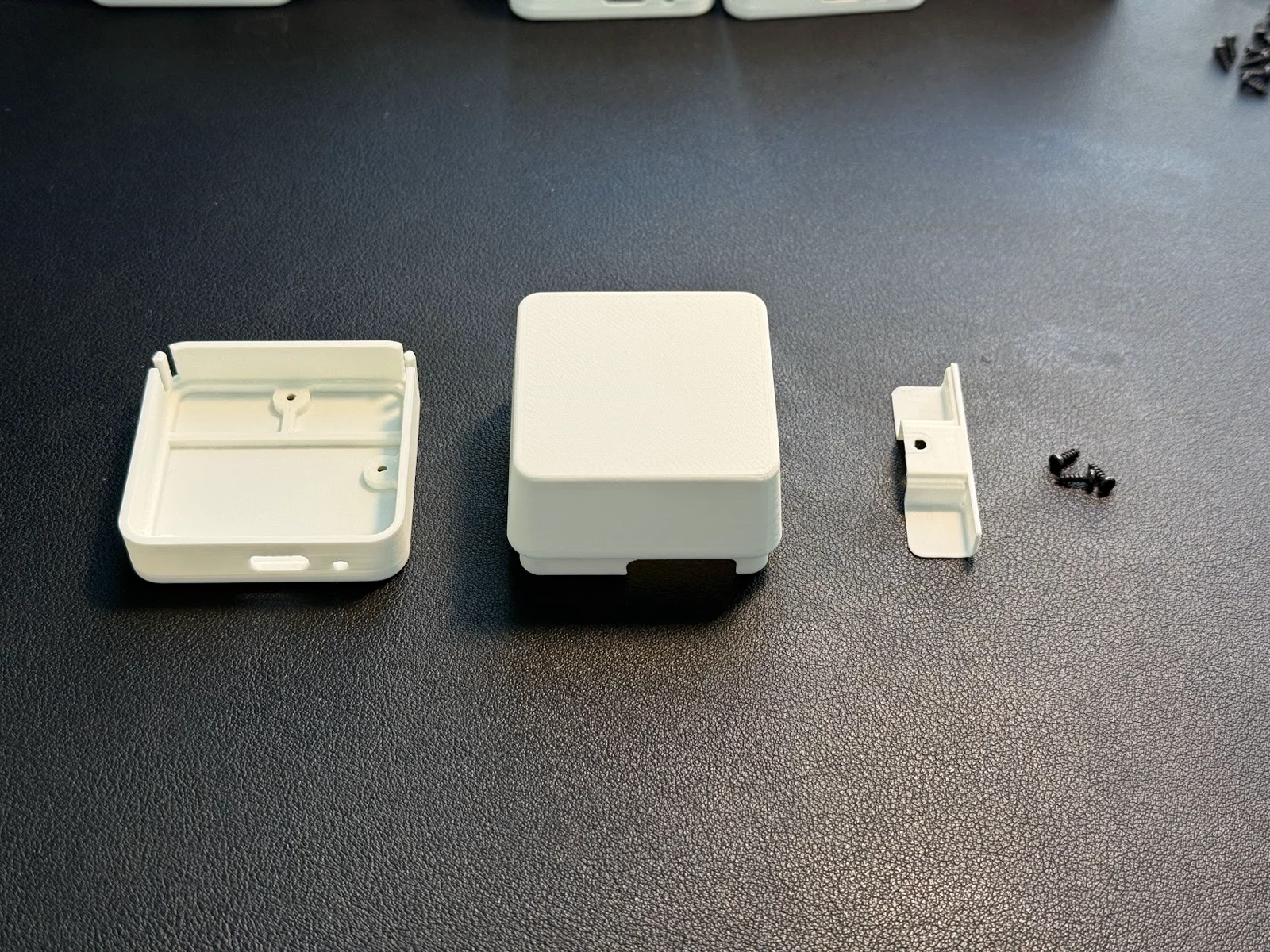
Image credit
mechanical/guide_images/base_A.jpg
StuckAtPrototype, AirCube contributors · Apache-2.0Resized without cropping and converted to WebP.
3. Drop in the PCB, USB-C end first
Angle the board so the USB-C connector slides into its opening in the bottom shell, then lower the rest of the board flat into the pocket.
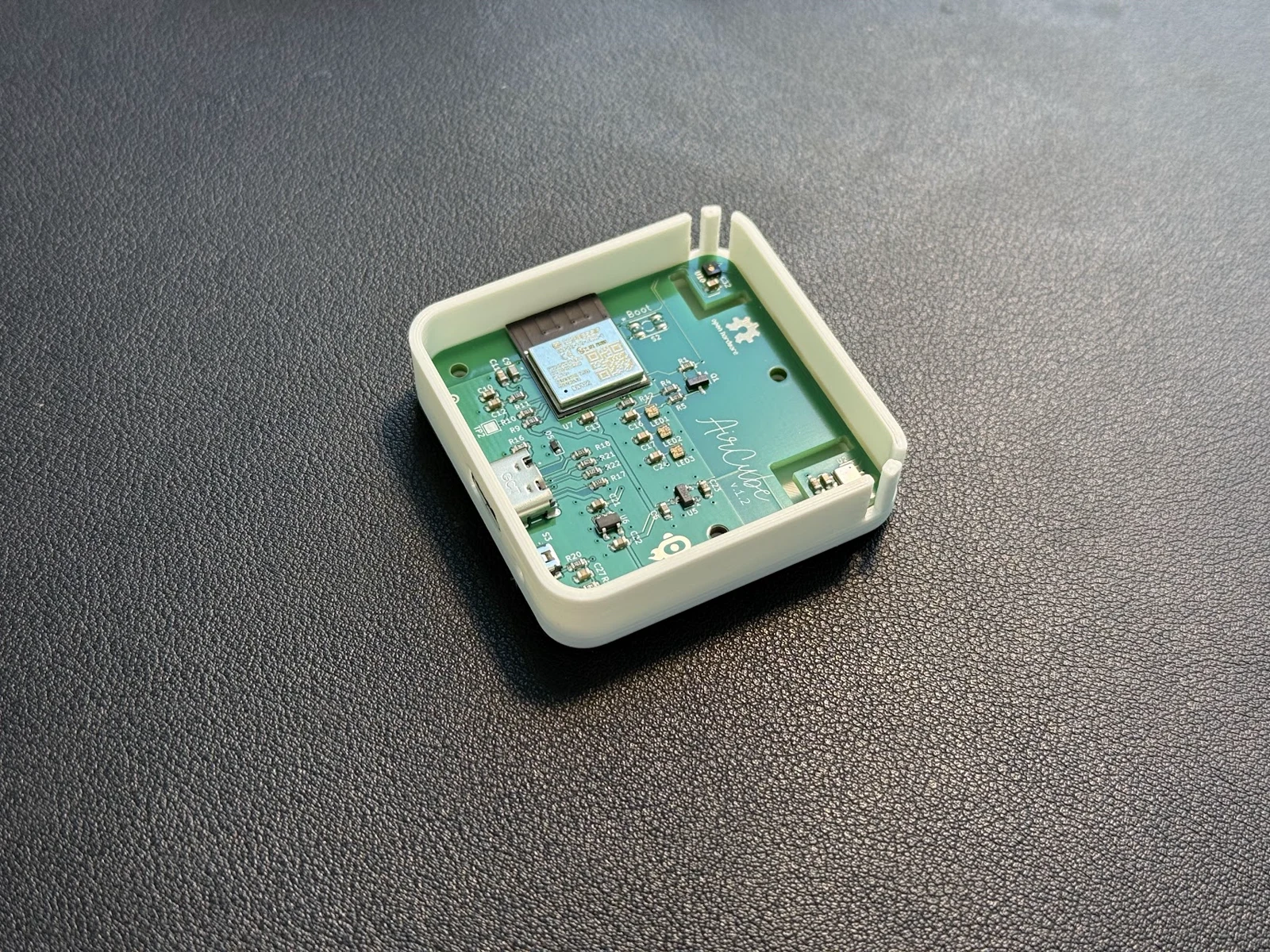
Image credit
mechanical/guide_images/base_B.jpg
StuckAtPrototype, AirCube contributors · Apache-2.0Resized without cropping and converted to WebP.
4. Fit the front screw only
The bottom shell has three screw holes. Drive only the one nearest the front edge for now -- it holds the PCB down and sets up the alignment for the air wall.
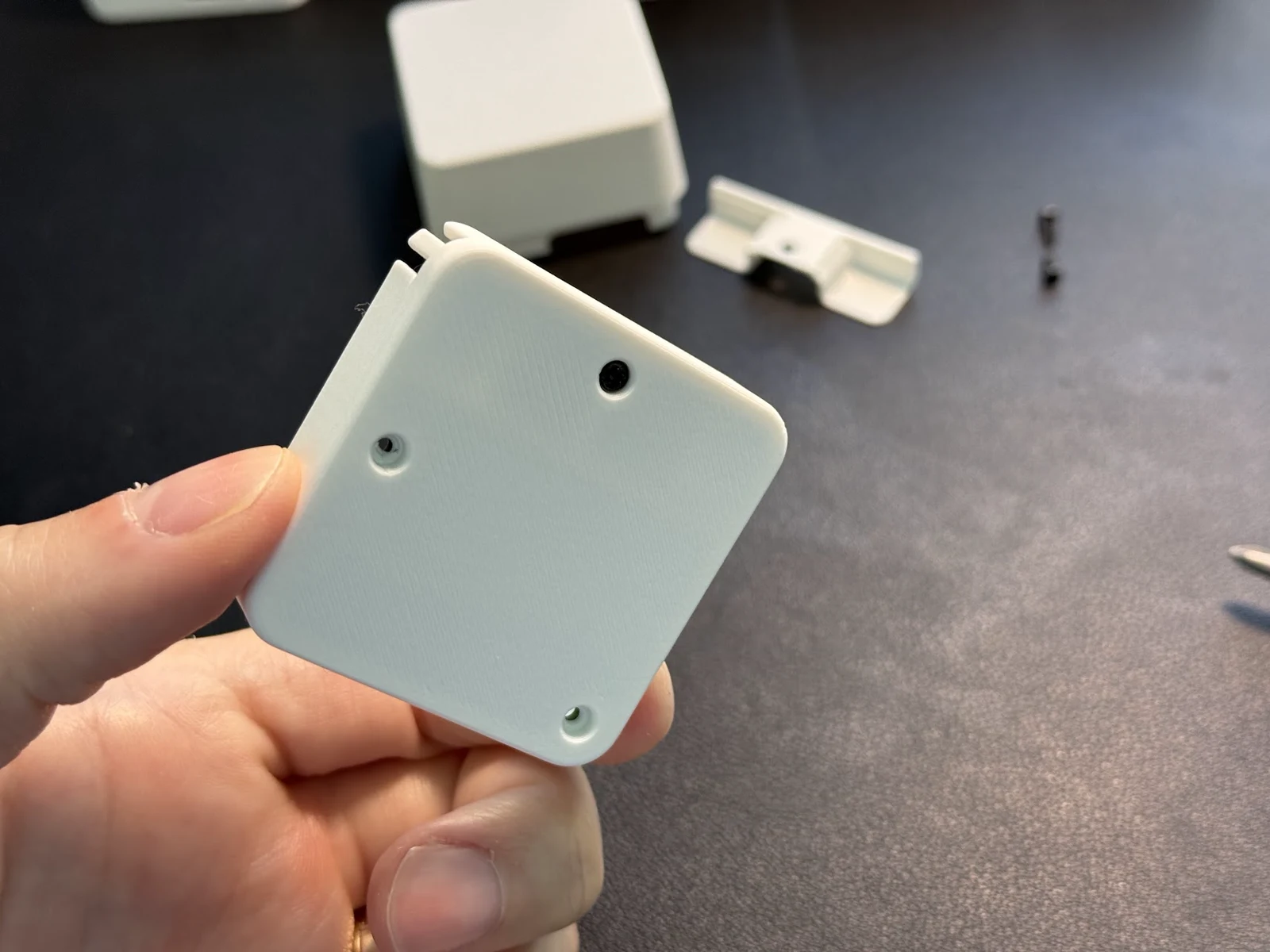
Image credit
mechanical/guide_images/base_C.jpg
StuckAtPrototype, AirCube contributors · Apache-2.0Resized without cropping and converted to WebP.
Leave the other two holes empty until the top is on.
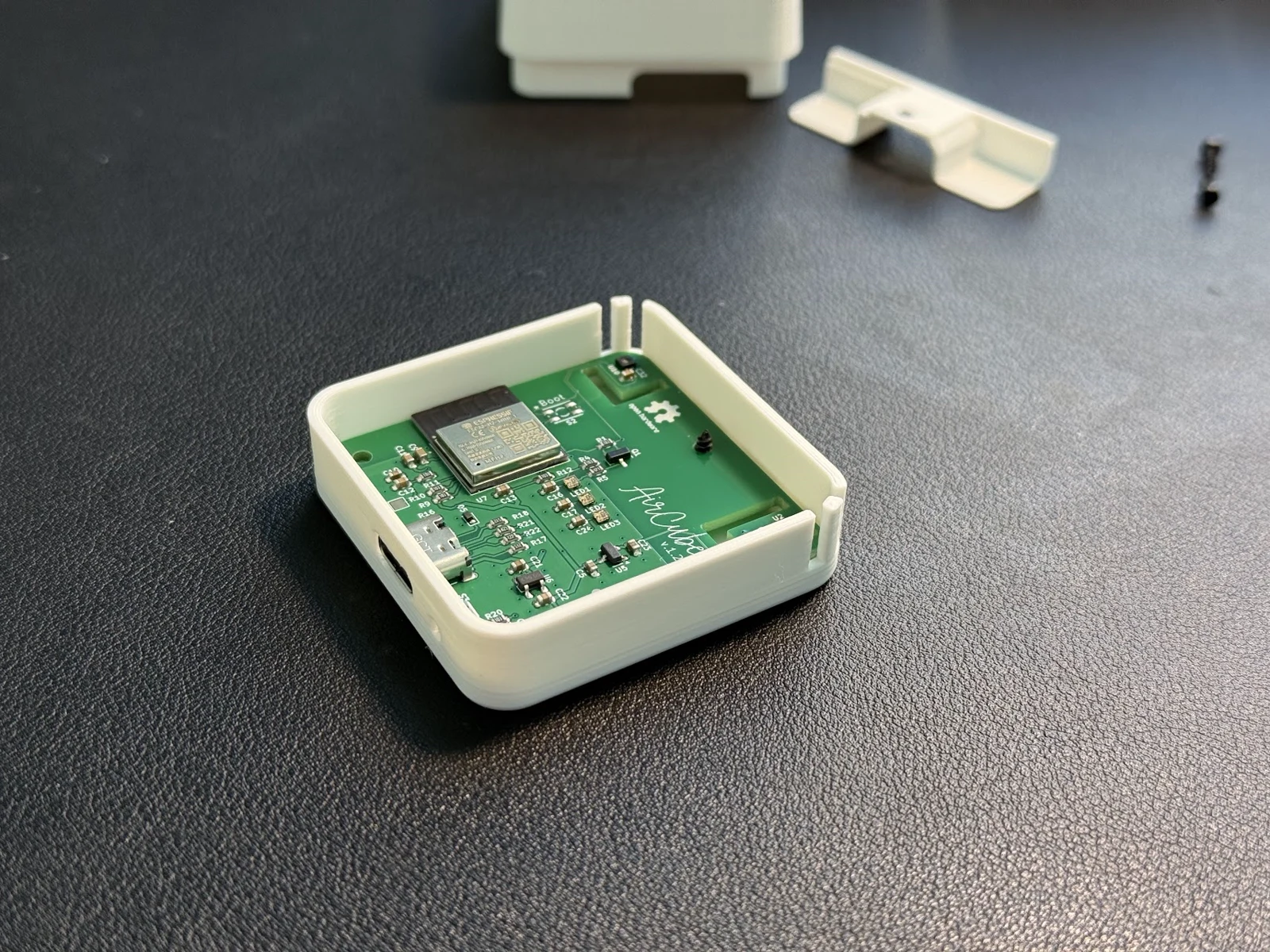
Image credit
mechanical/guide_images/base_D.jpg
StuckAtPrototype, AirCube contributors · Apache-2.0Resized without cropping and converted to WebP.
5. Install the air wall
Drop the air wall into the cutout as pictured. It should sit flat against the PCB with no gap along the side wall.
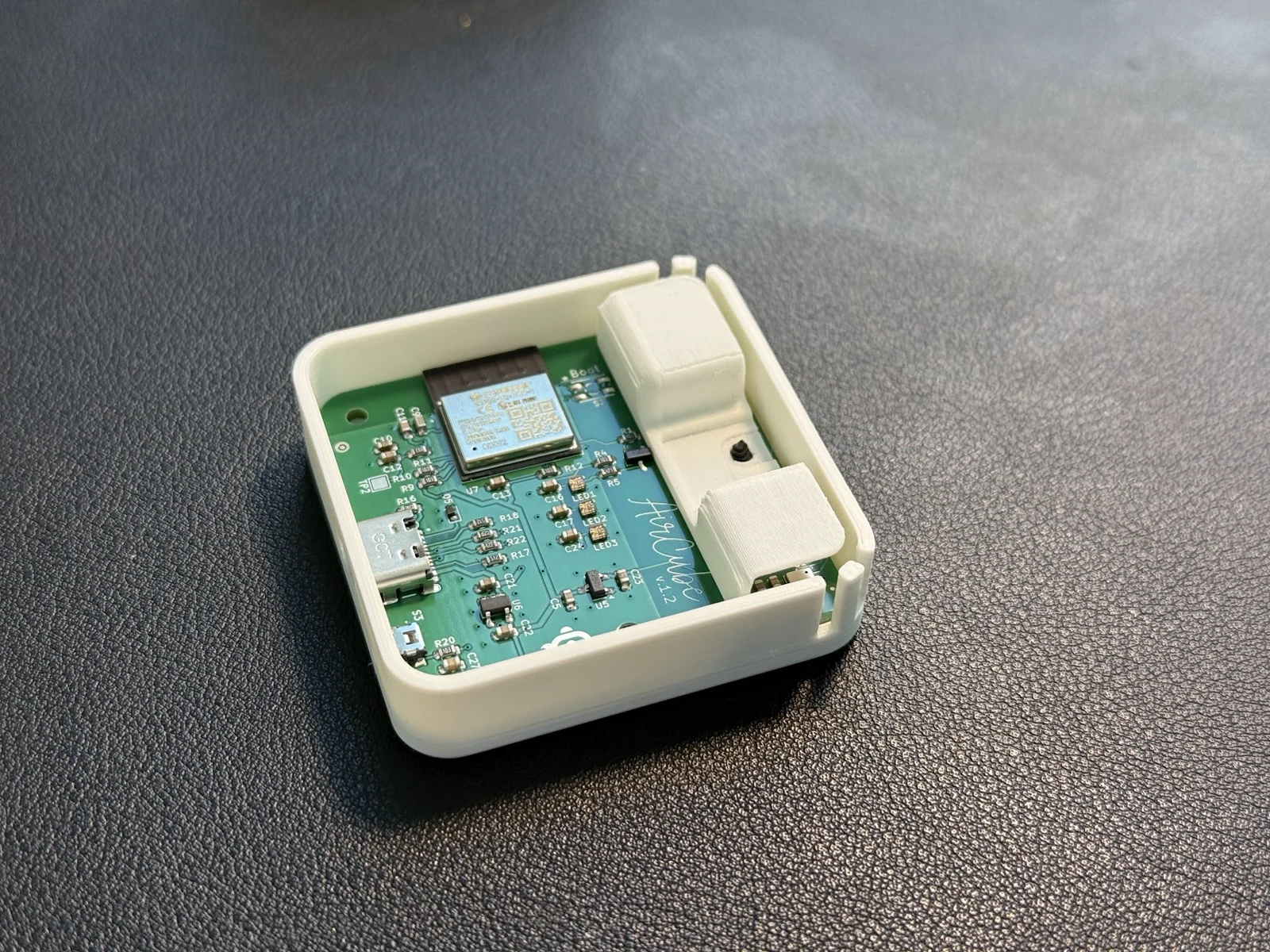
Image credit
mechanical/guide_images/base_E.jpg
StuckAtPrototype, AirCube contributors · Apache-2.0Resized without cropping and converted to WebP.
6. Install the top
Lower the top onto the bottom. Line it up so the USB-C opening at the back stays fully clear -- if the port is pinched or partly covered, lift the top and reseat it.
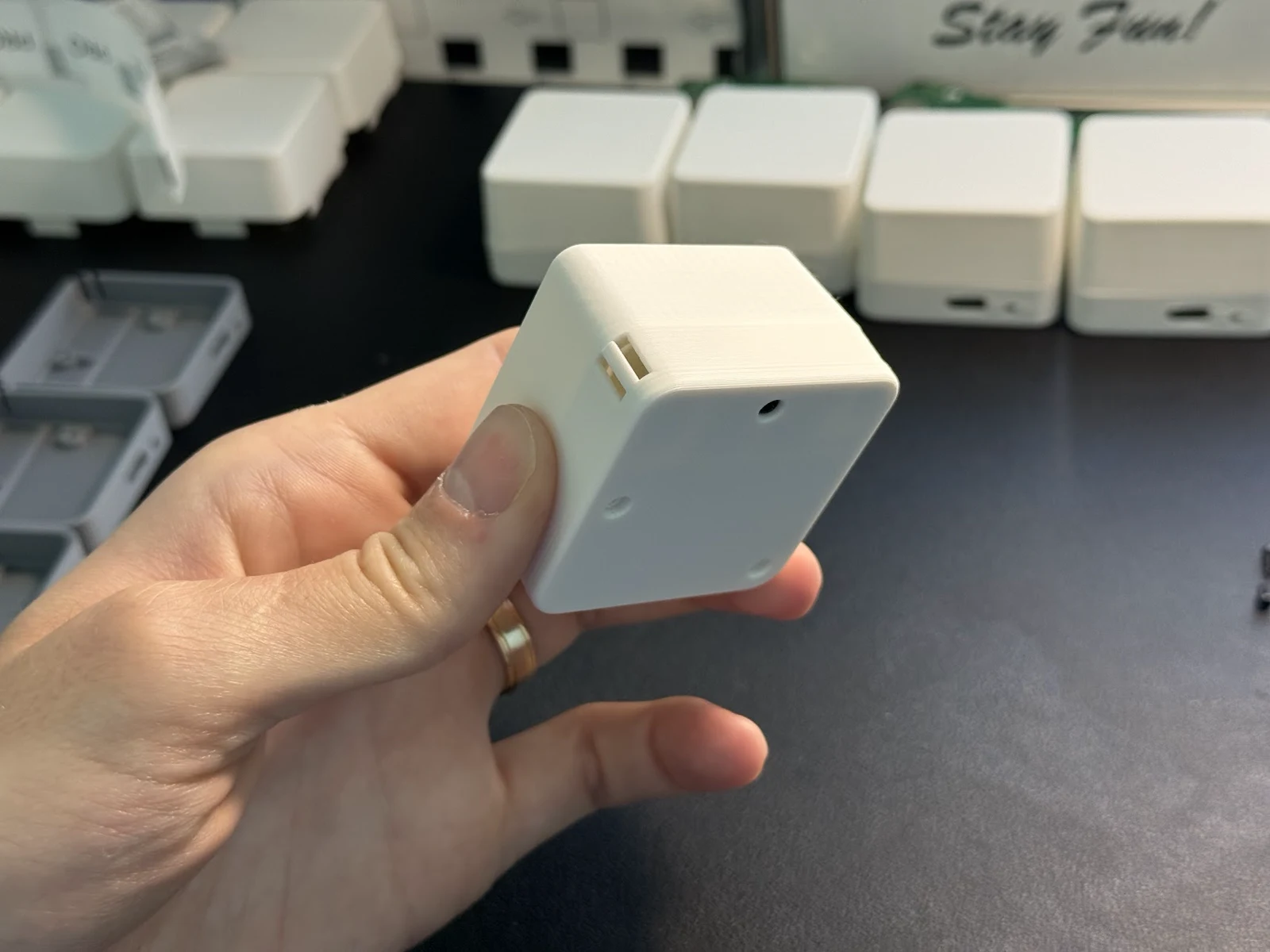
Image credit
mechanical/guide_images/base_F.jpg
StuckAtPrototype, AirCube contributors · Apache-2.0Resized without cropping and converted to WebP.
7. Secure the first screw
Drive the front screw home. Snug, not tight -- these are self-tapping screws in plastic and it's easy to strip the thread.
8. Install the other two screws
Same treatment for the remaining two holes. Done.
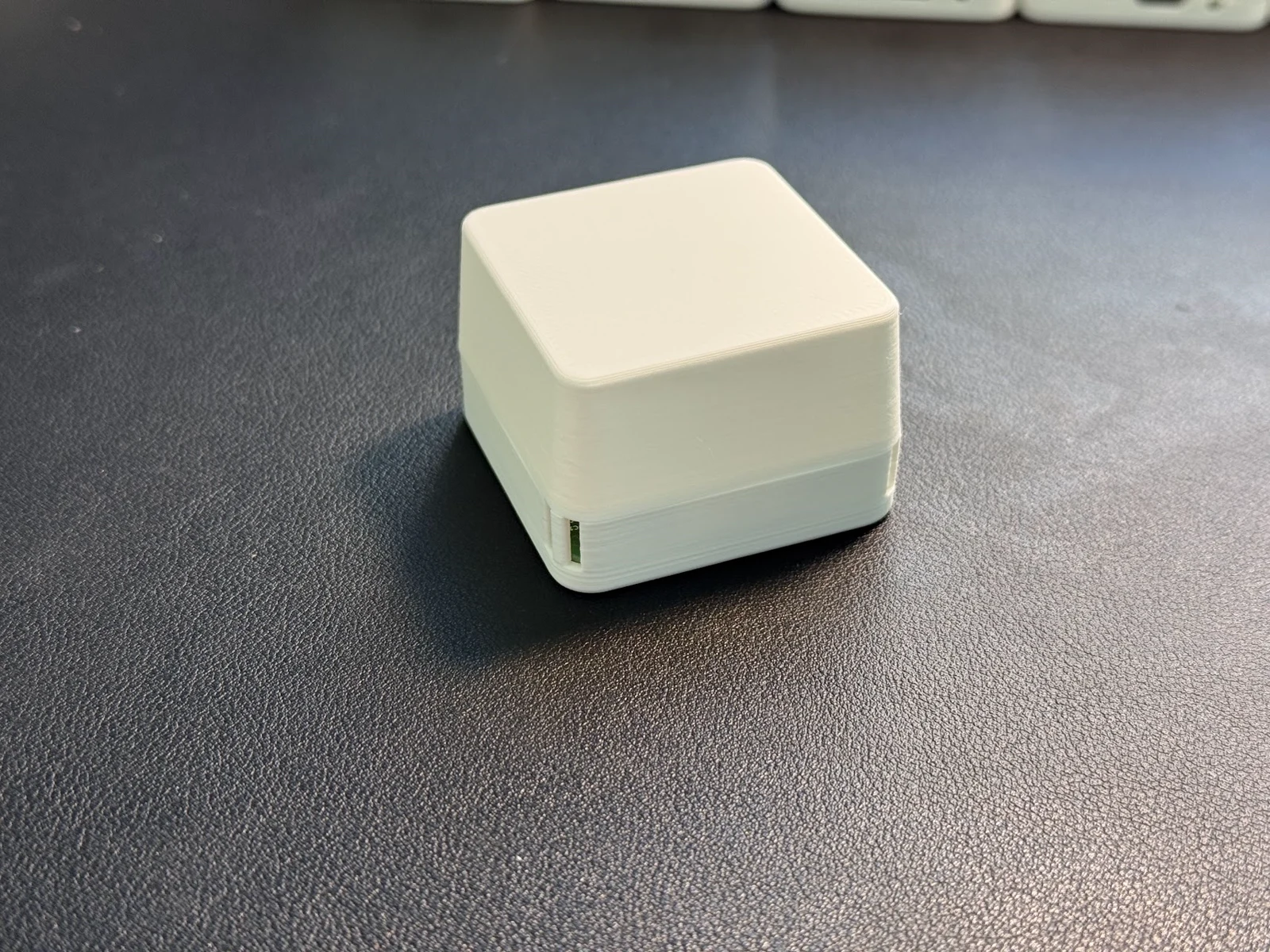
Image credit
mechanical/guide_images/base_G.jpg
StuckAtPrototype, AirCube contributors · Apache-2.0Resized without cropping and converted to WebP.
Pro Assembly
Pro adds two parts to the Base sequence: a button cap and a light wall.
1. Gather your screws
Three M2 x 5 mm self-tapping screws. Longer screws are fine.
2. Print all the parts
Bottom, top, air wall, light wall, and button cap.
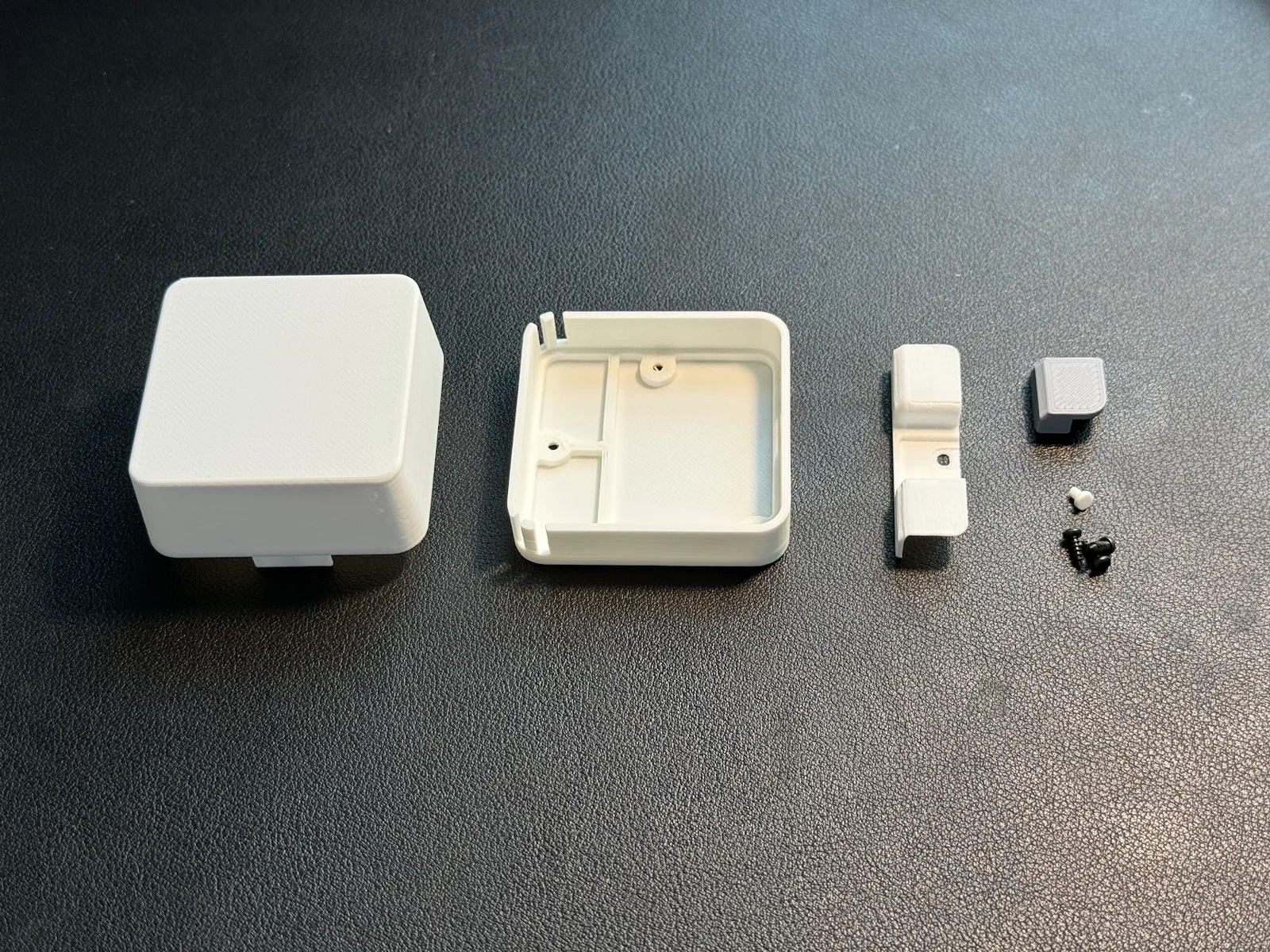
Image credit
mechanical/guide_images/pro_A.jpg
StuckAtPrototype, AirCube contributors · Apache-2.0Resized without cropping and converted to WebP.
3. Put the button into the enclosure
Drop the button cap into its slot in the bottom shell from the inside. It goes in before the PCB -- the board is what holds it captive.
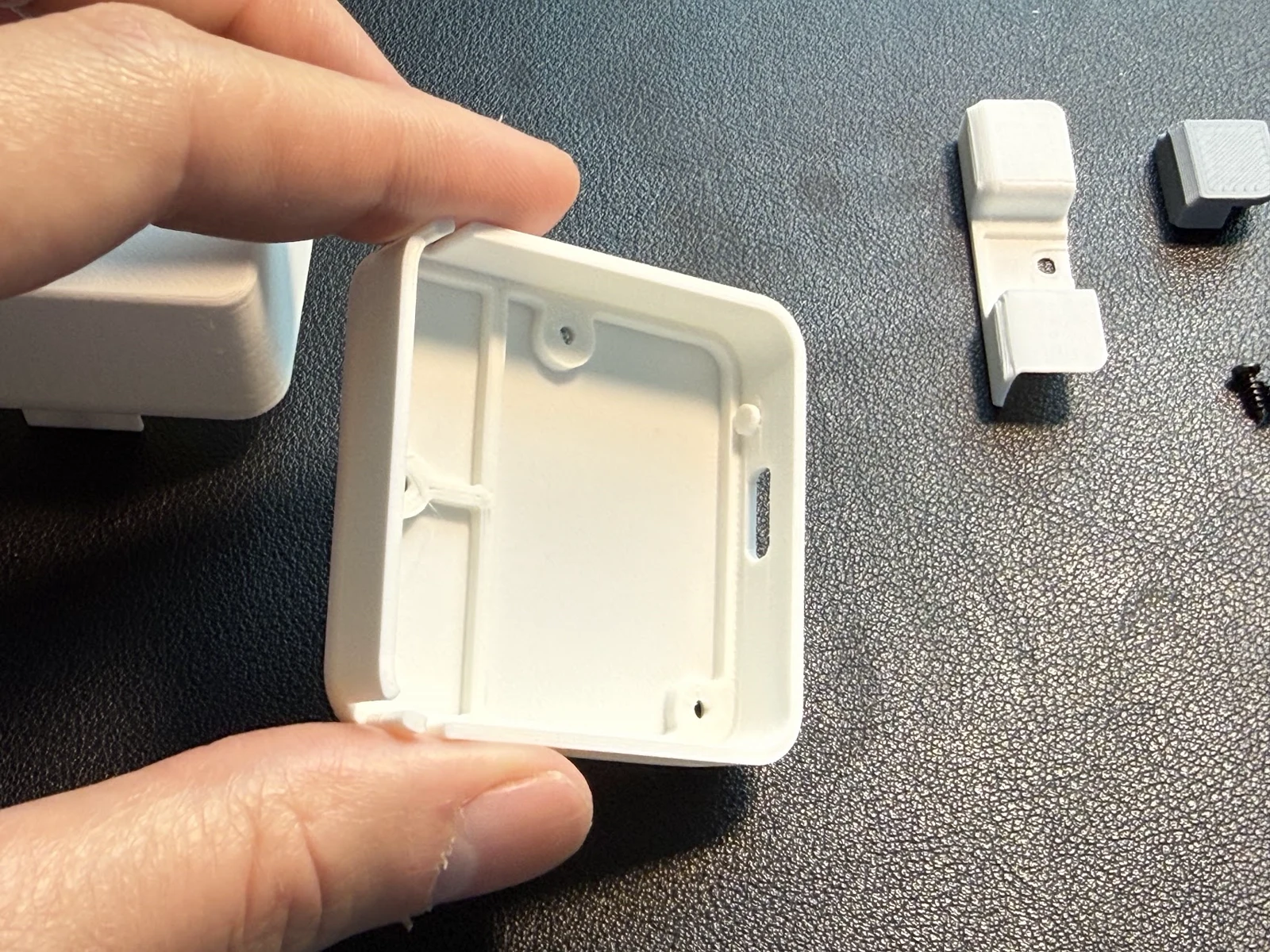
Image credit
mechanical/guide_images/pro_B.jpg
StuckAtPrototype, AirCube contributors · Apache-2.0Resized without cropping and converted to WebP.
4. Drop in the PCB, USB-C end first
Angle the board so the USB-C connector slides into its opening, then lower it flat. Check the button cap is still seated and moves freely against the switch.
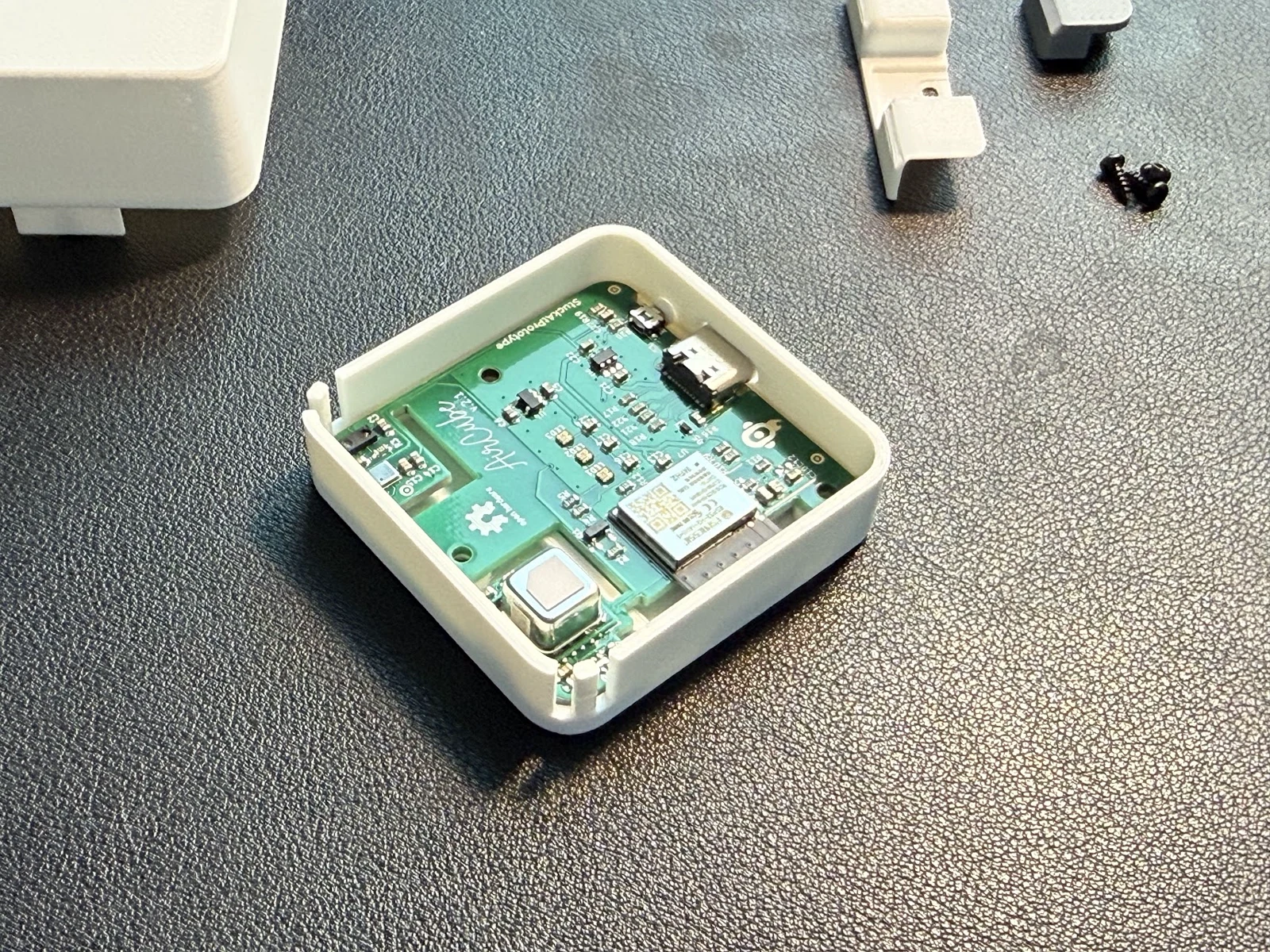
Image credit
mechanical/guide_images/pro_C.jpg
StuckAtPrototype, AirCube contributors · Apache-2.0Resized without cropping and converted to WebP.
5. Fit the front screw only
Drive only the screw nearest the front edge. It holds the PCB down and sets up the alignment for the air wall.
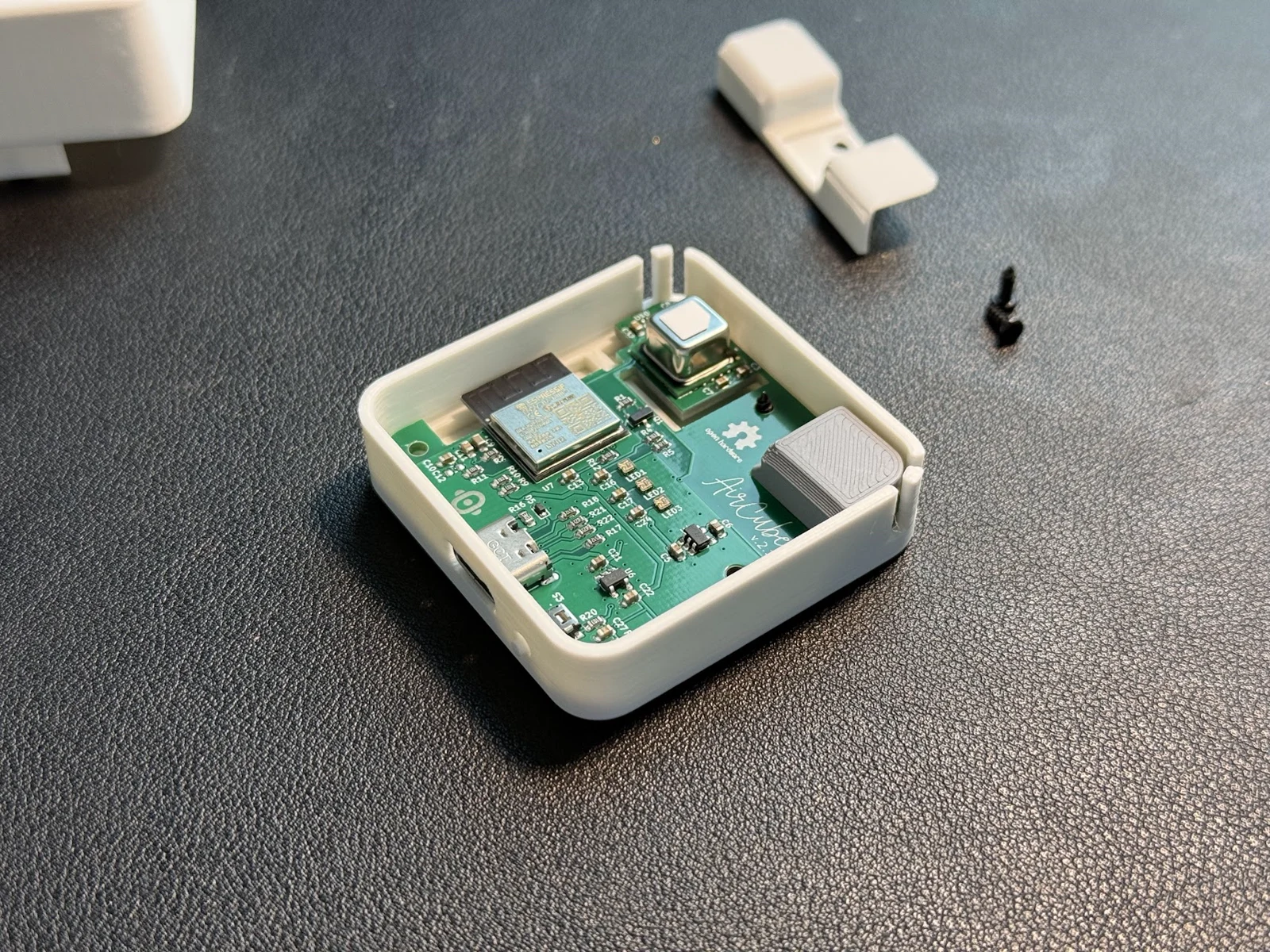
Image credit
mechanical/guide_images/pro_E.jpg
StuckAtPrototype, AirCube contributors · Apache-2.0Resized without cropping and converted to WebP.
6. Install the light wall
Slide the light wall into its pocket along the side wall, as pictured.
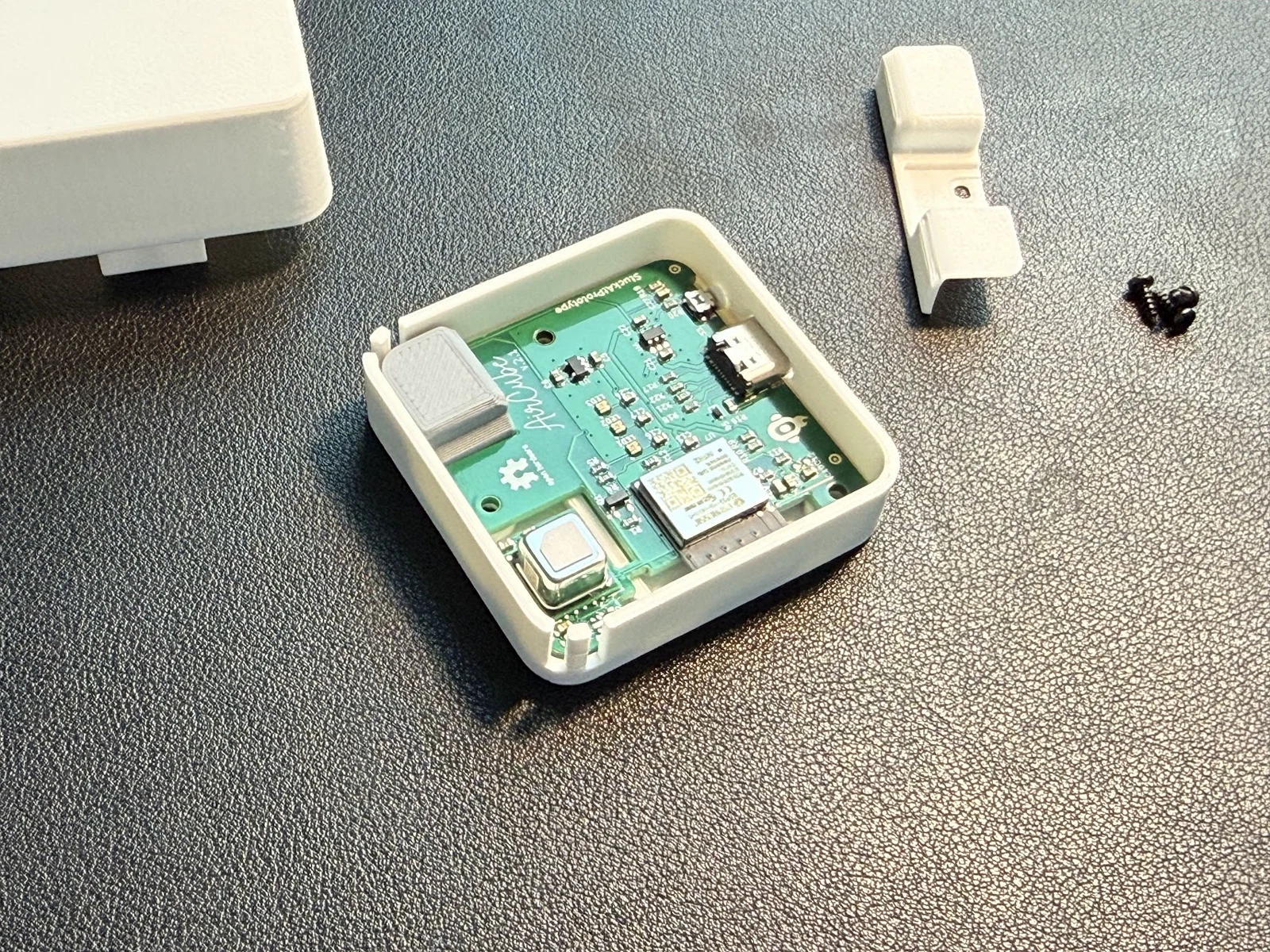
Image credit
mechanical/guide_images/pro_D.jpg
StuckAtPrototype, AirCube contributors · Apache-2.0Resized without cropping and converted to WebP.
7. Install the air wall
Drop the air wall into the cutout as pictured. It should sit flat with no gap along the side wall.
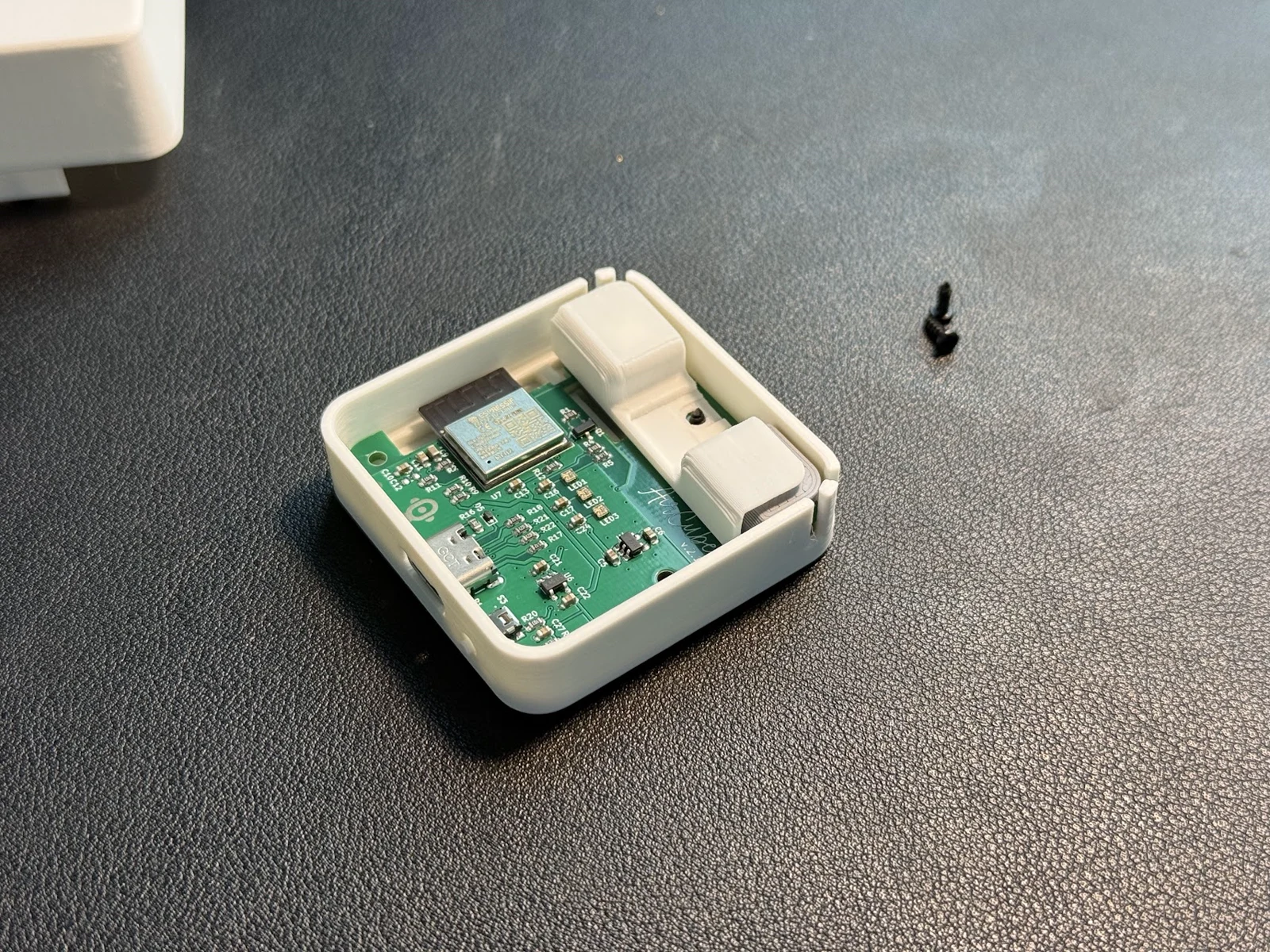
Image credit
mechanical/guide_images/pro_F.jpg
StuckAtPrototype, AirCube contributors · Apache-2.0Resized without cropping and converted to WebP.
8. Install the top
Lower the top on, lined up so the USB-C opening at the back stays fully clear.
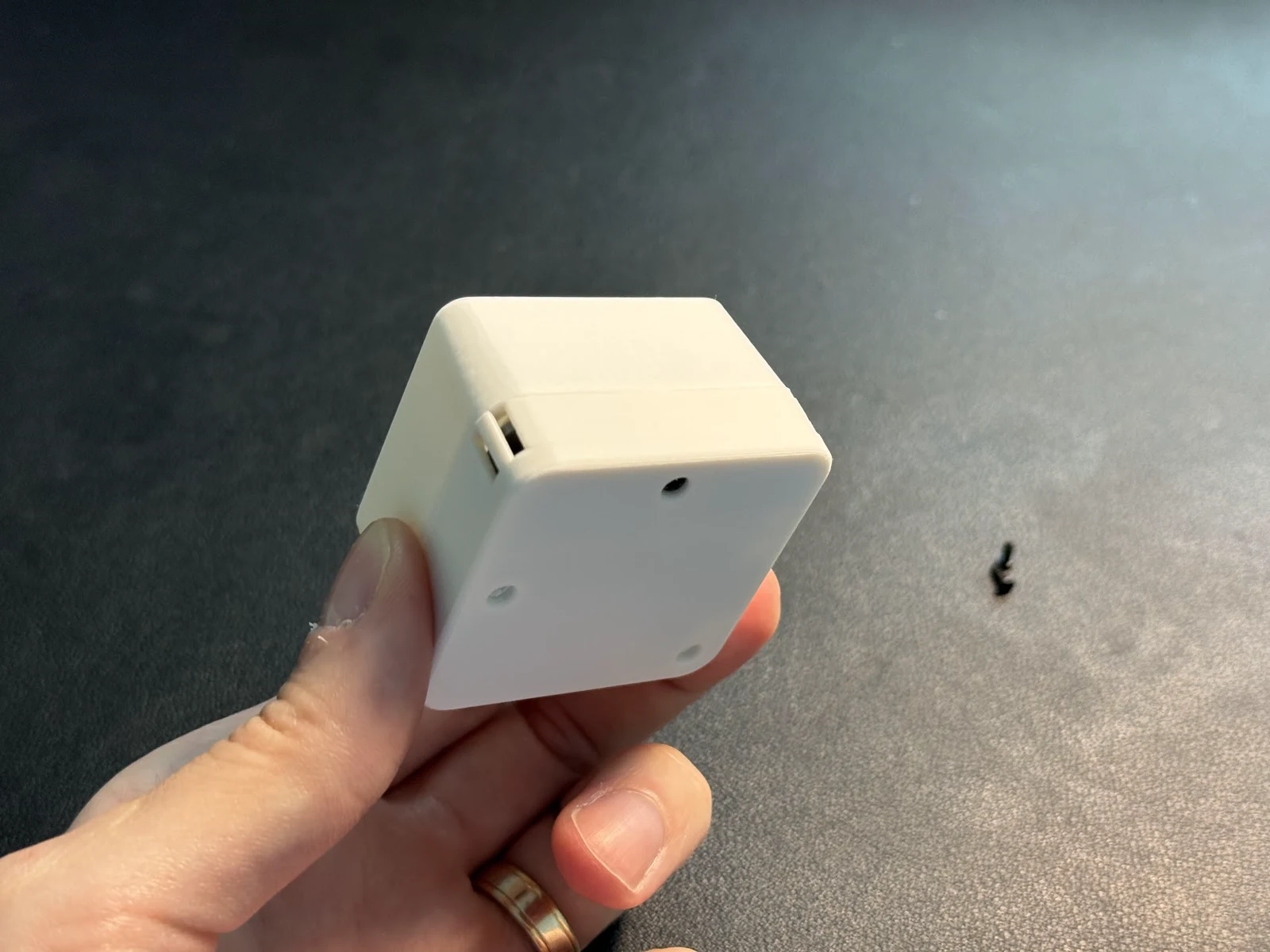
Image credit
mechanical/guide_images/pro_G.jpg
StuckAtPrototype, AirCube contributors · Apache-2.0Resized without cropping and converted to WebP.
9. Secure the first screw
Drive the front screw home. Snug, not tight -- self-tapping screws strip plastic threads easily.
10. Install the other two screws
Same treatment for the remaining two holes. Done.
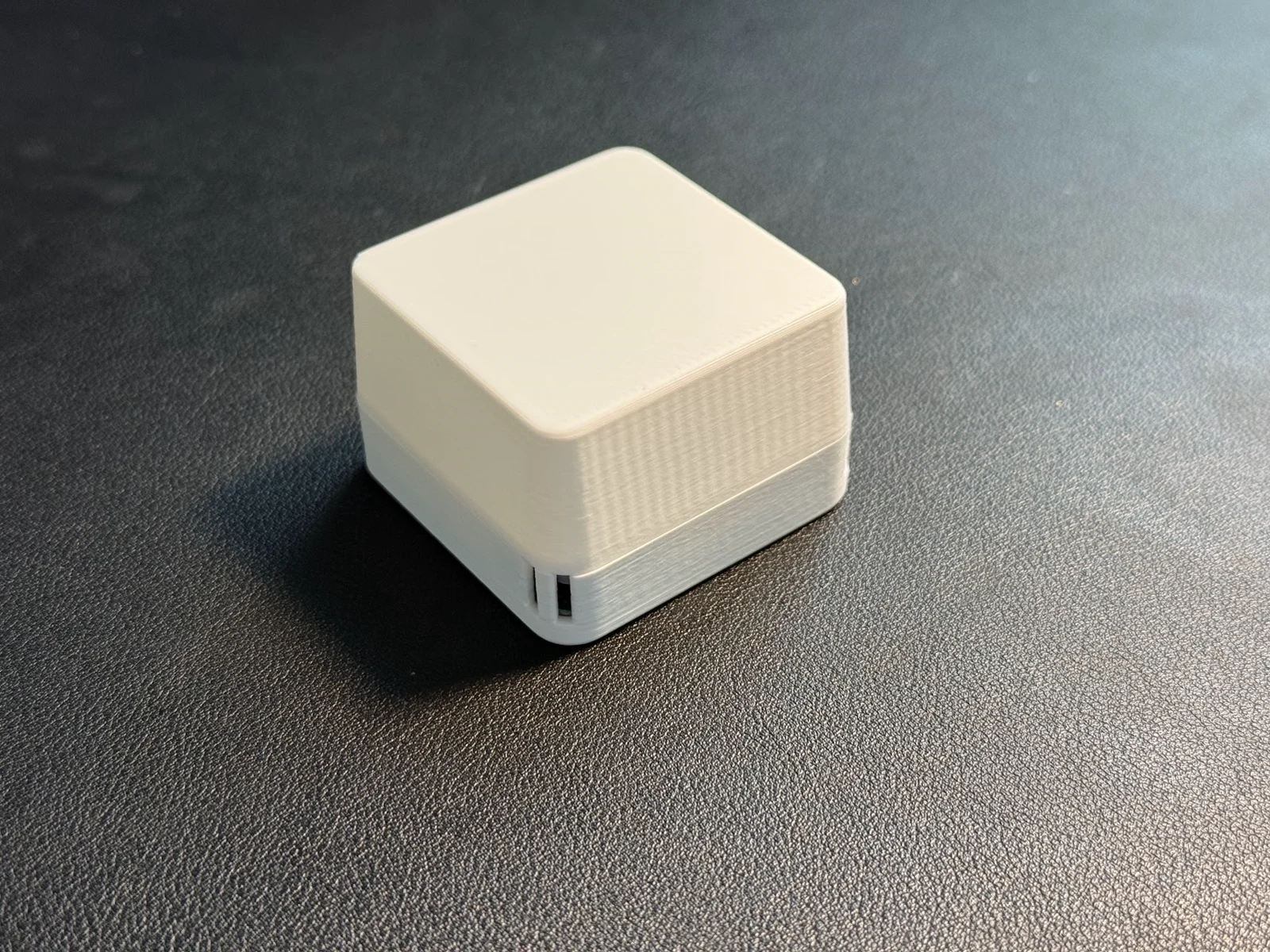
Image credit
mechanical/guide_images/pro_H.jpg
StuckAtPrototype, AirCube contributors · Apache-2.0Resized without cropping and converted to WebP.
Tips and Troubleshooting
Don't overtighten. Every screw here is a self-tapping screw biting into printed plastic. Stop as soon as it feels snug -- another quarter turn is how you strip the hole.
Check the USB-C opening before you drive any screws. With the top resting in place, look down the back face. The port should be fully exposed. Clamping a misaligned top down with screws can crack the shell.
Air wall won't sit flush? Back the front screw out a turn or two, reseat the air wall, then retighten. The front screw sets PCB alignment, so a board that's sitting slightly proud leaves the wall standing off.
Button feels stuck (Pro)? Take the top off and check the cap is square in its slot. It should have a little free travel and click against the switch on the board.
Stripped a screw hole? A slightly longer M2 screw usually bites into fresh plastic deeper down.
Next Steps
| Getting Started | Power it up and read the LED |
| Firmware Update Guide | Flash the latest firmware from your browser |
| Home Assistant Guide | ZHA and Zigbee2MQTT setup |
| Contributing Guide | Build from source, hardware and firmware architecture |
AirCube Firmware Update Guide
Update your AirCube from the browser with AirCube Web. It talks to the cube over USB using the Web Serial API, so there is nothing to install -- and once you are connected you also get live readings, the LED brightness control and your history, the same as the desktop app.
Prefer to watch? Updating the AirCube is easy (web UI) shows the whole process in under two minutes.
Prerequisites
- Browser: Google Chrome or Microsoft Edge (Safari and Firefox do not support Web Serial)
- OS: Windows, macOS, Linux, or ChromeOS
- Cable: A data-capable USB-C cable (charge-only cables won't work)
Step-by-Step
1) Open AirCube Web
Go to stuckatprototype.github.io/AirCube.
2) Connect your AirCube
- Plug the USB-C cable into your AirCube and your computer.
- Close anything else that might be holding the serial port (AirCube Tray, Arduino Serial Monitor,
idf.py monitor). - Click + Connect and pick your AirCube from the browser's device prompt. It appears as "USB JTAG/serial debug unit" or similar.
With one cube connected the app opens straight to its page and starts showing live readings.
3) Flash the firmware
- Open the ⋯ menu on the device page and choose Flash firmware. (You can also reach it from Settings → Firmware.)
- Pick the version you want. The newest release is marked (latest).
- Leave the flash offset at 0x0 (merged release image).
- Click Flash and watch the log. It takes about 30 seconds.
The cube reboots itself when the write finishes and reconnects automatically. The LED should light up green after a few seconds.
Your settings -- brightness level and Zigbee pairing -- are preserved across firmware updates.
Flashing a development build
If you built the firmware yourself with idf.py build, you have two options:
- Flash
build/AirCube.bin(the app only) at offset 0x10000. - Or run
esptool merge-binfirst and flash the merged image at 0x0.
Use the Local .bin button in the flash dialog to pick the file, then choose the matching offset.
Troubleshooting
- No device in the connect dialog: Make sure another app isn't using the serial port. Try a different USB port or cable. On some USB-C cables, flipping the connector helps.
- Browser not supported: Use Chrome or Edge on a desktop OS. Safari and Firefox do not implement Web Serial, and iOS browsers cannot access USB devices at all.
- "Failed to open serial port": Another tab or application already has it. Close AirCube Tray and any serial monitors, then click Refresh in the dialog.
- Flashing fails partway: Unplug the AirCube, plug it back in, and try again. The bootloader is only reached at reset, so a fresh power cycle usually clears it.
- Charge-only cable: Some USB-C cables carry power but no data. Use the same cable that works with the desktop app.
- Linux: If the device never appears, your user may need permission for the ESP USB device. Add a udev rule for
303a:1001or add yourself to thedialoutgroup, then replug. - The cube doesn't reconnect after flashing: Unplug and replug the USB-C cable, then click Connect again.
- "Firmware update needed" banner, brightness and history unavailable: The cube is running firmware from before February 2026 (shipped through January 2026). That firmware streams readings over USB but does not listen for commands on it, so only live readings work until it is updated. Click Update firmware on the banner; flashing works on these units because the bootloader, not the firmware, handles the transfer. If the flash does not start, unplug the cube, plug it back in and click Update firmware again straight away. AirCube Tray can hang on these units; use the web app to update them.
Alternatives
- AirCube Tray -- the Windows desktop app, which can also flash over USB.
- ESP Launchpad -- Espressif's generic web flasher. Use the DIY tab, add the
.binfrom Releases, and set the flash address to0x0. - esptool --
esptool --chip esp32h2 -p PORT write-flash 0x0 AirCube_firmware_vX.Y.Z.bin
Success
After it reboots, the AirCube LED lights up and begins showing air quality colors within a few seconds. The gas sensor needs about 3 minutes to warm up before readings stabilize.
Connecting AirCube to Home Assistant
This guide walks you through adding your AirCube air quality monitor to Home Assistant over Zigbee. After setup, you'll have live temperature, humidity, eCO2, eTVOC, and VOC Level readings plus a brightness slider in your smart home dashboard. On an AirCube Pro you also get true CO2 and illuminance.
The AirCube works with both ZHA (built-in) and Zigbee2MQTT. Pick whichever you already use. If you're starting fresh, ZHA is simpler.
Prefer to follow along? Both methods have a step-by-step video on the StuckAtPrototype Labs channel:
- AirCube Home Assistant ZHA Walkthrough -- includes installing the ZHA integration and the File editor
- AirCube Home Assistant Z2M Walkthrough
A note on names. Home Assistant renamed a couple of things in 2026.2, so the menus below are listed with both names -- use whichever your version shows:
HA 2026.2 and newer HA 2026.1 and earlier Apps / App Store Add-ons / Add-on Store Settings > Zigbee Settings > Devices & Services > ZHA Nothing functional changed -- only the labels. The integration is still called Zigbee Home Automation (ZHA) in the Add Integration list.
What You Need
- AirCube -- powered via USB-C
- Zigbee coordinator dongle -- plugs into your Home Assistant machine
- Home Assistant -- running on any supported hardware (Raspberry Pi, mini PC, etc.)
Recommended Zigbee Coordinators
Any Zigbee 3.0 coordinator works. If you don't have one yet, the SONOFF ZBDongle-E is the easiest to get started with (~$13).
| Dongle | Notes |
|---|---|
| SONOFF ZBDongle-E | Best value, widely available |
| SONOFF ZBDongle-P | Proven, large community |
| ConBee II / III | Also works, popular alternative |
Method A -- ZHA (Recommended)
Use this method if you're using Home Assistant's built-in Zigbee Home Automation integration (the default). No extra apps (add-ons) required.
Video: AirCube Home Assistant ZHA Walkthrough covers every step below.
A1 -- Set Up ZHA
If you already have ZHA running with your coordinator, skip to A2.
- Plug your Zigbee coordinator dongle into your Home Assistant machine.
- Go to Settings > Devices & Services > Add Integration.
- Search for Zigbee Home Automation (ZHA) and add it.
- Select your coordinator from the serial port list and follow the prompts.
A2 -- Add the AirCube Quirk
The AirCube uses a custom Zigbee cluster (0xFC01) for air quality data and a standard Analog Output cluster (0x000D) for LED brightness. The quirk below tells ZHA to create sensor entities for eCO2, eTVOC, and VOC Level, plus a brightness slider (0--100%).
-
Install the File editor app (add-on) if you don't have it:
- Settings > Apps > App Store (Settings > Add-ons > Add-on Store on HA 2026.1 and earlier) -- search File editor, install, start it.
-
Open File editor from the sidebar.
-
Create a folder called
custom_zha_quirksnext to yourconfiguration.yaml.Where do I create it? Open the File editor and look for
configuration.yaml. On HA 2026.x it's in/homeassistant/, on HA 2025.x and earlier it's in/config/. Createcustom_zha_quirksin whichever folder contains yourconfiguration.yaml. Do not create a new folder calledconfig-- just putcustom_zha_quirksdirectly alongsideconfiguration.yaml. -
Inside
custom_zha_quirks, create a new file calledaircube.pyand paste this content. This is kept in sync withzha/aircube.pyin this repo -- if you'd rather not copy/paste, you can grab the file directly from there instead.
"""StuckAtPrototype AirCube air quality monitor quirk for ZHA.

This single file is compatible with both old and new Home Assistant:

  * Modern HA (zigpy >= 0.65.1, i.e. HA >= ~2024.8):
        Full quirks v2 support. Exposes eCO2, tVOC and AQI sensors from the
        custom 0xFC01 cluster plus a Brightness number on the Analog Output
        cluster.

  * Old HA (zigpy < 0.65, e.g. HA 2024.1.x):
        `zigpy.quirks.v2` does not exist yet, so importing QuirkBuilder raises
        ImportError and the whole quirk fails to load. We fall back to a classic
        v1 quirk so the module imports cleanly and the device is named correctly.

        IMPORTANT: on these old ZHA versions there is no supported way to turn
        custom-cluster (0xFC01) attributes into entities -- eCO2/tVOC/AQI will
        NOT appear until HA is updated to a version with quirks v2, or the values
        are read over BLE via the firmware's BTHome broadcaster. Temperature,
        humidity and brightness still work on old HA because they use standard
        Zigbee clusters and are discovered automatically.
"""

from zigpy.quirks import CustomCluster
from zigpy.zcl.foundation import ZCLAttributeDef
import zigpy.types as t


class AirQualityCluster(CustomCluster):
    """AirCube custom air quality cluster (0xFC01) — read-only sensors."""

    cluster_id = 0xFC01
    name = "AirCube Air Quality"
    ep_attribute = "aircube_air_quality"

    class AttributeDefs(CustomCluster.AttributeDefs):
        eco2 = ZCLAttributeDef(
            id=0x0000, type=t.uint16_t, is_manufacturer_specific=False
        )
        etvoc = ZCLAttributeDef(
            id=0x0001, type=t.uint16_t, is_manufacturer_specific=False
        )
        aqi = ZCLAttributeDef(
            id=0x0002, type=t.uint16_t, is_manufacturer_specific=False
        )


ANALOG_OUTPUT_CLUSTER_ID = 0x000D


# ---------------------------------------------------------------------------
# Detect whether this HA/zigpy version supports the quirks v2 API.
# ---------------------------------------------------------------------------
try:
    from zigpy.quirks.v2 import QuirkBuilder
    from zigpy.quirks.v2.homeassistant import EntityType

    try:
        from zigpy.quirks.v2.homeassistant.sensor import (
            SensorDeviceClass,
            SensorStateClass,
        )
    except ImportError:
        from homeassistant.components.sensor import (
            SensorDeviceClass,
            SensorStateClass,
        )

    _HAS_QUIRKS_V2 = True
except ImportError:
    _HAS_QUIRKS_V2 = False


if _HAS_QUIRKS_V2:
    # -----------------------------------------------------------------------
    # Modern HA: full quirks v2 definition.
    # -----------------------------------------------------------------------
    (
        QuirkBuilder("StuckAtPrototype", "AirCube")
        .replaces(AirQualityCluster, endpoint_id=10)
        .sensor(
            AirQualityCluster.AttributeDefs.eco2.name,
            AirQualityCluster.cluster_id,
            endpoint_id=10,
            unit="ppm",
            translation_key="equivalent_co2",
            state_class=SensorStateClass.MEASUREMENT,
            fallback_name="Equivalent CO2",
        )
        .sensor(
            AirQualityCluster.AttributeDefs.etvoc.name,
            AirQualityCluster.cluster_id,
            endpoint_id=10,
            unit="ppb",
            device_class=SensorDeviceClass.VOLATILE_ORGANIC_COMPOUNDS_PARTS,
            state_class=SensorStateClass.MEASUREMENT,
            fallback_name="tVOC",
        )
        .sensor(
            AirQualityCluster.AttributeDefs.aqi.name,
            AirQualityCluster.cluster_id,
            endpoint_id=10,
            state_class=SensorStateClass.MEASUREMENT,
            translation_key="voc_level",
            fallback_name="VOC Level",
        )
        .number(
            "present_value",
            ANALOG_OUTPUT_CLUSTER_ID,
            endpoint_id=10,
            min_value=0,
            max_value=100,
            step=1,
            mode="slider",
            entity_type=EntityType.STANDARD,
            translation_key="brightness",
            fallback_name="Brightness",
        )
        .add_to_registry()
    )
else:
    # -----------------------------------------------------------------------
    # Old HA (no quirks v2): classic v1 fallback.
    #
    # This keeps the module importable (stops the ImportError crash) and names
    # the device. Temperature, humidity and brightness are exposed by ZHA's
    # standard discovery. The eCO2/tVOC/AQI values on cluster 0xFC01 cannot be
    # surfaced as entities on this ZHA version -- update HA, or read them over
    # BLE (BTHome), for those.
    # -----------------------------------------------------------------------
    from zigpy.quirks import CustomDevice
    from zigpy.profiles import zha
    from zigpy.zcl.clusters.general import AnalogOutput, Basic, Identify
    from zigpy.zcl.clusters.measurement import (
        RelativeHumidity,
        TemperatureMeasurement,
    )
    from zhaquirks.const import (
        DEVICE_TYPE,
        ENDPOINTS,
        INPUT_CLUSTERS,
        MODELS_INFO,
        OUTPUT_CLUSTERS,
        PROFILE_ID,
    )

    class AirCube(CustomDevice):
        """AirCube v1 quirk for HA versions without quirks v2."""

        signature = {
            MODELS_INFO: [("StuckAtPrototype", "AirCube")],
            ENDPOINTS: {
                # <SimpleDescriptor endpoint=10 profile=260 device_type=770
                #  input_clusters=[0, 3, 13, 1026, 1029, 64513]
                #  output_clusters=[]>
                10: {
                    PROFILE_ID: zha.PROFILE_ID,
                    DEVICE_TYPE: zha.DeviceType.TEMPERATURE_SENSOR,
                    INPUT_CLUSTERS: [
                        Basic.cluster_id,
                        Identify.cluster_id,
                        AnalogOutput.cluster_id,
                        TemperatureMeasurement.cluster_id,
                        RelativeHumidity.cluster_id,
                        AirQualityCluster.cluster_id,
                    ],
                    OUTPUT_CLUSTERS: [],
                },
            },
        }

        replacement = {
            ENDPOINTS: {
                10: {
                    PROFILE_ID: zha.PROFILE_ID,
                    DEVICE_TYPE: zha.DeviceType.TEMPERATURE_SENSOR,
                    INPUT_CLUSTERS: [
                        Basic,
                        Identify,
                        AnalogOutput,
                        TemperatureMeasurement,
                        RelativeHumidity,
                        AirQualityCluster,
                    ],
                    OUTPUT_CLUSTERS: [],
                },
            },
        }
-
Open your main
configuration.yaml(in/config/) and add:zha: custom_quirks_path: /config/custom_zha_quirks/ enable_quirks: trueNote: Use
/config/custom_zha_quirks/exactly as shown -- this path works on both HA 2025.x and 2026.x, even though the File editor in 2026.x shows the root as/homeassistant/. The trailing/is required on HA 2026.x. Do not change/config/to/homeassistant/in this setting.If you already have a
zha:section, just add the two lines underneath it. -
Restart Home Assistant from Settings > System > Restart.
-
Remove and re-pair the AirCube once after adding the quirk (ZHA caches device data at first join).
A3 -- Pair the AirCube
- Go to Settings > Zigbee (Settings > Devices & Services > ZHA on HA 2026.1 and earlier).
- Click Add Device.
- Plug in your AirCube via USB-C. It boots into BLE mode by default -- Zigbee pairing is not automatic.
- Hold the button on the AirCube for 3 seconds. The LEDs will start flashing blue, and the device reboots into Zigbee mode to begin network steering.
- Wait 10-30 seconds. The AirCube will appear in ZHA. Give it a name like
AirCube Living Room. - When the LEDs stop flashing blue and return to a steady color, pairing is complete.
A4 -- Verify Sensors
Go to Settings > Zigbee > Devices (Settings > Devices & Services > ZHA on HA 2026.1 and earlier) and click on the AirCube device. You should see six entities:
| Entity | What It Does | Unit |
|---|---|---|
| Temperature | Room temperature | C |
| Humidity | Relative humidity | % |
| Equivalent CO2 | eCO2 concentration (estimated) | ppm |
| tVOC | eTVOC concentration | ppb |
| VOC Level | TVOC-derived VOC Level (0--500) | -- |
| Brightness | LED brightness (slider) | 0--100 |
Temperature and humidity are detected automatically by ZHA. eCO2, eTVOC, and VOC Level come from the custom quirk. The brightness slider uses the standard Analog Output cluster.
AirCube Pro shows two more entities, for eight total:
| Entity | What It Does | Unit |
|---|---|---|
| Carbon dioxide | True CO2 from the SCD41 (direct NDIR measurement) | ppm |
| Illuminance | Ambient light from the VCNL4040 | lx |
These use the standard Zigbee CO2 (0x040D) and Illuminance (0x0400) clusters, so ZHA discovers them on its own -- the quirk doesn't need to do anything. They only exist on Pro hardware; a Base has neither sensor. Exact entity labels can vary slightly between Home Assistant versions.
Method B -- Zigbee2MQTT
Use this method if you prefer Zigbee2MQTT or already have it running.
Video: AirCube Home Assistant Z2M Walkthrough covers every step below.
B1 -- Install MQTT Broker
- Go to Settings > Apps > App Store (Settings > Add-ons > Add-on Store on HA 2026.1 and earlier).
- Search for Mosquitto broker, click Install, then Start.
- Go to Settings > Devices & Services > Add Integration.
- Search for MQTT and add it. Accept the defaults.
B2 -- Install Zigbee2MQTT
- Go to Settings > Apps > App Store (Settings > Add-ons > Add-on Store on HA 2026.1 and earlier).
- Click the three-dot menu (top-right) > Repositories.
- Add this URL:
https://github.com/zigbee2mqtt/hassio-zigbee2mqtt - Search for Zigbee2MQTT and click Install.
B3 -- Plug In Your Coordinator
- Plug the Zigbee dongle into your Home Assistant machine.
- Go to Settings > System > Hardware > three-dot menu > All Hardware.
- Find your dongle. Write down its path (e.g.
/dev/ttyACM0).
B4 -- Configure and Start Zigbee2MQTT
- Go to Settings > Apps > Zigbee2MQTT > Configuration tab (Settings > Add-ons > ... on HA 2026.1 and earlier).
- Set the serial port:
serial: port: /dev/ttyACM0 - Enable Start on boot and Watchdog, then click Start.
B5 -- Add the AirCube Converter
The converter file format depends on your Zigbee2MQTT version:
- Z2M 2.x (2024+): Uses ES modules (
.mjs) - Z2M 1.x (legacy): Uses CommonJS (
.js)
Both converter files are in the z2m/ folder of this repo.
Z2M 2.x (Recommended)
-
Open File editor (install from the App Store / Add-on Store if needed).
-
Navigate to the
zigbee2mqttfolder (the one containingconfiguration.yaml) and create anexternal_converterssubfolder next to it. -
Copy
z2m/aircube.mjsinto theexternal_convertersfolder. -
Open
configuration.yamlin thezigbee2mqttfolder and enable external JavaScript:advanced: enable_external_js: trueIf you already have an
advanced:section, just add the one line under it. This step is required. Zigbee2MQTT ships with external converters switched off, and when they are off Z2M never even looks in theexternal_convertersfolder -- you get no error, just a device with no custom sensors. There is an equivalent Enable external JS toggle in the Z2M web UI under Settings > Advanced. -
In the same
configuration.yaml, remove anyexternal_converters:block if one is present:# Delete these lines -- they break converter loading on Z2M 2.x external_converters: - external_converters/aircube.mjsZ2M 2.0 removed this setting. Everything inside the
external_convertersfolder is now loaded automatically, and leaving the old setting in place stops the converter (and sometimes Z2M itself) from starting. -
Restart Zigbee2MQTT from its app (add-on) page.
-
Check the Zigbee2MQTT log. You should see
Loaded external converter 'aircube.mjs'.If you instead seeExternal JS (converters/extensions) is disabled, step 4 did not take effect.
Sample configuration.yaml
A complete, working Z2M 2.x config with the AirCube converter enabled. Yours will have different values for network_key, port, and your MQTT credentials -- copy the structure, not the secrets.
mqtt:
  base_topic: zigbee2mqtt
  server: mqtt://core-mosquitto:1883
  user: your_mqtt_user
  password: your_mqtt_password

serial:
  port: /dev/ttyACM0

advanced:
  # Keep whatever network_key you already have. Changing it un-pairs every device.
  network_key: [1, 2, 3, 4, 5, 6, 7, 8, 9, 10, 11, 12, 13, 14, 15, 16]
  # Required for the AirCube converter. Off by default; nothing in
  # external_converters/ is read while this is false.
  enable_external_js: true

frontend:
  enabled: true
  port: 8099

homeassistant:
  enabled: true

devices:
  '0x1051dbfffe65fc77':
    friendly_name: AirCube Living Room
The converter itself is not referenced anywhere in this file. aircube.mjs just has to exist in the external_converters folder next to configuration.yaml.
Two mistakes that are easy to make here:
- Do not add a second
advanced:block. Ifenable_external_js: falseis already in your config, edit that line in place. YAML does not merge duplicate keys -- Z2M parses the file withjs-yaml, which treats a repeated top-level key as a fatal error, so the bridge will refuse to start. - Do not add an
external_converters:list. That setting was removed in Z2M 2.0. Leaving it in place breaks converter loading.
Z2M 1.x (Legacy)
-
Open File editor.
-
Copy
z2m/aircube.jsinto thezigbee2mqttfolder. -
Open
configuration.yamlin thezigbee2mqttfolder and add:external_converters: - aircube.js -
Restart Zigbee2MQTT from its app (add-on) page.
B6 -- Pair the AirCube
- In the Zigbee2MQTT dashboard, click Permit join (All).
- Plug in your AirCube via USB-C (or hold the button 3 seconds if already plugged in).
- Wait for the LEDs to stop flashing blue.
- Name the device in Zigbee2MQTT (e.g.
AirCube Living Room).
B7 -- Verify Sensors
Go to Settings > Devices & Services > MQTT and click on the AirCube. You should see six entities:
| Entity | What It Does | Unit |
|---|---|---|
| Temperature | Room temperature | C |
| Humidity | Relative humidity | % |
| Equivalent CO2 | eCO2 concentration (estimated) | ppm |
| VOC parts | eTVOC concentration | ppb |
| VOC level | TVOC-derived VOC Level (0--500) | -- |
| Brightness | LED brightness (slider) | 0--100 |
On the Pro, two more entities appear from the dedicated sensors when using Zigbee2MQTT 2.x with aircube.mjs: CO2 (true CO2 from the SCD41, in ppm) and Illuminance (ambient light from the VCNL4040, in lx). These are absent on the Base. The legacy Zigbee2MQTT 1.x aircube.js converter exposes only the six core entities.
If the device card says "Automatically generated definition", the converter did not load. See the troubleshooting section below.
Dashboard
These cards work with both ZHA and Zigbee2MQTT.
Quick Entities Card
Edit your dashboard, click Add Card, choose Entities, and select:
- AirCube Temperature
- AirCube Humidity
- AirCube Equivalent CO2
- AirCube tVOC
- AirCube VOC Level
- AirCube Brightness
- AirCube Carbon dioxide and AirCube Illuminance (Pro only)
VOC Level Gauge
Add a Manual card and paste:
type: gauge
entity: sensor.aircube_living_room_voc_level
name: Air Quality
min: 0
max: 500
severity:
  green: 0
  yellow: 50
  red: 200
24-Hour History
type: history-graph
title: Air Quality - Last 24 Hours
hours_to_show: 24
entities:
  - entity: sensor.aircube_living_room_temperature
  - entity: sensor.aircube_living_room_humidity
  - entity: sensor.aircube_living_room_voc_level
Entity names depend on what you named the device. Check Settings > Devices & Services for the exact entity IDs.
LED Reference
The LED follows canonical VOC Level (TVOC-derived) on a continuous green-to-red gradient. The hue moves linearly with VOC Level, so the color fades smoothly rather than stepping between bands. eCO2 does not affect the LED.
| LED color | VOC Level | TVOC (ppb) | Rating |
|---|---|---|---|
| Steady green | 0--10 | 0--~43 | Excellent |
| Green → lime | 10--50 | ~43--220 | Good |
| Lime → yellow | 50--100 | 220--650 | Moderate |
| Yellow → orange → red | 100--200 | 650--2,200 | Poor |
| Steady red | 200+ | 2,200+ | Unhealthy |
| Flashing blue | -- | -- | Pairing mode (searching for Zigbee network) |
| Off | -- | -- | Brightness set to 0 (press button to cycle) |
On firmware 1.4.3 and below, the same gradient was driven by AQI-S (relative) instead of canonical VOC Level. See the README LED Reference for the full mapping.
Button
| Action | Result |
|---|---|
| Short press | Cycle LED brightness (off, 10%, 30%, 60%, 100%) |
| Hold 3 seconds | Enter Zigbee pairing mode (LEDs flash blue) |
Troubleshooting
The AirCube LEDs flash blue but it never connects
- Make sure pairing/permit join is enabled in ZHA or Zigbee2MQTT.
- Move the AirCube closer to the coordinator. Zigbee works best within 10-30 meters indoors.
- Check that your coordinator is online in the integration dashboard.
Temperature and humidity show up but eCO2 / eTVOC / VOC Level are missing
- The custom quirk (ZHA) or converter (Z2M) is not loaded.
- ZHA: Check that
custom_quirks_pathis set inconfiguration.yamland theaircube.pyfile is in the right folder. The path inconfiguration.yamlmust be/config/custom_zha_quirks/(not/homeassistant/...). Restart Home Assistant, then remove and re-pair the AirCube. - ZHA (HA 2026.x): The File editor shows the root as
/homeassistant/instead of/config/. Do not create a new folder calledconfiginside/homeassistant/. Placecustom_zha_quirksdirectly inside/homeassistant/, next toconfiguration.yaml. The path inconfiguration.yamlshould still say/config/custom_zha_quirks/. - Firmware: Make sure you are running the latest AirCube firmware from this repo. It actively sends attribute reports for the custom cluster so ZHA updates the sensors.
- Firmware version: The device reports its build as the Zigbee Basic cluster Software build ID (
sw_build_id, attribute0x4000on cluster0x0000, endpoint10). In ZHA you can read it under the device’s Manage Zigbee device UI. The string comes from ESP-IDF’s app version (firmware/version.txtat build time). - Z2M 2.x: Open the device page in Home Assistant. If it says "Automatically generated definition", Z2M never loaded
aircube.mjsand is guessing from the raw Zigbee clusters — which is why only the standard ones (temperature, humidity, CO2, illuminance, "Analog output 10") show up. The Z2M log tells you which failure it is; check, in order:- The log line
External JS (converters/extensions) is disabledat startup. This is the most common cause. Setadvanced: enable_external_js: trueinconfiguration.yaml(see the sample config) and restart. While it is disabled Z2M does not read theexternal_convertersfolder at all, so there is no error message about the converter — only aDevice ... is NOT supportedwarning. aircube.mjssits in anexternal_convertersfolder next toconfiguration.yaml(on the HA app/add-on that is/homeassistant/zigbee2mqtt/external_converters/, not.../data/external_converters/). If the folder or filename is wrong, Z2M skips it silently.- There is no
external_converters:block left inconfiguration.yaml. That setting was removed in Z2M 2.0 and its presence prevents loading. - You're using
aircube.mjs, notaircube.js— Z2M 2.x requires ES module format. If Z2M renames the file toaircube.mjs.invalid, the converter has a load error; check the Z2M logs. - After fixing any of the above, restart Z2M and then re-interview the device (device page > Reconfigure) so the custom cluster is registered.
- The log line
- Z2M 1.x: Check that
external_convertersis in the Z2Mconfiguration.yamlandaircube.jsis in thezigbee2mqttfolder. Restart Zigbee2MQTT.
CO2 or Illuminance is missing (Pro)
- These two entities come from standard Zigbee clusters, not the custom one, so they don't depend on the quirk or converter. ZHA and Zigbee2MQTT 2.x pick them up automatically.
- Confirm the unit is a Pro. A Base has no SCD41 or VCNL4040, so the firmware never declares those clusters.
- The clusters are read when the device first joins. If you flashed a Pro after pairing it, or the entities never appeared, remove and re-pair (ZHA) or Reconfigure the device (Z2M) so the coordinator re-reads the endpoint.
- Z2M 1.x: the legacy
aircube.jsconverter does not expose these. Move to Z2M 2.x andaircube.mjs.
eCO2 / eTVOC / VOC Level values are stuck at 0
This is normal for the first 5 minutes after power-on. The air quality sensor needs to warm up. Once ready, values will start updating (typically within 60 seconds).
I want to pair the AirCube to a different Home Assistant
Hold the button for 3 seconds to re-enter pairing mode. If the device won't leave its old network, unplug it, plug it back in, and immediately hold the button for 3 seconds while it boots.
Sensor values only update every 10 seconds
This is by design. The AirCube pushes new sensor values over Zigbee every 10 seconds. Additionally, the ZCL reporting configuration will send an immediate update when a reading changes significantly (temperature by 0.5 C, eCO2 by 50 ppm, VOC Level by 5 points, etc.).
Can I use multiple AirCubes?
Yes. The quirk/converter applies to every AirCube automatically. Just pair each one and give it a unique name. Each gets its own set of sensors and brightness control.
Connecting AirCube to SmartThings (Samsung hub)
This guide walks you through pairing AirCube to a SmartThings-compatible Zigbee hub and installing the community AirCube Zigbee Edge driver so you get temperature, humidity, eCO2, eTVOC, and VOC Level in the SmartThings app.
Default behavior: Without this driver, SmartThings often joins AirCube as a generic humidity / temperature device. You only get temp and humidity. The Edge driver adds the air quality sensors over Zigbee cluster
0xFC01(same idea as the ZHA quirk and Zigbee2MQTT converter).
You will need
- AirCube powered over USB-C
- A SmartThings Edge–capable hub (e.g. SmartThings v3, Aeotec Smart Home Hub, SmartThings Station) on your Samsung account
- A Mac, Windows, or Linux PC for the SmartThings CLI (one-time driver install)
- A Samsung account used with SmartThings
The first time the CLI needs your SmartThings account, it starts a browser sign-in automatically (you may not see a separate login subcommand in smartthings --help). You do not need to create a Personal Access Token in the developer portal for normal interactive use. For automation / CI, you can use a PAT with channel scopes — see driver channels.
Step 1 — Put AirCube in pairing mode
- Plug in AirCube (or, if already powered, use the next step).
- Hold the button for about 3 seconds until the LEDs flash blue (Zigbee pairing mode).
See the README LED / button table if you need a refresher.
Step 2 — Add AirCube in the SmartThings mobile app
- Open the SmartThings app → Add device (or +).
- Choose Scan nearby / Zigbee / Generic Zigbee device per your app version, and enable pairing on the hub when prompted.
- Wait until AirCube appears and finish naming / room assignment.
Check: Open the new device — you should see temperature and humidity.
eCO2, TVOC, and VOC Level will not appear yet until the AirCube Zigbee driver is installed and selected (next steps).
Step 3 — Install the SmartThings CLI (sign-in is automatic)
- Install the CLI using the official instructions for your OS (Homebrew on Mac:
brew install smartthings). - Run
smartthings --versionand confirm the command works.
Authentication: Many recent builds do not list a smartthings login command. The first command that calls the SmartThings API (for example smartthings edge:drivers:package . in Step 5) will open a browser so you can sign in with your Samsung account. Complete that flow once; later CLI commands reuse the session.
- To sign out on this machine:
smartthings logout(then the next API command will prompt for login again). - Optional: Headless or automation-only setups can use a Personal Access Token instead; see CLI authentication.
Step 4 — Get the Edge driver source
From your clone of this repository (folder name may differ):
cd smartthings/aircube-zigbee
If you have not cloned yet:
git clone https://github.com/StuckAtPrototype/AirCube.git
cd AirCube/smartthings/aircube-zigbee
That directory contains config.yml, fingerprints.yml, profiles/, and src/init.lua.
Step 5 — Package the driver (build + upload)
From smartthings/aircube-zigbee:
smartthings edge:drivers:package .
The first time you run this (or any API command), the CLI may open the browser for Samsung sign-in — complete it, then re-run package if needed.
The CLI prints a Driver Id and Version (timestamp string). Save both — you need them to assign the driver to a channel.
Optional: also write a local zip:
smartthings edge:drivers:package . -b ./aircube-zigbee.zip
Recent CLI versions upload the driver when you package; there is no separate
publishcommand.
Step 6 — Create a driver channel (first time only)
You need a driver channel to install your own driver on the hub.
This repo ships smartthings/driver-channel.json for edge:channels:create. It points termsOfServiceUrl at the StuckAtPrototype Terms of Service. Edit name / description in that file if you want different labels on your channel.
From the repository root (the folder that contains smartthings/):
smartthings edge:channels:create -i smartthings/driver-channel.json
List channels and copy your channel id (UUID):
smartthings edge:channels
Step 7 — Assign the packaged driver to your channel
smartthings edge:channels:assign <DRIVER_ID> "<VERSION>" --channel <CHANNEL_ID>
Use the Driver Id and Version from Step 5. You can omit arguments and use interactive prompts instead.
Step 8 — Enroll your hub, then install the driver
Order matters: enroll the hub on the channel before install.
smartthings edge:channels:enroll --channel <CHANNEL_ID>
Pick your hub when prompted (or pass flags if your CLI supports them).
Then install the driver onto that hub from the same channel:
smartthings edge:drivers:install --channel <CHANNEL_ID> --hub <HUB_DEVICE_UUID>
Hub id must be a UUID
<HUB_DEVICE_UUID> looks like xxxxxxxx-xxxx-xxxx-xxxx-xxxxxxxxxxxx. It is not the sticker MAC, Zigbee EUI, or networkId string.
Where to find it
- SmartThings Advanced Web App → open your hub as a device → copy Device id, or
- Open any Zigbee child device (e.g. AirCube) → Parent device / hub → copy that hub’s id.
If you omit --hub, the CLI usually offers a list — picking from the list avoids typos.
If install returns HTTP 400, see Troubleshooting below.
Step 9 — Use the AirCube Zigbee driver for your device
The hub must run AirCube Zigbee instead of the generic Zigbee Humidity Sensor driver.
Option A — Switch driver (keep device / room)
smartthings edge:drivers:switch <DEVICE_ID>
Use the AirCube device id from the Advanced Web App (not the hub id). Follow prompts to select AirCube Zigbee.
Option B — Remove and re-pair
Remove AirCube from SmartThings, then add it again (Step 2) after the driver is installed on the hub. With a matching fingerprint, SmartThings should pick AirCube Zigbee automatically.
Step 10 — Confirm in the Advanced Web App
- Open SmartThings Advanced Web App.
- Select AirCube.
- Check Driver (or device summary): it should show AirCube Zigbee (or your packaged driver name), not only “Zigbee Humidity Sensor”.
- Under capabilities / state, you should eventually see carbon dioxide, TVOC, and air quality style attributes after reports arrive (allow a few minutes for sensor warm-up).
Step 11 — Confirm in the mobile app
Open the device card: you should see temperature, humidity, CO₂, TVOC, and air quality (labels may vary slightly by app version).
Gas sensors may read 0 for the first few minutes after power-on — that is normal while the ENS16x warms up (same as Home Assistant).
Troubleshooting
| Problem | What to try |
|---|---|
| Only temp / humidity | Driver not applied — repeat Step 9. |
drivers:install 400 Bad Request | Use hub UUID, not sticker id. Run channels:enroll for the same channel first. |
| eCO2 / TVOC / VOC Level stuck at 0 | Wait 3–5+ minutes after power-on. Ensure driver is AirCube Zigbee and hub is online. |
| CLI / channel errors | Run smartthings logout then repeat the command that triggered login (browser). If you use a PAT instead, confirm it includes channel read/write. See driver channels. |
Technical reference
Zigbee layout (endpoint 10): standard temp/humidity clusters; custom air quality cluster 0xFC01; LED brightness uses Analog Output 0x000D (not exposed in this driver v1). AirCube Pro additionally declares the standard CO2 (0x040D) and Illuminance (0x0400) clusters; this driver does not read them yet, so the app's CO₂ tile shows eCO2 from 0xFC01 on both models. Details match CONTRIBUTING.md → Zigbee Integration.
Contributors
If you improve the Edge driver or this guide, open a pull request on the AirCube repository so all users get the update.
Contributing to AirCube
AirCube is fully open source -- firmware, hardware, the browser and desktop apps, Home Assistant integration, and SmartThings Edge driver. Whether you want to fix a bug, add a feature, improve the docs, or port the desktop app to another platform, contributions are welcome.
This document covers everything you need to get the project building on your machine and understand how the code is organized.
Quick Links
| Resource | Location |
|---|---|
| Customer-facing README | README.md |
| Home Assistant setup guide | HOME_ASSISTANT.md |
| SmartThings setup guide | SMARTTHINGS.md |
| Firmware update guide | FIRMWARE_UPDATE.md |
| BLE GATT protocol | docs/BLE_GATT_PROTOCOL.md |
| Video walkthroughs | StuckAtPrototype Labs on YouTube |
| Issue tracker | GitHub Issues |
| License | Apache 2.0 |
Project Layout
AirCube/
├── firmware/              # ESP-IDF firmware for the ESP32-H2
│   ├── CMakeLists.txt     # Top-level CMake (IDF project)
│   ├── version.txt        # Firmware version string (reported over serial and Zigbee sw_build_id)
│   └── main/
│       ├── main.c                # App entry point, FreeRTOS tasks, LED loop
│       ├── device_model.c/h      # Base vs Pro detection (SCD41 / VCNL4040 presence)
│       ├── ens210.c/h            # ENS210 temperature & humidity driver (I2C)
│       ├── ens16x_driver.c/h     # ENS16X air quality driver (I2C)
│       ├── scd41.c/h             # SCD41 true NDIR CO2 driver (I2C, Pro only)
│       ├── vcnl4040.c/h          # VCNL4040 ambient light driver (I2C, Pro only)
│       ├── i2c_driver.c/h        # Shared I2C bus init
│       ├── led.c/h               # Thread-safe LED color & intensity control
│       ├── led_color_lib.c/h     # Hue-to-GRB color math
│       ├── ws2812_control.c/h    # Low-level WS2812 RMT driver
│       ├── button.c/h            # Button debounce & brightness cycling
│       ├── auto_dim.c/h          # Pro-only lux-based LED auto-dim
│       ├── serial_protocol.c/h   # JSON serial command interface (USB)
│       ├── history.c/h           # 7-day sensor history ring buffer on flash
│       ├── radio_mode.c/h        # BLE-vs-Zigbee mode selection, pairing/reboot logic
│       ├── ble_gatt.c/h          # BLE GATT server + BTHome v2 advertising
│       ├── ble_bthome.c/h        # Standalone BTHome broadcaster reference -- not in the build (absent from CMakeLists.txt SRCS)
│       ├── zigbee.c/h            # Zigbee End Device (ZCL + custom cluster + brightness)
│       └── environmental.c/h     # (placeholder / future use)
│
├── scripts/               # Python desktop tools
│   ├── aircube_app.py             # Full GUI app (PyQt/Matplotlib)
│   ├── aircube_logger.py          # Headless CSV logger
│   ├── aircube_data_visualizer.py # CSV live viewer (no serial)
│   ├── aircube_replay_script.py   # Replay logged CSV with timing
│   ├── build_exe.py               # PyInstaller build for desktop app
│   ├── aircube.spec               # PyInstaller spec
│   ├── build_web_manifest.py      # Stages release binaries + manifest for AirCube Web
│   ├── selftest.html              # Browser self-test for the web app
│   └── requirements.txt
│
├── web/                   # AirCube Web -- browser app (Web Serial): live data, settings, flashing
│   ├── index.html
│   ├── js/, css/, vendor/
│   └── README.md
│
├── docs/
│   └── BLE_GATT_PROTOCOL.md   # BLE GATT / BTHome protocol reference
│
├── releases/              # Release notes per firmware version
│
├── kicad/                 # PCB design (KiCad)
│   ├── AirCube.kicad_pro/sch/pcb  # Schematic & layout
│   ├── gerbers/                    # Manufacturing files
│   └── AirCube v1.0 BOM.csv       # Bill of materials
│
├── mechanical/            # 3D-printable enclosure
│   ├── base/              # Base shells + air wall (STEP, 3MF)
│   ├── pro/               # Pro shells, air wall, light wall, button (STEP, STL)
│   └── guide_images/      # Photos used by ASSEMBLY.md
│
├── zha/                   # Home Assistant ZHA quirk
│   └── aircube.py
│
├── z2m/                   # Zigbee2MQTT external converters
│   ├── aircube.mjs        # Z2M 2.x (ES module) -- includes Pro CO2 + illuminance
│   └── aircube.js         # Z2M 1.x (legacy CommonJS) -- six core entities only
│
├── smartthings/           # Samsung SmartThings Edge driver (Zigbee hub)
│   ├── README.md
│   ├── driver-channel.json
│   └── aircube-zigbee/    # Driver package (config, fingerprints, profile, Lua)
│       ├── config.yml
│       ├── fingerprints.yml
│       ├── profiles/
│       └── src/
│
├── README.md              # Customer-facing product page
├── ASSEMBLY.md            # Enclosure assembly guide (Base and Pro)
├── FIRMWARE_UPDATE.md     # Flashing from the browser with AirCube Web
├── HOME_ASSISTANT.md      # Home Assistant integration guide
├── SMARTTHINGS.md         # SmartThings hub + CLI integration guide
├── CONTRIBUTING.md        # This file
└── LICENSE                # Apache 2.0
Setting Up the Firmware
Prerequisites
- ESP-IDF v5.0 or later (v5.3+ recommended)
- A USB-C cable (data-capable)
- An AirCube board, or any ESP32-H2 dev board with ENS210 + ENS16X on I2C
Clone and build
git clone https://github.com/StuckAtPrototype/AirCube.git
cd AirCube/firmware

# Set the chip target (only needed once)
idf.py set-target esp32h2

# Build
idf.py build

# Flash and open serial monitor
idf.py -p COM3 flash monitor    # Windows -- replace COM3 with your port
idf.py -p /dev/ttyUSB0 flash monitor   # Linux
Press Ctrl+] to exit the IDF monitor.
Common build issues
| Problem | Fix |
|---|---|
idf.py not found | Run the IDF export script first (export.bat on Windows, . ./export.sh on Linux/macOS) |
| Wrong chip target | Run idf.py set-target esp32h2 and rebuild |
| Stale build artifacts | idf.py fullclean then idf.py build |
| Flash fails | Hold BOOT, press RESET, release BOOT to enter download mode |
Firmware Architecture
Tasks and main loop
app_main() in main.c runs the initialization sequence, then spawns two FreeRTOS tasks and enters the LED update loop:
app_main()
  ├── Init: NVS, I2C, serial, LED, history, button
  ├── device_model_detect()          -- Base vs Pro, from SCD41 / VCNL4040 presence
  ├── ENS210 + ENS16X init (always); SCD41 + VCNL4040 init (Pro only)
  ├── radio_mode_init()              -- reads NVS join/pairing flags, picks boot mode
  │     ├── BLE mode (default)  ──► ble_gatt_init()   -- GATT server + BTHome advertising
  │     └── Zigbee mode         ──► zigbee_init()     -- only if previously joined, or a pairing request is pending
  ├── xTaskCreate(sensor_task)    -- reads sensors, sends JSON, logs history, pushes to the active radio
  ├── xTaskCreate(command_task)   -- polls for incoming serial commands
  └── Main loop (20ms tick)       -- smooth LED color transitions based on display_level (see below)
Exactly one of BLE or Zigbee runs per boot -- the ESP32-H2 has a single radio, and running both concurrently isn't supported. See "Pairing behavior" below for how the firmware switches between them.
Data flow
ENS210 (I2C)  ──► sensor_task ──► serial JSON output (USB)
ENS16X (I2C)  ──►      │       ├─► history_record_sample() ──► flash ring buffer
SCD41 (I2C, Pro) ──►    │       └─► active radio:
VCNL4040 (I2C, Pro) ──► │             ├─► zigbee_update_sensors()  ──► Zigbee attribute reports (every 10s), only in Zigbee mode
                        │             └─► ble_gatt live-data notify ──► BLE Live Data char. / BTHome advertising, only in BLE mode
                        │
     VOC Level, CO2 Level (Pro) ──► main loop ──► display_level = max(VOC Level, CO2 Level on Pro) ──► LED color (green-to-red)
                                                    ▲
Home Assistant / SmartThings ──► Zigbee Analog Output write ──► led_set_intensity() (brightness)
Module overview
Sensors
device_model.c-- Detects Base vs Pro hardware viaaircube_model_detect(): Pro if either the SCD41 or VCNL4040 responds on I2C.aircube_model_is_pro()/aircube_model_name()("base"/"pro") are used throughout the firmware (LED arbitration, Zigbee cluster gating, serial JSON, BLE device info).ens210.c-- I2C driver for the ENS210 temperature/humidity sensor. Exposesens210_get_temperature(),ens210_get_humidity().ens16x_driver.c-- I2C driver for the ENS16X air quality sensor. Reads eTVOC, eCO2, VOC Level, and AQI-UBA. Accepts environmental compensation data from the ENS210.ens16x_read_aqi()(AQI-S) is deprecated and always returns 0 -- kept only for serial JSON compatibility.scd41.c-- I2C driver for the Sensirion SCD41 (Pro only). Provides true NDIR CO2 in ppm, plus its own temperature/humidity readings. Used for both the LED's CO2 Level and, on Pro, the history/BLE/serial CO2 field.vcnl4040.c-- I2C driver for the Vishay VCNL4040 ambient light sensor (Pro only). Feedsauto_dim.cfor automatic night-time LED dimming.
LED
led.c-- Thread-safe color and intensity control for WS2812 LEDs. Uses a mutex so any task can callled_set_color()/led_set_intensity().led_color_lib.c-- Converts a 16-bit hue to a 24-bit GRB value viaget_color_from_hue().ws2812_control.c-- Low-level RMT peripheral driver for WS2812 timing.
Communication
serial_protocol.c-- JSON-over-USB serial interface. Sends periodic sensor data, accepts commands (see Serial Protocol below).radio_mode.c-- Chooses BLE or Zigbee at boot and manages the transition between them. Default boot mode is BLE, unless NVS records the device as already Zigbee-joined or a pairing request is pending. A long button press while in BLE mode sets an NVS pairing flag and reboots (esp_restart()) into Zigbee mode, where network steering begins and consumes the flag; a long press while already in Zigbee mode starts steering directly, with no reboot.radio_mode_revert_to_ble()clears the NVS flags and reboots back to BLE if steering fails/times out on a factory-new device, or if the device is removed from its Zigbee network.ble_gatt.c-- BLE GATT server (service UUIDA17C0DE0-...: Device Info, Live Data, History Request/Data, Brightness) plus inline BTHome v2 advertising, active only while the device is in BLE mode. Seedocs/BLE_GATT_PROTOCOL.mdfor the full protocol.zigbee.c-- Registers a Zigbee End Device on the ESP32-H2's native 802.15.4 radio, active only while the device is in Zigbee mode. Exposes temperature/humidity via standard ZCL clusters, eCO2/eTVOC/VOC Level via custom cluster 0xFC01, LED brightness via the standard Analog Output cluster (0x000D), and on Pro hardware, true CO2 and illuminance via the standard CO2 (0x040D) and Illuminance (0x0400) clusters (see "Zigbee Integration" below).
Storage
history.c-- Append-only ring buffer on a dedicated flash partition. Accumulates sensor samples in RAM and flushes a min/avg/max summary every 5 minutes. Stores up to 7 days (2016 entries). Each slot is exactly 32 bytes.
Input
button.c-- GPIO debounce with short press (brightness cycle) and long press (radio pairing, viaradio_mode_start_pairing()).
Serial Protocol Reference
The AirCube communicates over USB-Serial-JTAG at 115200 baud. All messages are single-line JSON terminated by \n.
Device output (sent every readout period, default 1s)
{
  "model": "pro",
  "fw": "2.0.3",
  "ens210": {"status": 0, "temperature_c": 23.45, "temperature_f": 74.21, "humidity": 52.30},
  "ens16x": {"status": "OK", "etvoc": 42, "eco2": 415, "aqi": 3, "aqi_s": 0, "aqi_uba": 1},
  "scd41": {"co2": 512},
  "vcnl4040": {"lux": 84.2},
  "health": {"ok": true, "temp_valid": true, "hum_valid": true, "co2_valid": true, "etvoc_valid": true, "sensor_missing": false, "frc_needed": false},
  "timestamp": 12345
}
model is "base" or "pro". fw is the running firmware version, the same string as
firmware/version.txt; it was added in 2.0.3, so treat it as optional when talking to older units.
aqi_s is the deprecated AQI-S score -- ens16x_read_aqi() always
returns 0 now; the field is kept only for serial JSON compatibility. scd41.co2 and
vcnl4040.lux are 0 on Base hardware (no SCD41/VCNL4040 fitted) and real readings on Pro.
health carries per-channel validity so a consumer can tell a fresh reading from a held one;
get_sensor_health returns the same picture in more detail. health.frc_needed is true on Pro
after the first boot of the ASC-off firmware (an upgrade from <= 2.0.4) until the host runs
scd41_frc or scd41_frc_ack. timestamp is milliseconds since boot.
Commands (send to device)
All commands are JSON with a "cmd" field. Send a complete JSON object followed by \n.
Firmware before 2026-02-08 is talk-only over USB. Those builds (everything shipped through
January 2026) read commands from UART0 and only print to USB-Serial-JTAG, so no command sent
over USB is ever answered. Worse, the ESP32-H2's USB-Serial-JTAG receive FIFO holds 64 bytes and
nothing drains it: after that many bytes the device NAKs every packet and a host write() blocks
forever (pyserial without write_timeout, or a Web Serial write promise that never settles).
Reads keep working, and the ROM bootloader drains the FIFO on reset, so flashing still works.
A host must therefore detect a cube that streams readings but never answers get_config and
stop writing to it, spending fewer than 64 bytes finding out. The web app does this
(PROBE_MAX_ATTEMPTS in web/js/devices.js, WRITE_STALL_MS in web/js/serial.js); tray and
CLI clients should set a write timeout and do the same.
| Command | Payload | Response |
|---|---|---|
get_config | {"cmd":"get_config"} | {"config":{"intensity":0.60,"readout_period":1000,"auto_dim":{...}}} |
set_intensity | {"cmd":"set_intensity","value":0.3} | {"status":"ok","cmd":"set_intensity","value":0.30} |
set_auto_dim | {"cmd":"set_auto_dim","enabled":true,"night_enter_lux":5,"day_exit_lux":15,"night_dim_pct":10} | {"config":{...}} (full config echo) |
set_readout_period | {"cmd":"set_readout_period","value":500} | {"status":"ok","cmd":"set_readout_period","value":500.00} |
get_history_info | {"cmd":"get_history_info"} | {"history_info":{"entries":288,"capacity":2016,"slot_bytes":32,"window_us":300000000}} |
get_history | {"cmd":"get_history","start":0,"count":48} | {"history":[...],"start":0,"count":48} |
clear_history | {"cmd":"clear_history"} | {"status":"ok","cmd":"clear_history","value":0.00} |
scd41_frc | {"cmd":"scd41_frc"} | {"status":"ok","cmd":"scd41_frc","target":425,"correction":<int>} (Pro only; sets current air to 425 ppm) |
scd41_frc_ack | {"cmd":"scd41_frc_ack"} | {"status":"ok","cmd":"scd41_frc_ack","value":0.00} (clears health.frc_needed without calibrating) |
scd41_selftest | {"cmd":"scd41_selftest"} | {"status":"ok","cmd":"scd41_selftest","result":"0x0000","malfunction":false} (~10 s, Pro only) |
scd41_reinit | {"cmd":"scd41_reinit"} | {"status":"ok","cmd":"scd41_reinit","value":0.00} (Pro only) |
scd41_frc is Forced Recalibration: the SCD41 treats the air it is currently measuring as 425 ppm (current outdoor background). Sensirion's command minimum is 3 minutes in the same measurement mode; in AirCube's ~30 s low-power periodic mode wait at least 10 minutes of outdoor or open-window air so several fresh frames have landed. A correction of the sensor's signed FRC word is returned on success; firmware replies with {"status":"error",...} if the SCD41 is missing or the sensor reports failure (0xFFFF). ASC is always disabled on Pro hardware and is not a user setting. The first boot after an upgrade from <= 2.0.4 sets health.frc_needed so the web app can ask for that calibration once; scd41_frc and scd41_frc_ack both clear it.
Shortcut: Typing just h in the serial monitor dumps the entire history as CSV.
Intensity range
set_intensity accepts 0.0 (off) to 1.0 (full brightness). It persists the configured brightness; on Pro hardware auto_dim may lower the effective LED output at night without changing the stored value.
Auto-dim (Pro only)
Lux-based night dimming uses the VCNL4040 ambient reading with hysteresis (default: enter night below 5 lux, exit day above 15 lux). Base hardware disables auto-dim automatically.
Button / HA brightness presets map to night policy:
| Configured % | Preset | Day | Night (auto-dim on) |
|---|---|---|---|
| 0 | Off | Off | Off |
| 1–10 | 10% | Configured | Off |
| 11–30 | 30% | Configured | Off |
| 31–60 | 60% | Configured | Off |
| 61–100 | 100% | Configured | 10% (default night_dim_pct) |
BLE/Zigbee report the configured brightness, not the auto-dimmed effective value.
Readout period range
set_readout_period accepts 100 to 10000 (milliseconds).
History slot format
Each history entry contains min/avg/max for all five measurements over one 5-minute window. Temperature and humidity are stored as int16 x 100 (e.g., 2345 = 23.45 C). VOC Level, eCO2, and eTVOC are raw uint16 values.
Abbreviated JSON keys in get_history responses:
| Key | Meaning |
|---|---|
seq | Sequence number |
t_a, t_n, t_x | Temperature avg, min, max (x100 C) |
h_a, h_n, h_x | Humidity avg, min, max (x100 %) |
q_a, q_n, q_x | VOC Level avg, min, max |
c_a, c_n, c_x | CO2 avg, min, max (ppm) -- true CO2 (SCD41) on Pro, eCO2 (ENS16X estimate) on Base |
v_a, v_n, v_x | eTVOC avg, min, max (ppb) |
Zigbee Integration
The ESP32-H2 has a native IEEE 802.15.4 radio. AirCube registers as a Zigbee End Device with the following clusters on endpoint 10:
| Cluster | ID | Attributes |
|---|---|---|
| Temperature Measurement | 0x0402 | measuredValue (int16, x100 C) |
| Relative Humidity | 0x0405 | measuredValue (uint16, x100 %) |
| Custom Air Quality | 0xFC01 | eco2 (0x0000), etvoc (0x0001), aqi (0x0002) -- all uint16, read-only |
| Analog Output | 0x000D | presentValue (float, 0--100) -- LED brightness, writable |
| Carbon Dioxide Measurement | 0x040D | measuredValue (float, ppm) -- Pro only, true CO2 from the SCD41 |
| Illuminance Measurement | 0x0400 | measuredValue (uint16, lux) -- Pro only, from the VCNL4040 |
The custom cluster requires a ZHA quirk or Zigbee2MQTT external converter on the Home Assistant side. Both are included in the repo (zha/aircube.py, and z2m/aircube.mjs for Z2M 2.x / z2m/aircube.js for Z2M 1.x). On a Samsung SmartThings hub, use the Edge driver in smartthings/aircube-zigbee/ and follow SMARTTHINGS.md.
Pro's CO2 (0x040D) and illuminance (0x0400) clusters are standard ZCL, so they need no custom handling on the coordinator side. Per integration:
| Integration | Pro CO2 + illuminance |
|---|---|
| ZHA | Discovered automatically from the standard clusters; the quirk only has to leave them alone |
Zigbee2MQTT 2.x (aircube.mjs) | Exposed via m.co2() / m.illuminance(), gated on the cluster being present so Base units don't show them |
Zigbee2MQTT 1.x (aircube.js) | Not exposed (legacy converter, six core entities only) |
| SmartThings Edge driver | Not exposed -- the profile's carbonDioxideMeasurement carries eCO2 from 0xFC01. Contributions welcome |
See HOME_ASSISTANT.md for Home Assistant setup instructions.
Pairing behavior
The ESP32-H2 runs exactly one radio stack at a time -- BLE or Zigbee, never both (see "Tasks and main loop" above). The device boots into BLE mode by default, unless it's already joined to a Zigbee network (or a pairing request is pending) per the NVS flags read at boot.
- A 3-second button hold triggers pairing mode at any time (
radio_mode_start_pairing()).- If the device is currently in BLE mode, this sets an NVS pairing flag and calls
esp_restart(), rebooting into Zigbee mode, where network steering begins immediately and consumes the flag. - If the device is already in Zigbee mode (previously joined), this starts network steering directly -- no reboot.
- If the device is currently in BLE mode, this sets an NVS pairing flag and calls
- During Zigbee pairing/steering, the LED flashes blue at 2 Hz.
- Pairing mode times out after 60 seconds if no network is found.
- If steering fails or times out on a factory-new device, or the device is later removed from its
Zigbee network,
radio_mode_revert_to_ble()clears the NVS flags and reboots back into BLE mode.
BLE Integration
When not joined to a Zigbee network, AirCube runs a BLE GATT server (ble_gatt.c) plus BTHome v2
advertising, so it works with the AirCube apps or a Home Assistant Bluetooth proxy with no pairing
step at all. See docs/BLE_GATT_PROTOCOL.md for the full protocol
(service/characteristic UUIDs, live data layout, history sync).
Desktop Apps (scripts/)
Prerequisites
cd scripts
pip install -r requirements.txt
aircube_app.py -- Full desktop GUI
Live sensor display, color-coded VOC Level, three-panel charts (temp/humidity, VOC Level, gas levels), optional CSV logging, configurable history depth (50--1000 points).
python aircube_app.py
AirCube Tray -- system tray monitor (separate repo)
For a minimal Windows taskbar-only view of VOC Level, see the companion AirCubeTray repo. It ships its own installer and auto-detects the AirCube over USB.
Other scripts
| Script | Purpose |
|---|---|
aircube_logger.py | Headless CSV logger (no GUI) |
aircube_data_visualizer.py | Live plots from a CSV file (no serial) |
aircube_replay_script.py | Replay a logged CSV with original timing |
Building standalone executables
pip install pyinstaller

python build_exe.py     # Produces dist/AirCube.exe
The standalone tray app build lives in its own repo: AirCubeTray.
Hardware
Components
| Part | Description |
|---|---|
| ESP32-H2-MINI-1 | MCU with 802.15.4 (Zigbee/Thread) and BLE radio |
| ENS161 / ENS16X | Air quality sensor -- eTVOC, eCO2, VOC Level (I2C) |
| ENS210 | Temperature and humidity sensor (I2C) -- Base |
| Sensirion SCD41 | True NDIR CO2 plus temperature and humidity (I2C) -- Pro |
| Vishay VCNL4040 | Ambient light sensor for LED auto-dim (I2C) -- Pro |
| WS2812 x3 | RGB LEDs |
| USB-C connector | Power and data |
| Tactile button | Brightness control and Zigbee pairing |
PCB
KiCad project files are in kicad/. Includes schematic, layout, Gerber files for manufacturing, and a BOM CSV.
Wondering about the cutouts in the board? These Holes Are Why My Circuit Board Works walks through why they're there.
Enclosure
3D-printable files in mechanical/, split by model: mechanical/base/ (bottom, top, air wall) and mechanical/pro/ (bottom, top, air wall, light wall, button cap). Top and bottom halves snap together and are held by three M2 x 5 mm self-tapping screws.
Step-by-step build instructions with photos: ASSEMBLY.md.
How to Contribute
Reporting bugs
Open a GitHub Issue with:
- What you expected vs. what happened
- Steps to reproduce
- Firmware version / commit hash
- Serial monitor output if relevant
Submitting changes
- Fork the repo and create a branch from
master. - Make your changes. Keep commits focused -- one logical change per commit.
- Test on hardware if you're changing firmware. Test the desktop app if you're changing scripts.
- Open a pull request against
master. Describe what you changed and why.
Code style
- Firmware (C): Follow the existing style -- 4-space indentation,
snake_casefor functions and variables,UPPER_CASEfor defines and constants. Use ESP-IDF logging macros (ESP_LOGI,ESP_LOGW,ESP_LOGE). - Python scripts: Standard Python conventions. No strict formatter enforced, but keep it readable.
- Commit messages: Short summary line, imperative mood (e.g., "Add history CSV export command").
Ideas for contributions
- SmartThings -- driver improvements; WWST certification with Samsung (certification overview)
- New sensor support -- PM2.5, CO, noise level
- Web dashboard -- local web server on the ESP32-H2 or a companion app
- macOS / Linux tray app -- the current tray app is Windows-only
- Matter support -- the ESP32-H2 supports Matter over Thread
- Power optimization -- light sleep between sensor reads
- OTA firmware updates -- over Zigbee or USB
- Additional languages -- translations for the desktop app
- Unit tests -- for the history module, serial parser, color math
License
Apache License 2.0. See LICENSE for the full text. Contributions are made under the same license.
AirCube BLE GATT Protocol (v1)
Protocol between an AirCube in BLE mode (its default radio mode when not
joined to a Zigbee network) and client apps (iOS app, future desktop BLE).
The firmware implements this in firmware/main/ble_gatt.c. The iOS client is
maintained in a separate repository — there is no ios/ directory in this repo.
All multi-byte fields are little-endian (native ESP32 byte order).
Advertising
| Packet | Contents |
|---|---|
| Advertisement (connectable) | Flags (0x06) + BTHome v2 service data (UUID 0xFCD2 — same payload format as the reference implementation in ble_bthome.c, so HA Bluetooth proxies keep working) |
| Scan response | Complete local name AirCube + 128-bit AirCube service UUID |
ble_bthome.c exists in the source tree as a standalone reference but is not part of the
current build (it's not listed in firmware/main/CMakeLists.txt). The live BTHome v2 payload is
generated inline by ble_gatt.c's do_advertise(). This advertisement is only broadcast while
the device is in BLE mode — it stops once the device joins a Zigbee network.
iOS clients scan with withServices: [AIRCUBE_SERVICE]; CoreBluetooth matches
UUIDs from the scan response.
Service and characteristics
Base UUID suffix: -1D0F-4E7C-8E4B-2A3D5F6B7C80
| UUID prefix | Name | Properties | Size |
|---|---|---|---|
A17C0DE0 | AirCube Service | — | — |
A17C0DE1 | Device Info | Read | 14 B |
A17C0DE2 | Live Data | Read, Notify | 20 B |
A17C0DE3 | History Request | Write | 4 B |
A17C0DE4 | History Data | Notify | ≤ MTU−3 |
A17C0DE5 | Brightness | Read, Write, Notify | 1 B |
Firmware prefers ATT MTU 256 (iOS typically negotiates 185).
Device Info (A17C0DE1, read)
| Offset | Type | Field |
|---|---|---|
| 0 | u8 | protocol_version (= 1) |
| 1 | u8 | model: 0 = Base, 1 = Pro |
| 2 | u8 | fw_major |
| 3 | u8 | fw_minor |
| 4 | u8 | fw_patch |
| 5 | u8 | reserved (0) |
| 6 | u16 | history_capacity (2016) |
| 8 | u16 | history_entry_count (current valid entries) |
| 10 | u16 | history_window_s (300) |
| 12 | u16 | newest_seq (sequence of newest slot; 0xFFFF if history empty) |
Live Data (A17C0DE2, read + notify)
Notified once per sensor readout (~1 s). 20 bytes:
| Offset | Type | Field |
|---|---|---|
| 0 | i16 | temperature, °C × 100 |
| 2 | u16 | humidity, % × 100 |
| 4 | u16 | VOC Level (0–500) |
| 6 | u16 | eCO2, ppm (ENS16X estimate) |
| 8 | u16 | eTVOC, ppb |
| 10 | u16 | CO2, ppm (SCD41 NDIR; 0 on Base) |
| 12 | u16 | ambient light, lux × 10 (VCNL4040; 0 on Base) |
| 14 | u8 | AQI-UBA (1–5) |
| 15 | u8 | flags: bit0 = Pro model |
| 16 | u32 | uptime, ms |
Brightness (A17C0DE5, read + write + notify)
Single byte: LED brightness percent, 0–100 (writes above 100 are clamped). Writes apply immediately and persist to NVS across reboots. The device notifies the confirmed value after any brightness change — including local ones (button press) and Zigbee writes — so subscribed clients stay in sync.
The hardware button cycles 0 → 10 → 30 → 60 → 100 → 0, snapping to the next level above the current (possibly BLE-written) percent.
History sync (streaming, not paged)
- Client subscribes to History Data notifications.
- Client writes a request to History Request:
| Offset | Type | Field |
|---|---|---|
| 0 | u8 | opcode: 0x01 = start stream, 0x02 = abort |
| 1 | u8 | reserved (0) |
| 2 | u16 | after_seq: stream only slots with sequence > this. 0xFFFF = full history |
- Firmware streams History Data notifications back-to-back until caught up, then sends a done frame. No per-page round trips.
History Data frames
Every frame starts with a 4-byte header:
| Offset | Type | Field |
|---|---|---|
| 0 | u8 | frame_type: 0x01 data, 0x02 done, 0x03 error |
| 1 | u8 | slot_count (data frames) / 0 |
| 2 | u16 | data: logical index of first slot in frame · done: total slots sent · error: reason code |
Data frame (0x01): header + slot_count × 32-byte slots. slot_count
is the largest n with 4 + 32n ≤ MTU−3 (5 slots at MTU 185).
Done frame (0x02): stream complete. The client anchors wall-clock time
now: newest slot = time of done frame; each older slot is history_window_s
earlier. Slots have no absolute timestamps (the device has no RTC).
Error frame (0x03) reason codes: 1 = busy (another history stream is active, e.g. over USB serial — retry after a short delay), 2 = bad request.
Slot binary layout (32 bytes, packed)
Matches history_slot_t in firmware/main/history.h:
| Offset | Type | Field |
|---|---|---|
| 0 | u16 | sequence (0xFFFF = empty/invalid slot, skip it) |
| 2 | i16 ×3 | temperature avg/min/max, °C × 100 |
| 8 | i16 ×3 | humidity avg/min/max, % × 100 |
| 14 | u16 ×3 | VOC Level avg/min/max |
| 20 | u16 ×3 | CO2 avg/min/max, ppm (true CO2 on Pro, eCO2 on Base) |
| 26 | u16 ×3 | eTVOC avg/min/max, ppb |
Client sync algorithm
info = read Device Info
if info.newest_seq == 0xFFFF: nothing to sync
last = highest sequence cached for this device (or none)
write History Request {0x01, after_seq: last or 0xFFFF}
collect data frames until done frame
store slots keyed by (device_id, sequence)   # idempotent
anchor timestamps: newest slot = now, each older slot -5 min
Sequence numbers are monotonic u16 and wrap at 0xFFFE. If the device does not
find after_seq in its buffer (client was away longer than 7 days, or a wrap
occurred), it streams the full history; dedup by sequence on the client
handles overlap.
Concurrency rules
- One history stream at a time device-wide (BLE and USB serial share this lock). The loser gets error/busy and retries.
- Only one BLE central may connect (NimBLE max connections = 1).
clear_historyis serial-only in v1 and is refused while a stream runs.
Sizing
Full sync: 2016 slots × 32 B = 63 KB ≈ 2–5 s at typical iOS throughput. Incremental daily sync: 288 slots ≈ 9 KB, sub-second.
AirCube Firmware
ESP-IDF firmware for the AirCube air quality monitor. Target chip: ESP32-H2.
For product documentation, integration guides, and the full architecture/build reference, see:
../README.md— product overview, sensor readings, LED behavior../CONTRIBUTING.md— firmware architecture, module layout, serial protocol reference../FIRMWARE_UPDATE.md— flashing a prebuilt binary over USB from the browser with AirCube Web../docs/BLE_GATT_PROTOCOL.md— BLE GATT protocol reference
Build and flash
idf.py set-target esp32h2
idf.py build
idf.py -p PORT flash monitor
See ../CONTRIBUTING.md for prerequisites and a table of common build issues.
AirCube Zigbee TX Power
AirCube exposes a build-time Zigbee TX power setting:
AirCube Configuration->Zigbee TX power (dBm)(CONFIG_AIRCUBE_ZB_TX_POWER_DBM)- Default:
20 dBm(the ESP32-H2's maximum output, for best link margin) - Supported menuconfig range:
-24to20 dBm
Set it with:
idf.py menuconfig
Then build and flash as usual. At boot, the firmware logs requested and applied TX power.
Lower values reduce range but can help in dense multi-device environments. Actual applied power may be limited by hardware, SDK behavior, and regional regulatory limits — the firmware logs a warning if the applied value doesn't match the requested one.
Troubleshooting
Program upload failures and other build issues are covered in ../CONTRIBUTING.md's
"Common build issues" table. For general ESP-IDF issues, run idf.py -p PORT monitor and reboot
the board to check for output logs, or lower the flashing baud rate in idf.py menuconfig.
For AirCube-specific bugs or feature requests, open a GitHub issue on this repo.
AirCube Web
The browser app for AirCube: live readings, LED brightness, auto-dim and readout period, history with CSV export, and firmware flashing -- all over USB via the Web Serial API.
Live at stuckatprototype.github.io/AirCube. Requires Chrome or Edge on a desktop OS.
Running it locally
There is no build step. Serve the folder over HTTP and open it:
python -m http.server 8000 --directory web
Then browse to http://localhost:8000/. Web Serial needs a secure context, and localhost counts as one.
Layout
| Path | Purpose |
|---|---|
js/protocol.js | JSON-lines serial protocol (see CONTRIBUTING.md) |
js/quality.js | Air-quality thresholds, labels and the 0-100 score |
js/serial.js | Web Serial link with request/reply matching |
js/devices.js | Multi-cube registry, hotplug, history sync |
js/flash.js | esptool-js wrapper |
js/charts.js | Sparkline, air gauge, history chart |
js/views/ | Home, detail, settings, flash dialog |
css/theme.css | Design tokens |
vendor/ | esptool-js and uPlot, vendored as ES modules |
js/quality.js and js/protocol.js are ports of aircubeapp/models.py and aircubeapp/protocol.py from the tray app, which in turn mirror the iOS app's Theme.swift. If you change a threshold or a label in one, change it in all three so a cube reads the same everywhere.
Firmware catalog
The flash dialog reads firmware/manifest.json and downloads binaries from this same origin. It cannot pull them from GitHub Releases directly: release assets redirect to release-assets.githubusercontent.com, which sends no Access-Control-Allow-Origin header, so the browser blocks the fetch.
scripts/build_web_manifest.py stages the newest release binaries here and regenerates the manifest. The Pages workflow runs it on every deploy; the .bin files themselves are gitignored.
Tests
scripts/selftest.html drives the protocol parsers and all three views against a synthetic device. Serve the repository root and open it:
python -m http.server 8000
Then browse to http://localhost:8000/scripts/selftest.html. Every line should read PASS. Append ?light to check the light palette.
Source and license
Original documentation: StuckAtPrototype, AirCube contributors. Reproduced under Apache-2.0. Individual image credits identify any separately licensed media. The full original copyright and permission notice is retained in that license file.
Republished the complete reviewed README and build chapters. Reformatted HTML as Markdown, resolved relative links, and served repository images locally. Photos resized without cropping; diagrams retain source resolution. Externally hosted or separately unverified media is linked at its original location. Introductory selection notes are by Meteor Makers; the original author is not responsible for those notes. Combined source chapters in build order and remapped chapter links to this page.
Source revision: 2135e5bc3ff6. Retrieved 2026-10-29. This is a source snapshot, not a claim that the project was first published today or that its creator endorses Meteor Makers.
Keep exploring
Choose a LEGO microscope, ESP32 oscilloscope, laboratory syringe pump, haptic dial, DIY e-reader, synthesizer, or JPL rover using complete credited source documentation.
Image credit
images/osr-side-outside.jpg
JPL / California Institute of Technology and Open Source Rover contributors · Apache-2.0Resized without cropping and converted to WebP for the project card.
Bob Dougherty's complete guide to a networked Hamamatsu C12880MA spectrometer, with sensor connections, calibration requirements, API endpoints, and the original daylight measurements.
Image credit
examples/spec.png
Bob Dougherty · MITResized without cropping and converted to WebP for the project card.
Bojan Jurca's complete setup guide for displaying ESP32 GPIO samples in a web browser, including the original interface screenshot, library requirements, FTP commands, and ADC limitations.
Image credit
oscilloscope.png
Bojan Jurca · MITResized without cropping and converted to WebP for the project card.
Jan Delgado's complete JLed guide and selected original example chapters, with wiring diagrams, timing plots, and the full LED demonstration animation.
Image credit
doc/jled-wasm.png
Jan Delgado; graphics created with Fritzing · MIT + Fritzing CC BY-SA 3.0Resized without cropping and converted to WebP for the project card.