
Cheap Yellow Display: From First Flash to a Touchscreen Interface
Original writeup by Brian Lough and CYD documentation contributors
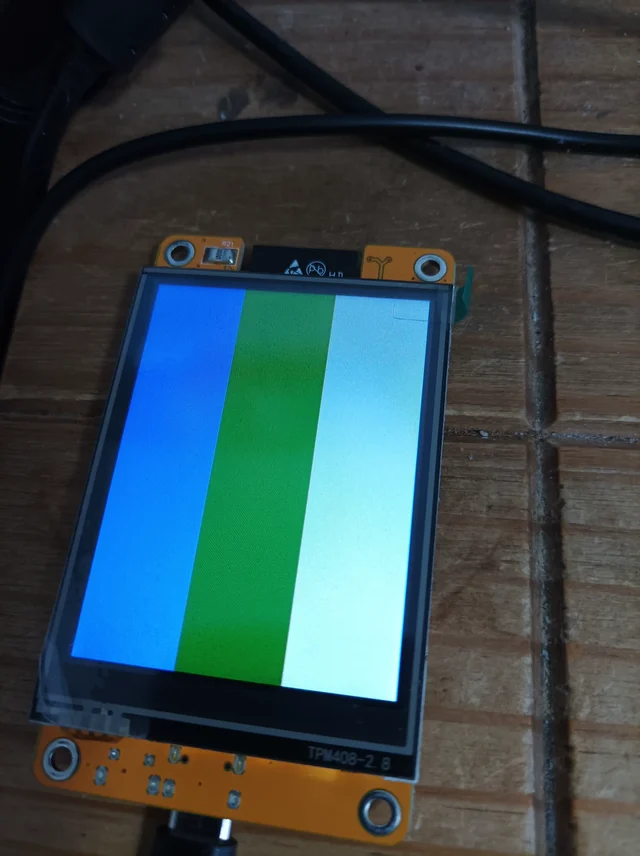
Image credit
Examples/NanoFramework/GraphicsExample.jpg
Brian Lough, CYD documentation contributors · MITResized without cropping and converted to WebP.
Before you build
A useful first display project because the screen, touch controller and ESP32 are already connected. Start with setup and the pin tables, then take either the Arduino/LVGL path or the separate C# nanoFramework path; these are alternatives, not one combined installation. This edition reproduces the six complete core chapters named in the section menu, not every third-party project linked by the repository. The LVGL instructions preserve the original February 2024 tested versions and should not be read as a guarantee for today's Arduino core or a similarly named display. Confirm your exact ESP32-2432S028 board before flashing. The vendor's OriginalDocumentation folder has no redistribution grant and is linked only at source. Historical prices, affiliate links and troubleshooting modifications belong to the original guide; we have not tested the hardware.
- Difficulty (editorial)
- Intermediate
- Documentation
- Build guide
- Hardware
- ESP32, Touchscreen
The exact ESP32-2432S028 board, USB drivers and an Arduino or C# development setup; check the guide's historical library versions.
Brian Lough and contributors' complete core CYD guides: setup, pins, troubleshooting, LVGL 9, and a C# nanoFramework alternative, with original configuration screenshots and hardware photography.
ESP32-Cheap-Yellow-Display
There is an ESP32 with a built in 320 x 240 2.8" LCD display with a touch screen called the "ESP32-2432S028R", since this doesn't roll of the tongue, I propose it should be renamed the "Cheap Yellow Display" or CYD for short. This display is only about $15 delivered so I think it's really good value.
Features
The CYD has the following features:
- ESP32 (With Wifi and Bluetooth)
- 320 x 240 LCD Display (2.8")
- Touch Screen (Resistive)
- USB for powering and programming
- SD Card Slot, LED and some additional pins broken out
Who is it good for?
I think it's useful for the following types of people:
- People just getting started with working hardware - as everything is already connected, there is no soldering or additional components required
- People who are familiar with working with hardware, but are lazy - (like me) Sometimes you just want to build a project without having to assemble any hardware
- People who aren't really looking to learn anything, but just want to build some cool things - More about this later.
What is the purpose of this page?
So this is pretty nice hardware and a cheap price, but the software instructions/support around it is pretty poor. Just a single link to a zip file on a random website.
A couple of years ago I released the ESP32 Trinity, which is an open source ESP32 board for controlling Matrix panels. I think the main benefit people get out of the work I did on the Trinity is not the hardware, but the documentation, example code and ready to go projects.
I'm no longer creating hardware products, but I think it would be interesting if we could create the same kind of community around this display, where people can share examples and projects made for this display.
How do I know if a display is a CYD?
Where to buy?
Buy from wherever works out cheapest for you:
- Aliexpress*
- Aliexpress (make sure to get 2.8 version) *
- Aliexpress
- Makerfabs - Seems to come with a 16GB SD card. Makerfabs also stock my ESP32 Trinity (NOTE there will be import due in the EU from makerfabs)
* = Affiliate Link
Getting Started With Your CYD
For details on how to get started with your CYD, please check out the Setup and Configuration page
Code Examples
The Basics
A collection of examples demonstrating how to use the different features of the CYD, this is a good place to get started. Check them out here.
Alternative Display Libraries
The basics examples are based on the TFT_eSPI display library, but the CYD also works with other display libraries too. Here is some example code if you prefer to use an alternative Arduino library. Check them out here.
ESPHome
Some examples for using the CYD in ESPHome. Check them out here.
Additional Info and Links
Discord
Join the CYD discussion on my Discord channel
3DPrinting
Some examples of 3D printed stands and cases. Check them out here.
Pin Information
This page contains information about what pins are used where, and what ones are free to use.
Add-ons
This page contains information about additional hardware add-ons that can add functionality to your CYD
Troubleshooting
This page contains information about how to troubleshoot your CYD device
Hardware Mods
This page contains information about some hardware mods that can be performed on the CYD to improve or change some of its functionality
Media and Video Mentions
This page lists any times the CYD project was mentioned somewhere!
License Info
This project is licensed as MIT as per the license file
The one exception to this is the OriginalDocumentation folder, that I do not have the right to license
Other Languages
Some members of the community have ported some of this information to other languages!
Please note: I can't gaurantee the accuracy of the translation, how up to date they are or the content on them in general.
- French / Française
- German / Deutsch
- Traditional Chinese / 繁體中文(台灣)
- Russian / Русский
- Portuguese / Português
- Spanish / Español
If you would like to contribure a translation, please name the repo with the language name or code in the repo name and you can link it here.
Help Support what I do!
If you enjoy my work, please consider becoming a Github sponsor!
Setup and Configuration options
This page will cover the basics of setting up the CYD
Hardware Setup
There really is nothing to setup here, just connect the CYD to a computer using a micro USB cable (it even comes with one)
Software Setup
The driver needs to be setup for uploading to the CYD, including webflashing projects.
Driver
The CYD uses the CH340 USB to UART chip. If you do not have a driver already installed for this chip you may need to install one. Check out Sparkfun's guide for installation instruction
Coding Setup
Follow these instructions if you want to write new code for the CYD
Board definition
You will need to have the ESP32 setup for your Arduino IDE, instructions can be found here.
You can then select basically any ESP32 board in the boards menu. (I usually use "ESP32 Dev Module", but it doesn't really matter)
If you see errors uploading a sketch, try setting board upload speed to 115200
Library Configuration
The CYD can work with a selection of different libraries, but the main one this repo will focus on is TFT_eSPI as it is a fairly popular library for working with these types of displays and there are lots of examples.
This can be installed from the library manager by searching for "TFT_eSPI".
Note: After install of the library, copy the file User_Setup.h to the
libraries\TFT_eSPIArduino folder. This sets up the library for use with this display.
Examples
I have provided examples for you to try out to get some ideas or inspiration. Check them out here.
Pins
This page talks about the pins on the CYD.
Connector types
The connectors are often called "1.25mm JST" but the correct name is "Molex PicoBlade". Chinese clones are sometimes called "mx1.25".
| Connector | Type | Note |
|---|---|---|
| P1 | 4P 1.25mm Molex PicoBlade | Serial |
| P3 | 4P 1.25mm Molex PicoBlade | GPIO |
| P4 | 2P 1.25mm Molex PicoBlade | Speaker |
| CN1 | 4P 1.25mm Molex PicoBlade | GPIO (I2C) |
What pins are available on the CYD?
There are 3 easily accessible GPIO pins
| Pin | Location | Note |
|---|---|---|
| IO35 | P3 Molex PicoBlade connector | Input only pin, no internal pull-ups available |
| IO22 | P3 and CN1 Molex PicoBlade connector | |
| IO27 | CN1 Molex PicoBlade connector |
If you need more than that, you need to start taking them from something else. An SD Card sniffer like mentioned in the Add-ons is probably the next easiest.
After that you're probably de-soldering something!
Broken Out Pins
There are three 4P 1.25mm Molex PicoBlade connectors on the board.
P3
| Pin | Use | Note |
|---|---|---|
| GND | ||
| IO35 | Input only pin, no internal pull-ups available | |
| IO22 | Also on the CN1 connector | |
| IO21 | Used for the TFT Backlight, so not really usable |
CN1
This is a great candidate for I2C devices
| Pin | Use | Note |
|---|---|---|
| GND | ||
| IO22 | Also on P3 connector | |
| IO27 | ||
| 3.3V |
P1
| Pin | Use | Note |
|---|---|---|
| VIN | ||
| IO1(?) | TX | Maybe possible to use as a GPIO? |
| IO3(?) | RX | Maybe possible to use as a GPIO? |
| GND |
Buttons
The CYD has two buttons, reset and boot.
| Pin | Use | Note |
|---|---|---|
| IO0 | BOOT | Can be used as an input in sketches |
Speaker
The speaker connector is a 2P 1.25mm Molex PicoBlade connector that is connected to the amplifier, so not usable as GPIO at the speaker connector
| Pin | Use | Note |
|---|---|---|
| IO26 | Connected to amp | i2s_set_dac_mode(I2S_DAC_CHANNEL_LEFT_EN); |
RGB LED
If your project requires additional pins to what is available elsewhere, this might be a good candidate to sacrifice.
Note: LEDs are "active low", meaning HIGH == off, LOW == on
| Pin | Use | Note |
|---|---|---|
| IO4 | Red LED | |
| IO16 | Green LED | |
| IO17 | Blue LED |
SD Card
Uses the VSPI Pin names are predefined in SPI.h
| Pin | Use | Note |
|---|---|---|
| IO5 | SS | |
| IO18 | SCK | |
| IO19 | MISO | |
| IO23 | MOSI |
Touch Screen
| Pin | Use | Note |
|---|---|---|
| IO25 | XPT2046_CLK | |
| IO32 | XPT2046_MOSI | |
| IO33 | XPT2046_CS | |
| IO36 | XPT2046_IRQ | |
| IO39 | XPT2046_MISO |
LDR (Light Sensor)
| Pin | Use | Note |
|---|---|---|
| IO34 |
Display
Uses the HSPI
| Pin | Use | Note |
|---|---|---|
| IO2 | TFT_RS | AKA: TFT_DC |
| IO12 | TFT_SDO | AKA: TFT_MISO |
| IO13 | TFT_SDI | AKA: TFT_MOSI |
| IO14 | TFT_SCK | |
| IO15 | TFT_CS | |
| IO21 | TFT_BL | Also on P3 connector, for some reason |
Test points
| Pad | Use | Note |
|---|---|---|
| S1 | GND | near USB-SERIAL |
| S2 | 3.3v | for ESP32 |
| S3 | 5v | near USB-SERIAL |
| S4 | GND | for ESP32 |
| S5 | 3.3v | for TFT |
| JP0 (pad nearest USB socket) | 5v | TFT LDO |
| JP0 | 3.3v | TFT LDO |
| JP3 (pad nearest USB socket) | 5v | ESP32 LDO |
| JP3 | 3.3v | ESP32 LDO |
First, Make sure it's a CYD!
If you are having any issues, this is the first thing I would check!
The examples and information contained on this repo are for the ESP32-2432S028 display only. The model number is written on the back of the display in gold writting, beside the speaker connector.
Display is not turning on
If you are having issues getting the display working, the first thing I would try is webflashing an existing project. These will be known working code, and if it works correctly, it points to a software issue, not a hardware one.
If the webflash project displays something on the screen
- Make sure you have put the User_Setup.h file in the correct location as described here
- Pin 21 is the backlight pin, make sure you are not using it for something else in your sketch.
The webflash project doesn't display on screen
- Make sure you are not connecting Pin 21 to anything. It is broken out on the connector labeled
P3 - Try a different USB supply and or cable
- If nothing else worked, your CYD could be faulty. Contact the seller.
Display, Touch and SD card are not working at the same time
The ESP32 offers two usable hardware SPI buses, but on the CYD each of display, touch and SD card use a different bus. To use all three devices at the same time, for one of them the SPI has to be "simulated" in software. Usually this is done for the touch device, since it doesn't require a high bandwidth. Therefor use a software SPI implementation like XPT2046_Bitbang_Slim and follow the button example
Display is flickering
- Try a different USB supply and or cable
- Go through the Display is not turning on steps
- If nothing else worked, your CYD could be faulty. Contact the seller.
Cannot upload
- On Ubuntu and flavors disable or uninstall service
brlttyand make sure user is in groupdialout
Automatic flash with esptool failed: Wrong boot mode detected (0x13)
This is the well-known problem of flashing ESP32 through USB-UART converter, when DTR and RTS signals are used to switch the chip to the bootloader mode (with additional 2xNPN transistor digital protection logic). On some PC, OS, driver version it works, on another it doesn't:
A fatal error occurred: Failed to connect to ESP32: Wrong boot mode detected (0x13)! The chip needs to be in download mode. For troubleshooting steps visit: https://docs.espressif.com/projects/esptool/en/latest/troubleshooting.html
The solution is to replace a capacitor between EN (RST) and GND from 0.1uF, installed on CYD, to something in range 1uF and 10uF.
NOTE: In schematic, this is C4, but at least on Type-C version of CYD it is C5 actually.
LVGL examples
LVGL is a popular library for creating user interfaces on resource constrained devices like the ESP32.
You can install LVGL through the Arduino Library manager, but it will not compile 'out of the box'. Similarly to TFT_eSPI it needs manual editing of the configuration files and this is a slightly awkward process.
Also, LVGL on Arduino tends to assume that you are using the touchscreen component of the TFT_eSPI display library. However the original CYD cannot use this built in touchscreen support as the XPT2046 touchscreen controller is connected to a different SPI bus from the display.
The LVGL_Arduino example in here is a copy of the default LVGL Arduino example edited slightly to make the examples easier to try and include support for the XPT2046 driver used elsewhere in this repository.
Version information
This has been tested with the following as of 27/02/2024 and may not work with other versions. All were installed via the Arduino IDE or Library Manager rather than manual custom installation.
- Arduino IDE v1.8.19 on Windows 11
- ESP32 Arduino Core v2.0.14
- TFT_eSPI v2.5.34, already configured and tested against the CYD
- XPT2046_touchscreen v1.4.0, already configured and tested against the CYD
- LVGL version v9.0.0
Installation
To be able to use the LVGL examples and demos in this repo with the Arduino IDE, take the following steps.
- Install TFT_eSPI from the Arduino Library Manager and make sure your display works with the examples, as described elsewhere in this repo.
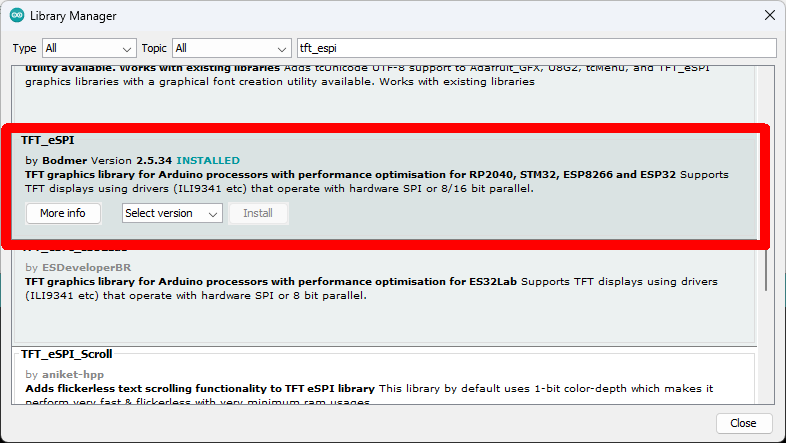
Image credit
Examples/LVGL9/libraryManager2.png
Brian Lough, CYD documentation contributors · MITUnmodified source image.
- Install XPT2046_Touchscreen from the Arduino Library Manager and make sure your touchscreen works, as described elsewhere in this repo.
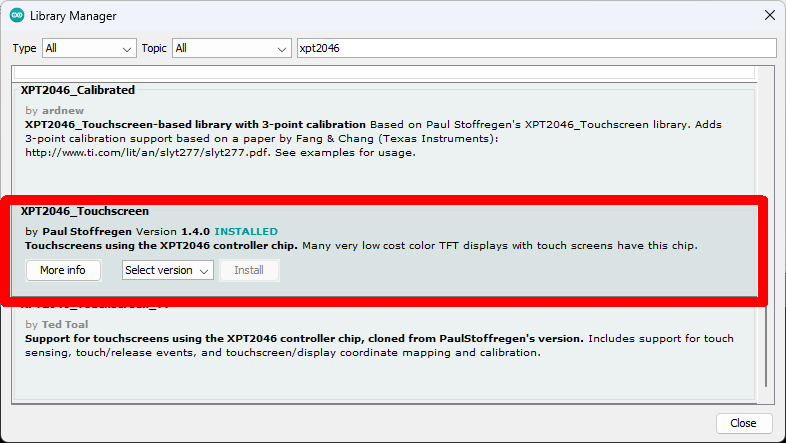
Image credit
Examples/LVGL9/libraryManager3.png
Brian Lough, CYD documentation contributors · MITUnmodified source image.
- Install LVGL from the Arduino Library Manager, search for 'lvgl' and install the one marked. Note this is version 9.0.0, these instructions may not work with other versions, especially later ones. See other examples for other versions.
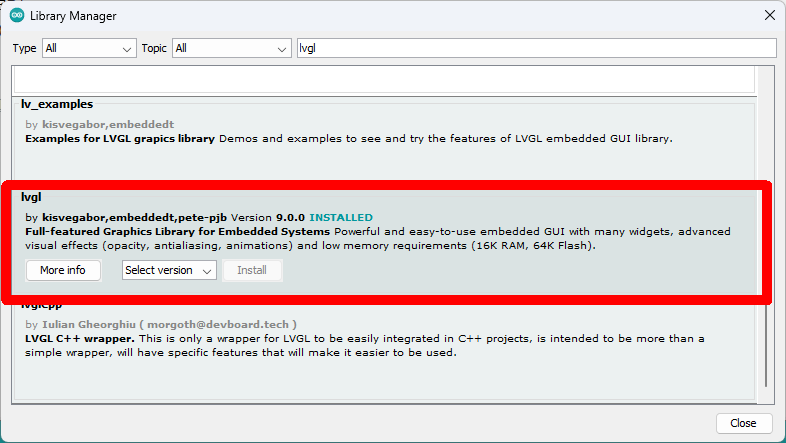
Image credit
Examples/LVGL9/libraryManager1.png
Brian Lough, CYD documentation contributors · MITUnmodified source image.
-
Do not install 'lv_examples' from the Arduino Library Manager, it is for older versions of LVGL than 8.3.x.
-
Do not install 'lv_arduino' from the Arduino Library Manager, it is a different port of lvgl than the one this example works with.
-
Copy lv_conf.h from the folder "/ESP32-Cheap-Yellow-Display/Examples/LVGL9/" in this repository to the Arduino 'libraries' folder. Do not place it in the LVGL library folder, place it in the folder 'above' that which is the container for all of your Arduino library folders. See the Arduino documentation for help in locating the 'libraries' folder as it can vary between systems. Yes, this is an unusual step but it is necessary.
-
Within the LVGL library directory move the 'examples' directory into the 'src' directory. This is due to a limitation of the Arduino IDE build system compared to other build systems used by LVGL. You will need to repeat this process if you reinstall or change the version of LVGL. Yes, this is an unusual step but it is necessary.
-
Within the LVGL library directory move the 'demos' directory into the 'src' directory, as above.
Touchscreen calibration
Lines 38 defines variable that map the readings from the resistive touchscreen to screen locations. These values were chosen based off an example CYD, you will need to change them slightly to make your touchscreen work accurately. There is no calibration routine built into the example.
uint16_t touchScreenMinimumX = 200, touchScreenMaximumX = 3700, touchScreenMinimumY = 240,touchScreenMaximumY = 3800;
You can use the 'TouchTest.ino' example from elsewhere in this repository to get reasonable values for your touchscreen. Resistive touchscreens are never perfect and can drift over time.
Choosing an example
The LVGL examples are not separate sketches, they are function calls you uncomment inside the single example sketch. Uncomment one line at a time and compile and upload the sketch again to see each example or demo. The build process for LVGL is quite long as it's a large library.
- Lines 121-179 are examples of a particular style of widget. Some are animated or mildly interactive.
- Lines 182-184 are more complete demos with multiple widgets of various types. The benchmark demo does a benchmark.
The sketch comes with the 'lv_demo_widgets' demo ready to go.
Not all of the examples/demos mentioned in the LVGL docs work, but the ones that do are included in the sketch for you to uncomment and try.
Disabling example/demo compilation
Once you are done with the examples and demos you should probably remove support for them as it will reduce compile time.
To do this, edit 'lv_conf.h' in the Arduino 'libraries' folder and change '#define LV_BUILD_EXAMPLES 1' to '#define LV_BUILD_EXAMPLES 0' and '#define LV_USE_DEMO_WIDGETS 1' to '#define LV_USE_DEMO_WIDGETS 0'.
See the LVGL documentation for proper detail on what this involves, but it is not absolutely necessary.
Getting Started
The ESP32-2432S028 board also known as the "Cheap Yellow Display". nanoFramework is a version of .Net Framework that allows you to write code in C# for running on smaller boards and microcontrollers.
Drivers
You should find that the serial port drivers needed for the board to communicate are already installed. You can see this when you open Device Manager.
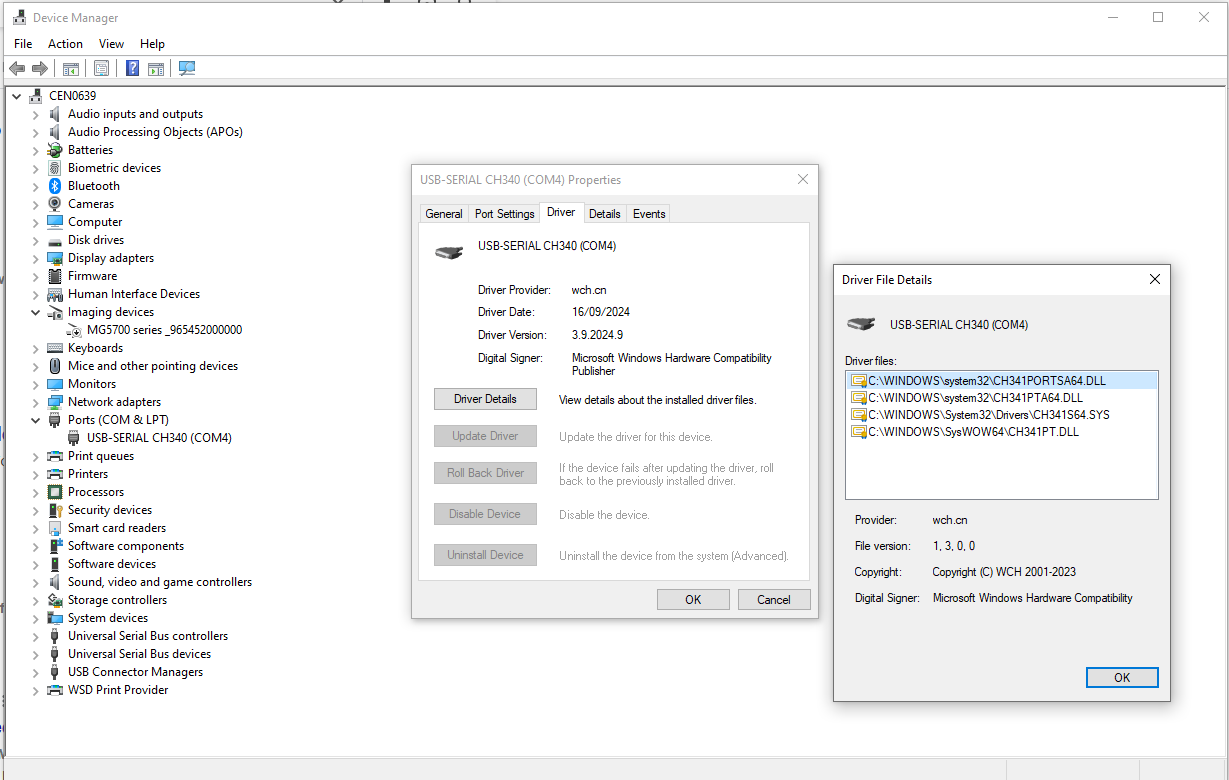
Image credit
Examples/NanoFramework/DeviceManagerPort.png
Brian Lough, CYD documentation contributors · MITUnmodified source image.
Installing NanoFramework Extension
It is possible to develop code for these devices in both Visual Studio and in Visual Studio Code but Visual Studio gives you a better experience with debugging and a device explorer which allows you to flash and check the board.
Hardware
The board includes:
- The display
- Touch Screen
- RGB LED
- General Purpose Input Output
- A light sensor
- WIFI
- SDCard Reader
- Speaker Output
Firmware
The firmware is installed with a tool called Nanoff.
Packages and Versions
Some of the packages come with the firmware, others you can get from Nuget in the usual manner. There is a custom version of the display driver Ili9341 which is needed if you want to draw text on the screen as otherwise this would be mirrored. Hope to get this into the upstream driver on Nuget.
Examples
Current examples include:
- Blinking an LED (on the back of the board) - This could me modified if you want to turn something on or off via the external GPIO
- Fading an LED -This could be modified to drive a servo from the external GPIO
- Display blocks - Basic screen setup and manipulation. Note the colour order of BGR rather than RGB.
- Display Font and Graphics - Fonts are created using the TinyFontToolGUI tool and Graphics can be converted using a number of different websites including https://javl.github.io/image2cpp/ with the setting of "Horizontal 2 bytes per pixel", This definately
Source and license
Original documentation: Brian Lough, CYD documentation contributors. Reproduced under MIT. Individual image credits identify any separately licensed media. The full original copyright and permission notice is retained in that license file.
Republished the complete reviewed README and build chapters. Reformatted HTML as Markdown, resolved relative links, and served repository images locally. Photos resized without cropping; diagrams retain source resolution. Externally hosted or separately unverified media is linked at its original location. Introductory selection notes are by Meteor Makers; the original author is not responsible for those notes. Combined source chapters in build order and remapped chapter links to this page.
Source revision: 0564a140c76d. Retrieved 2026-10-27. This is a source snapshot, not a claim that the project was first published today or that its creator endorses Meteor Makers.
Keep exploring
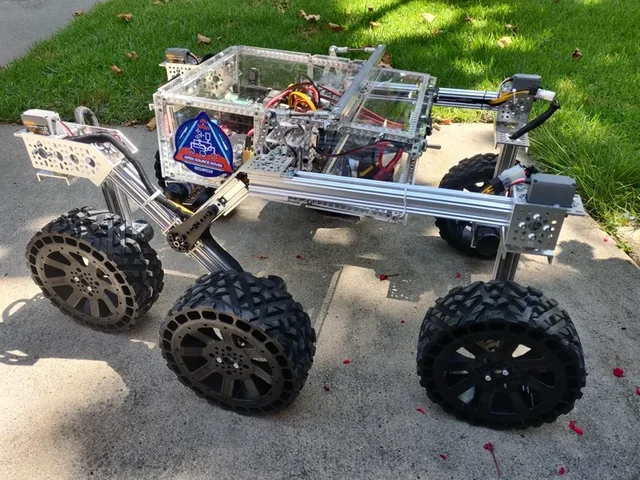
Choose a LEGO microscope, ESP32 oscilloscope, laboratory syringe pump, haptic dial, DIY e-reader, synthesizer, or JPL rover using complete credited source documentation.
Image credit
images/osr-side-outside.jpg
JPL / California Institute of Technology and Open Source Rover contributors · Apache-2.0Resized without cropping and converted to WebP for the project card.
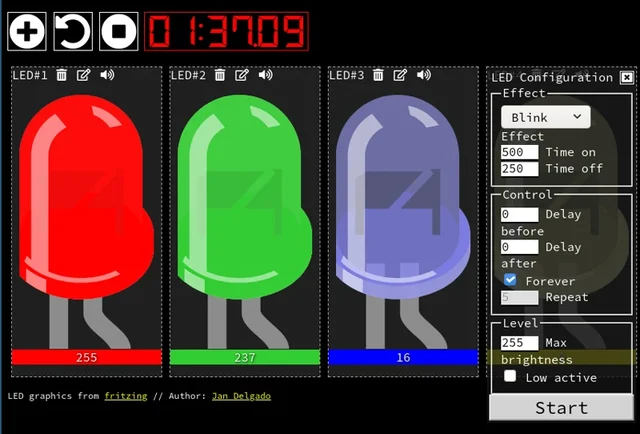
Jan Delgado's complete JLed guide and selected original example chapters, with wiring diagrams, timing plots, and the full LED demonstration animation.
Image credit
doc/jled-wasm.png
Jan Delgado; graphics created with Fritzing · MIT + Fritzing CC BY-SA 3.0Resized without cropping and converted to WebP for the project card.
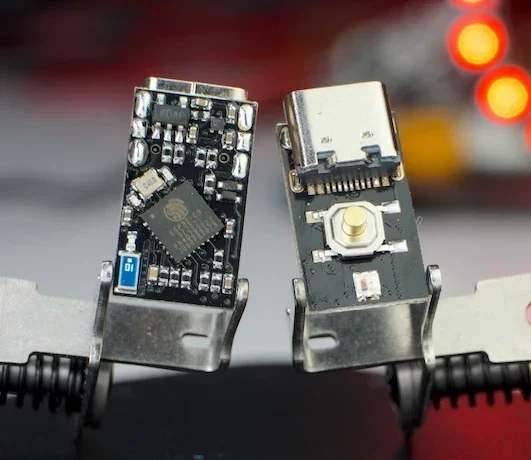
The creator's complete writeup covers latching power, GPIOs, battery connections, flashing, measured current traces and original hardware photos.
Image credit
docs/pc3t_tn_2.JPG
makermoekoe · MITResized without cropping and converted to WebP for the project card.
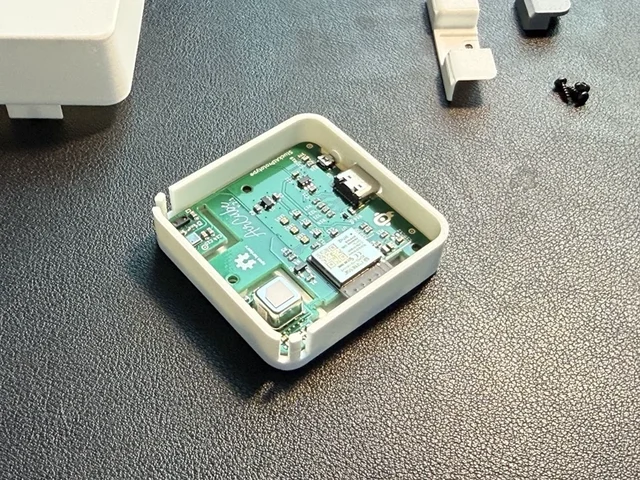
The creator's complete assembly, firmware, Home Assistant and integration documentation, with real Base and Pro build photographs.
Image credit
mechanical/guide_images/pro_C.jpg
StuckAtPrototype, AirCube contributors · Apache-2.0Resized without cropping and converted to WebP for the project card.