
Build the OpenFlexure Microscope: The Complete Archived V5 Guide
Original writeup by Richard Bowman and OpenFlexure contributors
Original source / CERN-OHL-1.2 license / Republication notes
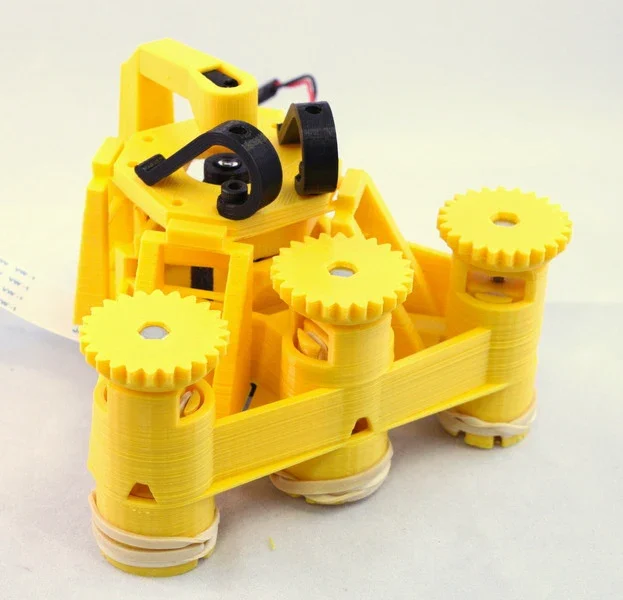
Image credit
docs/images/microscope_complete_1.jpg
Richard Bowman and OpenFlexure contributors · CERN-OHL-1.2Resized without cropping and converted to WebP.
Before you build
A whole positioning mechanism can be printed as one compliant structure. This is the archived V5-era OpenFlexure design, with both basic and higher-resolution optical assembly paths preserved. It is a historical build reference, not the latest microscope release: current development moved to the OpenFlexure GitLab project linked in the original README. Do not mix parts or dimensions from different generations. Choose the optical branch and required quantities before printing. The instrument is not presented as a certified diagnostic device, and this site has not measured its resolution or positioning performance.
- Difficulty (editorial)
- Advanced
- Documentation
- Complete archived build guide
- Hardware
- 3D printer, Raspberry Pi, Camera module, Microscope optics
Choose one V5 optical branch, follow the matching print and assembly instructions, and consult current development before sourcing parts.
Richard Bowman and contributors' full microscope build instructions: printing, flexure actuators, two optical configurations, illumination, wiring, and motorization.
This repository has moved!
Active development continues on GitLab.com where you can find not only the up-to-date microscope designs, but also software and lots of other fun goodies.
OpenFlexure Microscope
The OpenFlexure Microscope is a 3D printable microscope, including a precise mechanical stage to move the sample and focus the optics. There are many different options for the optics, ranging from a webcam lens to a 100x, oil immersion objective.
The trick of making a microscope out of a webcam has been around for a little while, and produces good results. However, getting a nice mechanical stage to focus the microscope and move around on the sample is tricky. This project is a 3D printable design that enables very fine (sub-micron) mechanical positioning of the sample and the lens, with surprisingly good mechanical stability. It's discussed in various media articles and a paper in Review of Scientific Instruments (open access).
Come join us!
Most of the development of this design has been done as part of various research projects - if you would like to join our research group at Bath, and you have funding or are interested in applying for it, do get in touch. Check the University of Bath jobs site, or findaphd.com, to see if we are currently advertising any vacancies. The team is bigger than Bath, though, and there are contibutors in Cambridge, Dar es Salaam, and beyond.
Kits and License
This project is open-source and is released under the CERN open hardware license. We are working on bring able to sell kits, and will update here once we have a good way of doing it,
Printing it yourself
To build the microscope, go to version 5.20 release and download the STL files and instructions. Don't just print everything from the STL folder, as there are a number of different configurations possible. The assembly instructions contain instructions on what parts to print and how to build it.
If you've built one, let us know - add yourself to the wiki page of builds or submit a build report issue. This is a really helpful thing to do even if you don't suggest improvements or flag up problems.
Instructions
The editable instructions are MarkDown format, in the docs folder, and they can be viewed on github pages.
Get Involved!
This project is open so that anyone can get involved, and you don't have to learn OpenSCAD to help (although that would be great). Ways you can contribute include:
- Get involved in discussions on gitter Join the chat at https://gitter.im/OpenFlexure-Microscope/Lobby
- Share your microscope images (of both microscopes and what you've seen with them) in the gallery
- Raise an issue if you spot something that's wrong, or something that could be improved. This includes the instructions/documentation.
- Suggest better text or images for the instructions.
- Improve the design of parts - even if you don't use OpenSCAD, STL files or descriptions of changes are helpful.
- Fork it, and make pull requests - again, documentation improvements are every bit as useful as revised OpenSCAD files.
Things in need of attention are currently described in issues so have a look there if you'd like to work on something but aren't sure what.
Related Repositories
Most of the Openflexure Microscope stuff lives on GitHub, under my account. Particularly useful ones are:
- The "sangaboard" motor controller based on an Arduino Nano + Darlington Pair ICs, developed collaboratively with STICLab
- The "fergboard" motor controller by Fergus Riche
- An as-yet-quite-basic set of scripts that should become the microscope software
- The higher precision, smaller range block stage
- Some characterisation scripts for analysing images of the USAF resolution test target
Compiling from source
If you want to print the current development version, you can compile the STL from the OpenSCAD files - but please still consult the documentation for quantities and tips on print settings, etc. You can use GNU Make to generate all the STL files (just run make all in the root directory of the repository). More instructions, including hints for Windows users, are available in COMPILE.md.
The OpenFlexure Microscope: Assembly Instructions
The OpenFlexure Microscope is a 3D printable microscope, with a very precise mechanical translation stage. It can be fitted with basic webcam-based optics, or more expensive optics based on a traditional microscope objective for higher image quality. It can also be motorised. These instructions will take you through how to assemble the microscope optical and mechanical parts.
Printing the parts
Before we start, a note on printing - there are many possible versions of the microscope, so don't just print everything in the folder of STL files. Currently, there's a readme document in the builds folder explaining how to select your versions. Please do consult it before printing. Also note that the parts are designed to print without support material on most RepRap type printers. If you use support material, the parts will be difficult to clean up, and may well be damaged in the process - particularly the delicate main body.
Contents
Assembly is broken up into several steps:
- Obtaining non-printed parts
- Printing parts
- Assembling the actuators deals with the mechanism for moving the stage.
- The optics module comes next, either the basic optics module or the high resolution optics module depending on your needs.
- Illumination covers attaching the condenser.
- Sample clips and wiring completes the microscope.
- Motors can be added for automatic control.
Happy building!
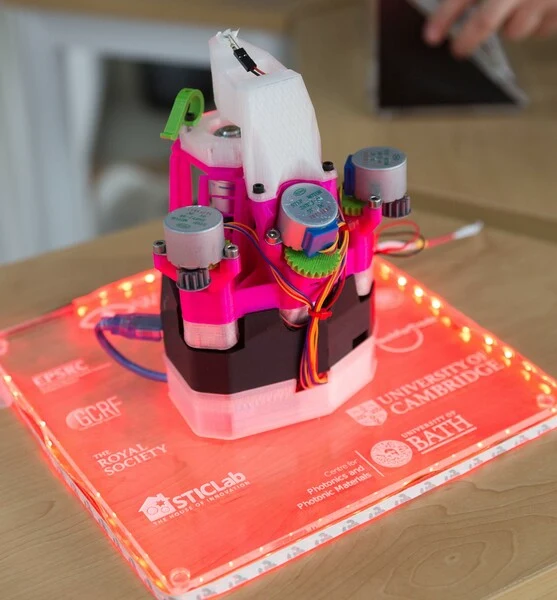
Image credit
docs/images/microscope_gosh.jpg
Richard Bowman and OpenFlexure contributors · CERN-OHL-1.2Resized without cropping and converted to WebP.
About the microscope
The OpenFlexure microscope is a customisable optical microscope, using either very cheap webcam optics or lab quality, RMS threaded microscope objectives. It uses an inverted geometry, and has a high quality mechanical stage which can be motorised using low cost geared stepper motors.
The original paper describing this work is available open-access from Review of Scientific Instruments and you can read various media articles about it for a more user-friendly introduction.
Optomechanics is a crucial part of any microscope; when working at high magnification, it is absolutely crucial to keep the sample steady and to be able to bring it into focus precisely. Accurate motion control is extremely difficult using printed mechanical parts, as good linear motion typically requires tight tolerances and a smooth surface finish. This design for a 3D printed microscope stage uses plastic flexures, meaning its motion is free from friction and vibration. It achieves steps well below 100nm when driven with miniature stepper motors, and is stable to within a few microns over several days.
This design aims to minimise both the amount of post-print assembly required, and the number of non-printed parts required - partly to make it as easy as possible to print, and partly to maximise stability; most of the microscope (including all the parts with flexures) prints as a single piece. The majority of the expense is in the Raspberry Pi and its camera module; the design requires only around 200g of plastic and a few nuts, bolts and other parts. The optics module (containing the camera and lens) can be easily swapped out or modified, for example to change the magnification/resolution by using a microscope objective, or adding a filter cube for fluorescence.
Acknowledgements
This design has largely come out of academic research projects, and we would like to acknowledge financial support from:
- The Engineering and Physical Sciences Research Council (grants EP/P029426/1, EP/R013969/1)
- The Royal Society
- The Royal Commission for the Exhibition of 1851
- Queens' College, Cambridge
The lead developer started this project while at the University of Cambridge, and continues to work on it at the University of Bath, UK.
Contributors
- Richard Bowman r.w.bowman@bath.ac.uk (University of Bath)
- Julian Stirling (University of Bath)
- Grace Anyelwisye Mwakajinga (STICLab)
- Valerian Sanga (STICLab)
- Qixing Meng (University of Bath)
This design is (c) the contributors, released under the CERN open hardware license.
Obtaining the non-printed parts
Make sure you have all the necessary parts and tools before you start. The parts should all be listed in the bill of materials below, which is currently a work in progress (eventually it will be produced automatically, which should help it to stay accurate). We recommend reading through all the instructions and checking that the quantities shown here add up correctly, until auto-generation is working. Printed parts are described in the next section.
Fixing hardware:
- 3x M3x25mm hexagon head screws, stainless steel
- 3x M3 brass nut
- 1x M3 steel nut (using brass is also fine)
- 8x M3 stainless steel washer
- 3-14x M3x8mm cap head screw (some ar optional, for sample clips and sample riser, but you will need at least three)
- 2-4x M2x6mm cap head screws
- 6x M4x6mm button head screws (optional, for motors)
- 3x Viton O-ring, 30x2mm (NB: get some spares!)
Electronic parts:
- 5mm White LED
- 60 Ohm resistor
- Stranded wire
- 2-way JST header connector (so long as you have some way of lighting up the LED, it doesn't much matter)
- Raspbery Pi camera module (v2, though v1 works too)
- Raspberry Pi (with associated power supply, keyboard, monitor, etc.)
- 3x 28BYJ-48 micro stepper motors (optional)
- Motor driver board for the above (optional)
Optical parts:
- 13mm diameter, 5mm focal length plastic condenser lens (optional, strongly recommended for high resolution optics)
- 12.7mm diameter, 50mm focal length achromatic lens (for high resolution optics only)
- RMS threaded, finite-conjugates microscope objective (for high resolution optics only)
Tools:
- 2.5mm hex key
- 1.5mm hex key (to secure the camera using M2 screws)
- tape (electrical tape or PTFE plumbers tape work nicely, though regular sticky tape is also fine)
- sharp craft knife (for trimming tape and cleaning up the print)
- 3mm drill bit in hand chuck (if you printed the parts yourself and need to open out the holes)
- needle nose pliers (optional, but useful - particularly good for cleaning up prints)
Don't forget the raspberry pi, camera module, and associated screen, power supply, SD card, keyboard, mouse, etc. (I have not listed these explicitly, but they're needed to run the Pi). Also, if you use the high resolution optics module or want to add motors, you will need additional parts.
While you're waiting for any parts you have ordered to arrive, why not try the next section on printing the plastic parts.
Printing the plastic parts
First, you will need to print or obtain the 3D printed parts. These have been designed with some care to print reliably on most RepRap-style printers, without support material. It's important to read through the notes before, as there are multiple versions of the STL files to choose from, so it's not a good idea just to pick all the parts in the folder.
Print settings
I usually print with a layer size of 0.24mm on my Ormerod, which takes 10 hours for the main body. "low" quality on an Ultimaker 2 (0.15mm layers) produces similar results in about 10 hours. Our Prusa i3 Mk3 takes a similar time using 0.2mm layers, or 0.3mm layers if we want to go even faster (8 hours or less).
Warning: The microscope is designed to print without support material. If you use support material it will require a lot of cleaning up, and you may well damage the parts.
The parts are all designed to print without support material or adhesion layer. If you do use an adhesion layer, many of the moving parts will be rendered useless by a brim (particularly on the main body), and require lots of work with a craft knife to sort them out. While there are no cantilevered parts that really need support, there are a few bridges; it might be a good idea to print the just_leg_test.stl file first, to make sure your printer can print them. There are some versions of the main body that include a baked-in brim in the STL file, see main_body.scad. This brim does a better job of not fouling the mechanism than most slicers, and is a good option if the part won't stick without a brim. Most of the other parts are possible to clean up after printing with a brim, so you may wish to use one, particularly for the smaller parts like sample clips.
If your printer has a standard-sized bed (180mmx180mm should be fine) then it should be possible to print the complete microscope in one go. I do this if I'm using a machine that is well calibrated and reliable. However, I find that it's often more reliable to print in batches (as small parts at the edge of the print bed can detach and cause it to fail). I would recommend:
- Batch 1: Microscope, illumination and Optics module (this is the longer print, with taller objects)
- Batch 2: Feet, gears, camera cover, camera board gripper, camera lens remover, gear riser
There is a test file that prints a single leg of the microscope - just_leg_test.stl. It's worth printing this first to check your settings are OK.
The optics module needs to print with some fine detail, so the dovetail meshes nicely with the stage. A good way to ensure this is to print it at the same time as other parts - either print more than one optics module at a time, or print it at the same time as the microscope body. This slows down the time for each layer, and means the plastic can cool more completely before the layer on top is deposited, resulting in a higher-quality part. The optics module is best printed in black to cut down on stray light inside the tube - though it will still work in other colours.
Standard builds of the microscope
The list of parts below is pretty extensive and tries to explain all the various options - however, if you just want to build a "normal" version of the microscope, there are two versions we'd reccommend:
Webcam-based microscope
The basic version of the microscope uses a webcam lens instead of a microscope objective - you still get a really nice focusing/sample translation stage, but with basic options. This version is great for school or hobby use, gets a resolution of about 2um or better, and is the cheapest to build. This is the version we usually build at workshops. For each microscope, you will need to print one copy of each of the following files:
actuator_assembly_tools.stlpicamera_2_gripper.stl- [optional]
picamera_2_lens_gripper.stl(only needed if your camera didn't come with a tool to remove the lens) main_body_LS65.stl.feet.stlgears.stlillumination_dovetail.stlcondenser.stlsample_clips.stlcamera_platform_picamera_2_LS65.stllens_spacer_picamera_2_pilens_LS65.stlmicroscope_stand.stlorback_foot.stl
This will need the nuts, bolts, etc. described below, plus a Raspberry Pi computer (any model will do) and Raspberry Pi camera module. No other optical bits are required, except an LED for illumination. If your Raspberry Pi is in a case already, you should print back_foot.stl so the microscope sits flat on a table. If you want to mount the Raspberry Pi underneath the microscope (our preferred option), print microscope_stand.stl instead. Newer camera modules include a white circular tool for unscrewing the lens. If you don't have one, you will need to print the lens gripper (marked as optional).
High resolution microscope
The version of the microscope used for scientific or medical research generally requires a conventional objective lens. Most of the parts are the same, but the optics and sample mount are different. You will need one copy of each of the following files:
actuator_assembly_tools.stllens_tool.stlpicamera_2_gripper.stl- [optional]
picamera_2_lens_gripper.stl(only needed if your camera didn't come with a tool to remove the lens) main_body_LS65-M.stl.feet.stlgears.stlillumination_dovetail.stlcondenser.stlsample_clips.stloptics_picamera_2_rms_f50d13_LS65.stlmicroscope_stand.stlsample_riser_LS10.stl(assuming you have a microscope objective with a 45mm parfocal distance)
For motorised operation you will also need
small_gears.stlmotor_driver_case.stl
Additionally, you will need:
- an RMS threaded, finite-conjugates objective lens. These can be obtained from e.g. AliExpress. Depending on whether it is 35mm or 45mm from the "shoulder" of the lens to the sample, you may or may not need the sample riser. We almost always use 45mm "plan" corrected lenses, which do require the riser.
- a 12.7mm diameter, 50mm focal length achromatic lens, e.g. ThorLabs ac127-050-a or generic equivalent.
- a 13mm diameter, 5mm focal length PMMA lens for the condenser (sold as LED lenses in bulk)
- three 28BYJ-48 stepper motors and a sangaboard driver, or other suitable electronics.
Required parts
Make sure you have all the necessary parts and tools. The parts should all be listed in the bill of materials, which is currently a work in progress (eventually it will be produced automatically, which should help it to stay accurate). We reccommend reading through all the instructions, rather than trusting what is currently listed here.
Printed parts
Currently, the STL files live in the builds folder. This will move to a build server soon.
Plastic tools:
- band and nut insertion tools
actuator_assembly_tools.stl - tool to insert the 13mm diameter condenser lens and/or tube lens:
lens_tool.stl - jig to hold the camera board while you unscrew the lens
picamera_2_gripper.stl - [optional] tool to unscrew the camera's lens (only needed if your camera didn't come with one)
picamera_2_lens_gripper.stl
Components:
- body of the microscope:
main_body_<stage size><height>[-M].stl. - 3 feet:
feet.stlorfeet_tall.stl(contains all 3) - 3 large gears:
gears.stl(contains all 3) - illumination:
illumination_dovetail.stlcondenser.stl
- 2 sample clips:
sample_clips.stl(contains both) - optics module (you need one of the two options below):
- old-style optics module (one part, best with RMS objectives):
optics_<camera>_<lens>_<stage size><height>.stl - platform-style optics module (two parts, best with webcam lenses):
camera_platform_<camera>_<stage size><height>.stlandlens_spacer_<camera>_<lens>_<stage_size><height>.stl
- [optional] camera cover:
picamera_2_cover.stl - [optional] 3 small gears for motors:
small_gears.stl(contains all 3) - [optional] riser for the sample:
sample_riser_<stage size><thickness>.stl - [optional] slide holder that works better if using immersion oil:
slide_riser_LS10.stl - [optional] base to hold a Raspberry Pi:
microscope_stand.stl - [optional] base to hold the motor driver (fits under the base that holds the Pi):
motor_driver_case.stl - [optional] back foot, in case you are not using the microscope stand:
back_foot.stl
In the filenames above, where there are multiple versions, parameters are included in angle brackets:
<stage size>selects the size of the platform - but currently onlyLSis supported.<height>is the height from the bottom of the main body to the top of the stage in mm, currently either65or75.- Usually the above two parameters occur next to each other, so you will see
LS65. I pretty much only use65as standard, and if I am using an objective (which is the norm) I add a 10mm riser. <camera>is the camera you are using, eitherpicamera_2for the Raspberry Pi camera module v2,c270for the Logitech C270, orm12for a camera with a screw-on M12 lens mount.<lens>is the lens you are using, eitherpilens,c270_lens, orm12_lensif you are using the lens that came with your camera. To use a finite-conjugate, RMS threaded objective lens, you should specifyrms_f50d13(for a 50mm focal length, 12.7mm diameter tube lens, e.g. ThorLabs ac127-050-a). You can also specifyrms_f40d16(to use a Comar tube lens, focal length 40mm, diameter 16mm) but this is deprecated as the images weren't as good.<thickness>is the thickness of a stage riser - the amount it adds to the height. Usually a 10mm riser is used with a 65mm body to allow a 45mm parfocal distance objective to be used, currently only LS10 is reccommended. Optional bits of filenames are in square brackets above:-Min the body name means it has motor lugs to allow 28BYJ-48 stepper motors to be fitted_tallon the illumination or the feet means the body sits 26mm off the ground rather than 15mm, to give clearance for larger camera modules. This is only useful if you are not using the microscope stand.
Currently, there are two reccommended versions of the body; LS65 and LS65-M. The only difference is that the -M version can be fitted with motors. To build the high-resolution version of the microscope, use the 10mm thick sample riser sample_riser_LS10.stl, and optics_picamera_2_rms_f50d13_LS65.stl. To build the low-resolution version, don't use the sample riser, and instead use camera_platform_picamera_2_LS65.stl and lens_spacer_picamera_2_pilens_LS65.stl. In both cases, it's best to print the microscope stand, and use the standard-height feet.
Clean-up of printed parts
If you printed the parts yourself, start by opening out the three holes in the microscope body with a drill as shown. Make sure to go all the way through. If you don't have a drill, you can improvise by screwing in an M3 screw all the way, then forcibly rotating it with a screwdriver or the supplied nut. Also, remove any loose strings of plastic from the underside of the sample stage, using a pair of pliers. The last step shouldn't be necessary if your machine is calibrated nicely for printing bridges.
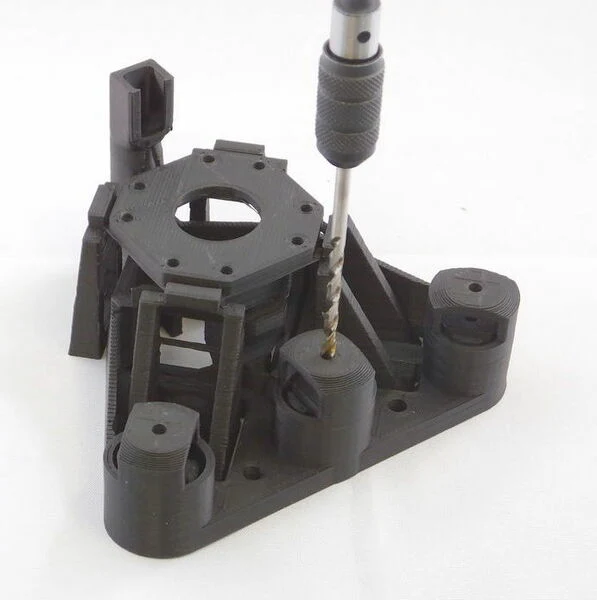
Image credit
docs/images/main_body_drill.jpg
Richard Bowman and OpenFlexure contributors · CERN-OHL-1.2Resized without cropping and converted to WebP.
There are also ties between the actuator column casing and the central actuator column that holds the brass nut - these need to be snapped, as described in the instructions later on. There may also be short ties between the two thinner pairs of legs and the "wall" running around the microscope - these should also be snapped with a knife. The "ladder" like structure between each pair of legs is also only there for support during printing - it does no harm to leave it in place, but if you cut the "rungs" out, it will allow the stage to move a little more freely.
Once you have your printed parts, you can start by assembling the actuators.
Actuator assembly
There is one "actuator column" for each of the three axes of the OpenFlexure Microscope stage, to allow you to move the sample in X and Y, or focus the microscope by moving in Z. It consists of a plastic gear that fits onto an M3 screw, which then pulls up on a brass nut. Elastic bands pull down on the nut, tensioning the system. The elastic band tightens up the mechanism, allowing us to move up and down smoothly. Without the elastic band, you will only be able to move in one half of the microscope's range of travel, and the mechanism will be more wobbly.
Requirements
All the parts you need for this step are in the picture below:
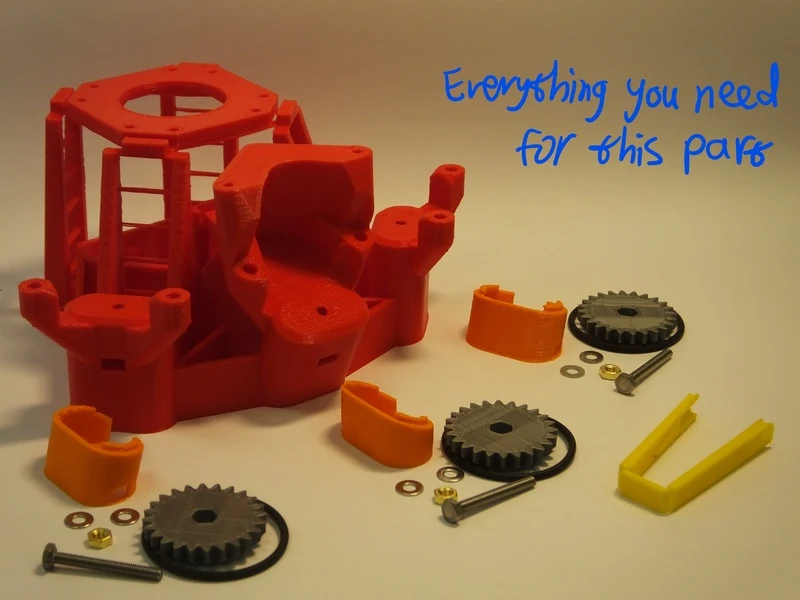
Image credit
docs/images/actuator_assembly_parts.jpg
Richard Bowman and OpenFlexure contributors · CERN-OHL-1.2Resized without cropping and converted to WebP.
Parts
- 3x M3x25mm hexagon head screws, stainless steel
- 3x M3 brass nut
- 6x M3 stainless steel washers
- 3x Viton O-ring, 30x2mm (NB: get some spares!)
- 3 Plastic gears
- 1 set of Microscope Feet (NB there are different feet for X/Y axes and for the Z axis).
- light grease (if available)
Tools
Assembly Instructions
There are three actuator columns on the microscope, for X, Y, and Z. Follow these instructions for each column in turn.
Step 1
We need to place a nut inside the actuator. Insert it from the side, through the slot in the actuator column, and push it into place with the nut insertion tool. Take care to insert the nut corner-first (i.e. with flat sides parallel to the tool), otherwise it will jam.
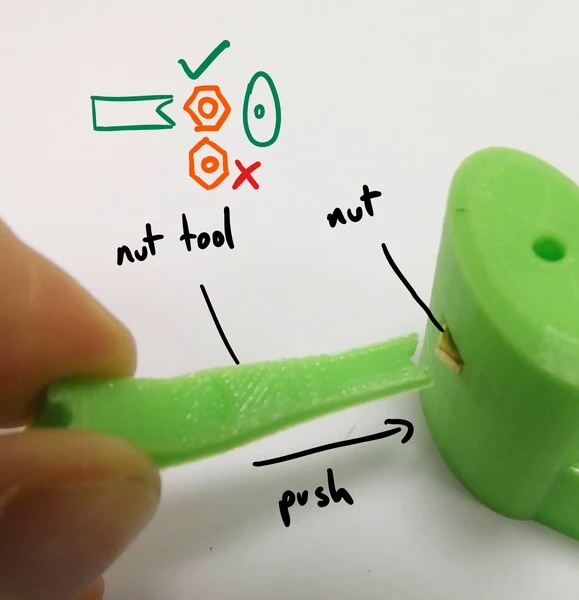
Image credit
docs/images/actuator_assembly_nut_insertion_1.jpg
Richard Bowman and OpenFlexure contributors · CERN-OHL-1.2Resized without cropping and converted to WebP.
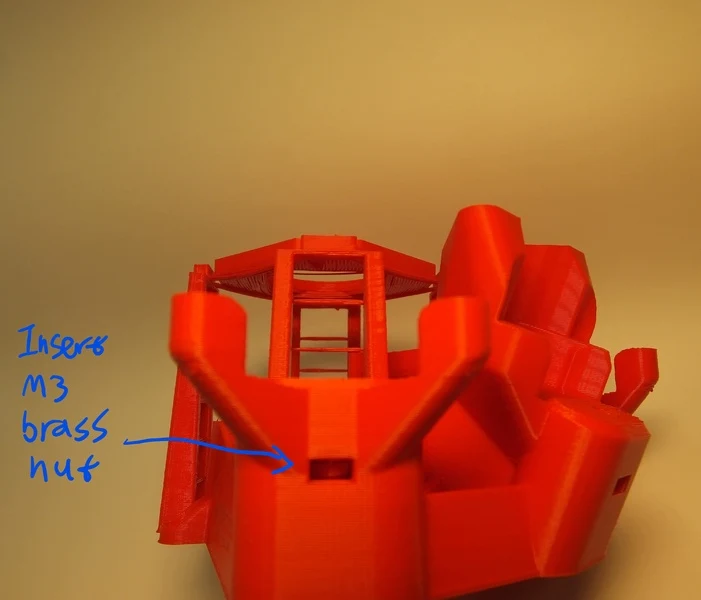
Image credit
docs/images/insert_nut_here.jpg
Richard Bowman and OpenFlexure contributors · CERN-OHL-1.2Resized without cropping and converted to WebP.
Step 2
Next, take a screw, and push it into a plastic gear, so that the head of the screw is embedded in the plastic. Then, thread two washers onto the screw where it sticks out of the gear. Put a very small blob of light oil or grease (if available) on the screw thread. Put the screw into the hole at the top of the column, and screw it into the nut that is now inside the actuator. The two washers should sit between the gear and the microscope body
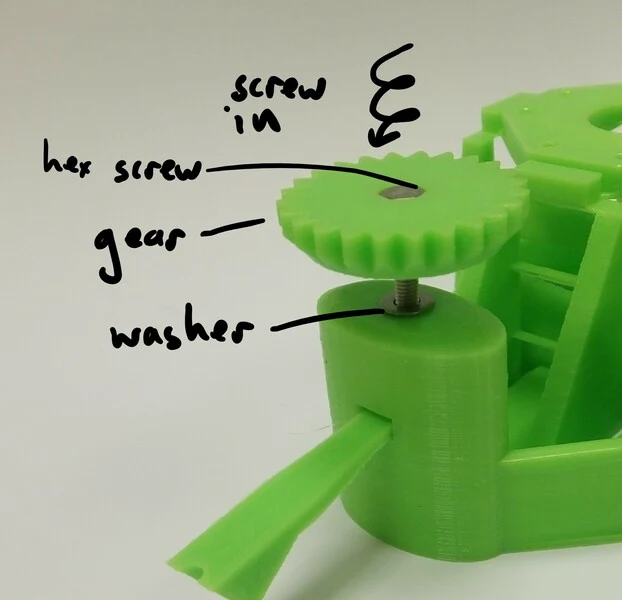
Image credit
docs/images/actuator_assembly_screw_in_1.jpg
Richard Bowman and OpenFlexure contributors · CERN-OHL-1.2Resized without cropping and converted to WebP.
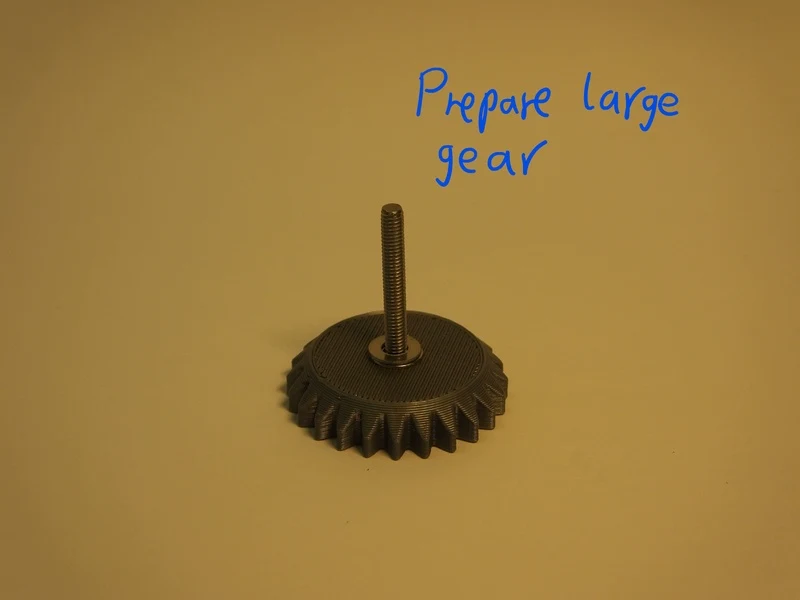
Image credit
docs/images/screw_gear_and_washers.jpg
Richard Bowman and OpenFlexure contributors · CERN-OHL-1.2Resized without cropping and converted to WebP.
Step 3
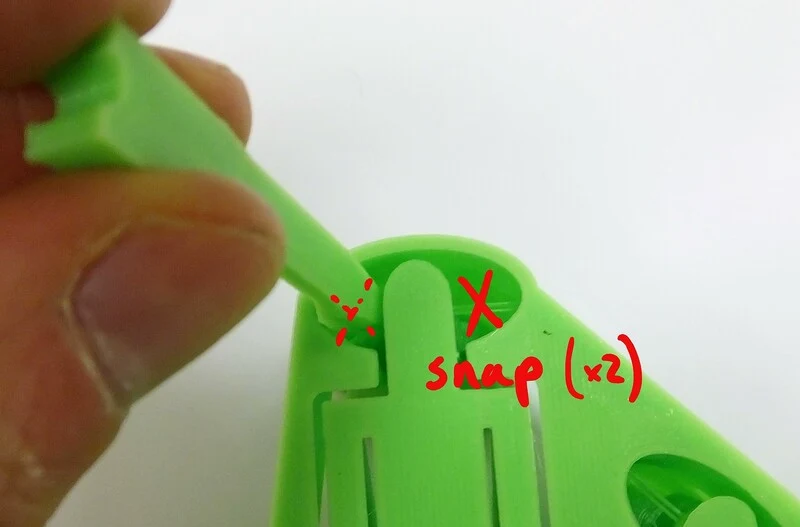
Image credit
docs/images/actuator_assembly_snap_supports_1.jpg
Richard Bowman and OpenFlexure contributors · CERN-OHL-1.2Resized without cropping and converted to WebP.
Step 4
Hook one of the Viton bands over the elastic band tool, and pass the tool through the foot as shown. You should end up with one loop of elastic band passing over each fork-shaped end of the insertion tool. The flat side of the tool should be on the outside, so that the channels in either end face towards the centre of the foot. Make sure you pick the right foot - the middle axis (Z) has a smaller foot. The angle of the feet is different, if the foot doesn't line up with the outside of the microscope casing, you may be using the wrong one.
You may find it easier to put the band through the foot, then insert the tool and hook the band over either end - either way you should end up with the band, foot, and tool arranged as shown in the pictures.
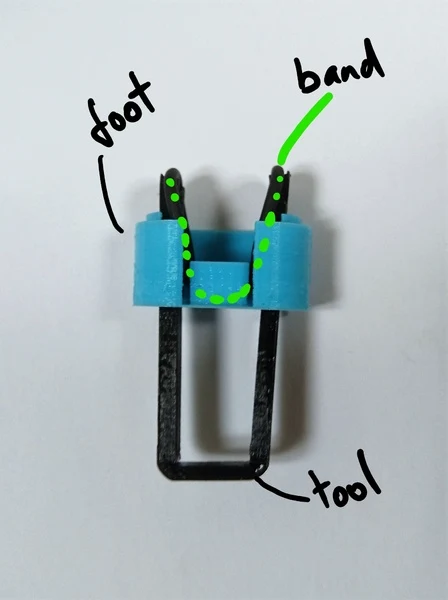
Image credit
docs/images/band_insertion_through_foot_1.jpg
Richard Bowman and OpenFlexure contributors · CERN-OHL-1.2Resized without cropping and converted to WebP.
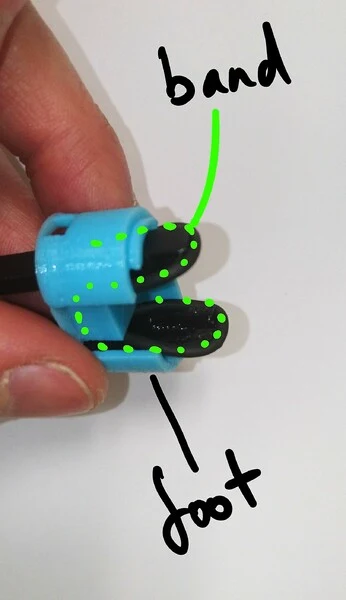
Image credit
docs/images/band_insertion_through_foot_2.jpg
Richard Bowman and OpenFlexure contributors · CERN-OHL-1.2Resized without cropping and converted to WebP.
Step 5
Place the foot on the body, taking care that it's in the right place (the outer two actuators have sloping bottoms, but flat tops, the central Z axis has a sloping top and a flat bottom). You must also take care to put them on the right way round; the open part of the foot points towards the optics module in the centre of the microscope.
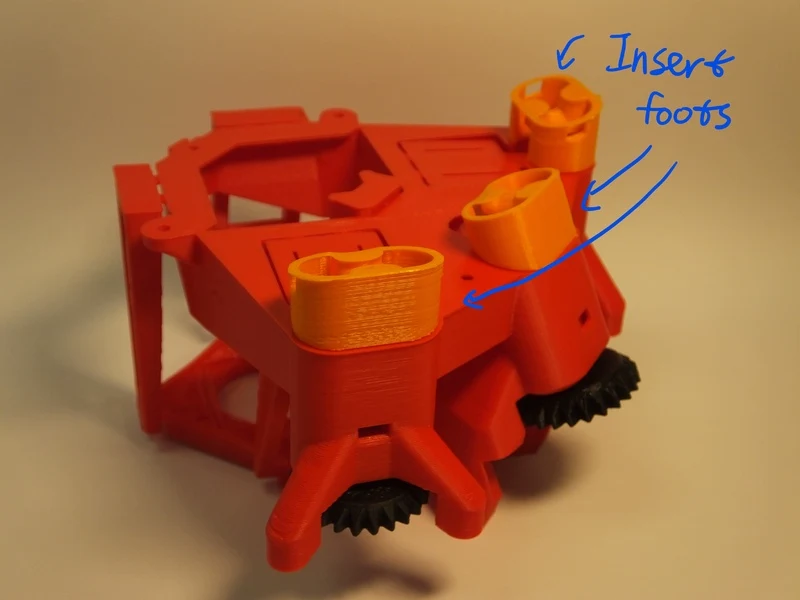
Image credit
docs/images/insert_feet.jpg
Richard Bowman and OpenFlexure contributors · CERN-OHL-1.2Resized without cropping and converted to WebP.
Push the insertion tool in until the band clicks into place. Use the nut insertion tool to hold the actuator in place while you do this. It might help to unscrew the gear a bit (so you can see some of the screw thread between the body and the gear) and push down on the gear. When you push the band in, it should click twice - once for each side. If you don't manage to hook both sides on, you may need to completely remove the band and try again - a wooden skewer, or small flat-bladed screwdriver works well to unhook the band without damaging it.
What's happening here is that the elastic band is pushed over little hooks inside the actuator column, near the top, and the click is the band popping into place. The band pulls down on the actuator, so after it's in place the gear should turn with a little more resistance - this is important for the microscope to work properly.
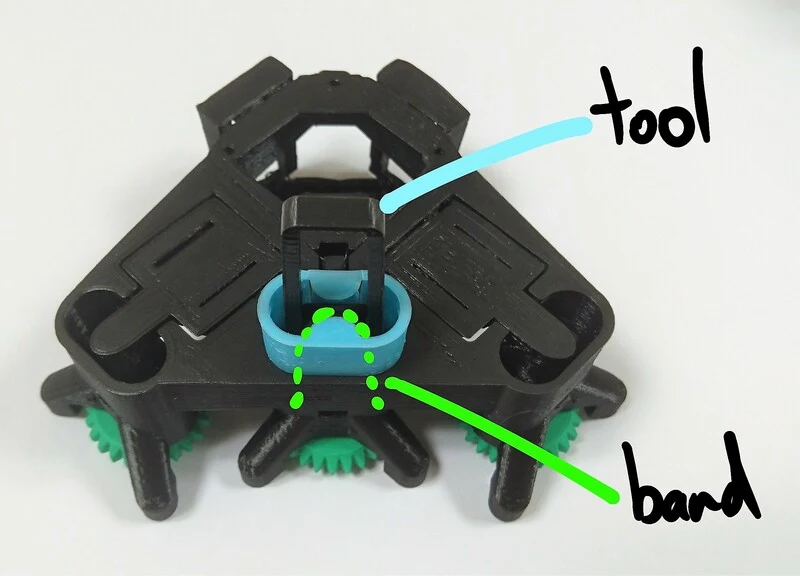
Image credit
docs/images/band_insertion_body_1.jpg
Richard Bowman and OpenFlexure contributors · CERN-OHL-1.2Resized without cropping and converted to WebP.
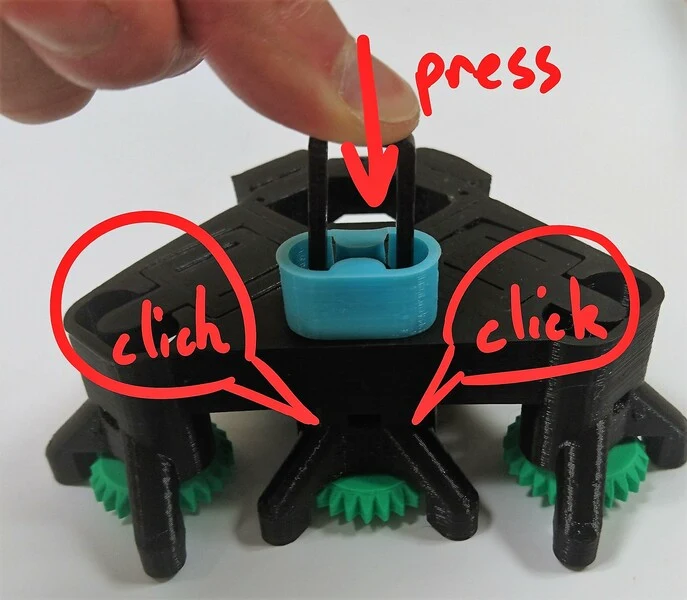
Image credit
docs/images/band_insertion_body_2.jpg
Richard Bowman and OpenFlexure contributors · CERN-OHL-1.2Resized without cropping and converted to WebP.
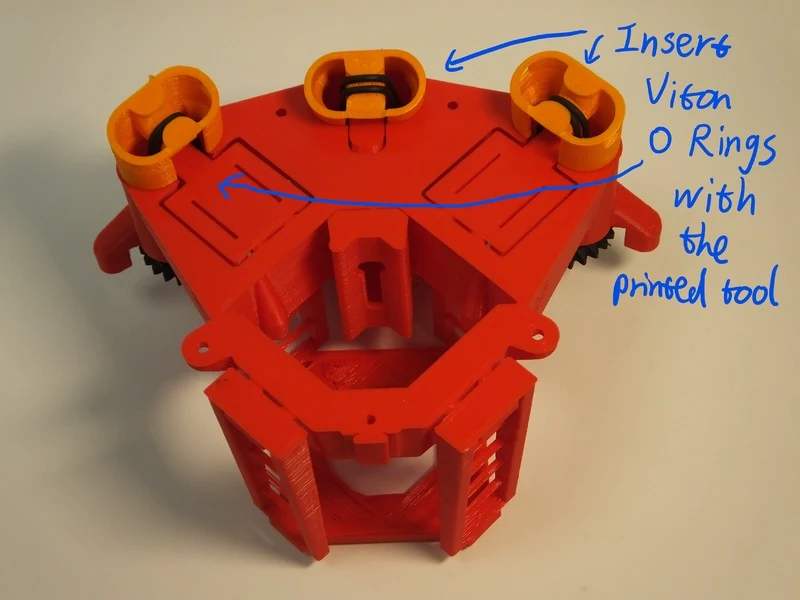
Image credit
docs/images/insert_bands.jpg
Richard Bowman and OpenFlexure contributors · CERN-OHL-1.2Resized without cropping and converted to WebP.
Step 6
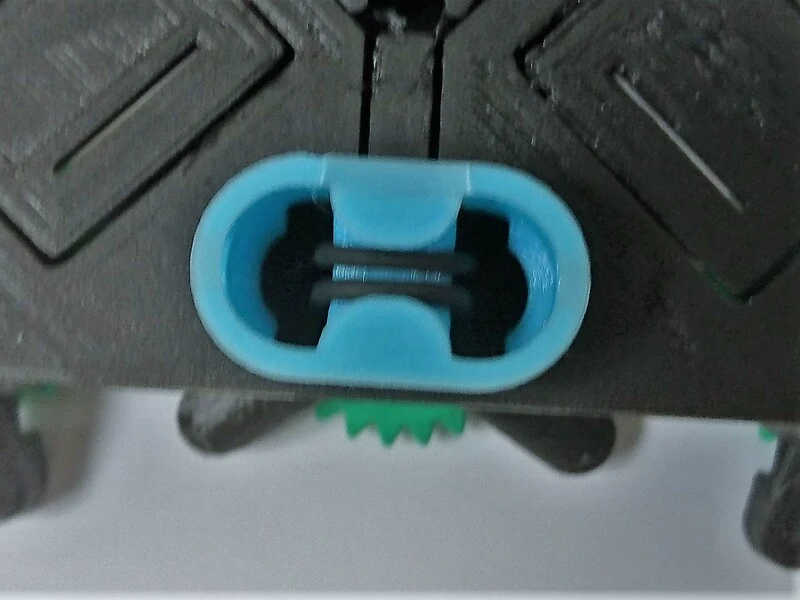
Image credit
docs/images/band_insertion_finished_bottom.jpg
Richard Bowman and OpenFlexure contributors · CERN-OHL-1.2Resized without cropping and converted to WebP.
Step 7
Congratulations, you've assembled the actuator! There are three to do, so you may now need to go back and make the next one.
Basic optics module
The simplest option for the microscope optics is to use a webcam lens. This is an old photographers' trick, where a wide angle lens is turned backwards and used as a macro lens, so the side that would have pointed at the camera sensor now points at the sample. Because webcams have very small pixels, using a webcam in reverse makes quite a good microscope objective. This version of the optics module turns the Raspberry Pi camera into a microscope with a field of view about 400um across and a resolution of around 2um.
Requirements
You will need the parts shown in the picture below:
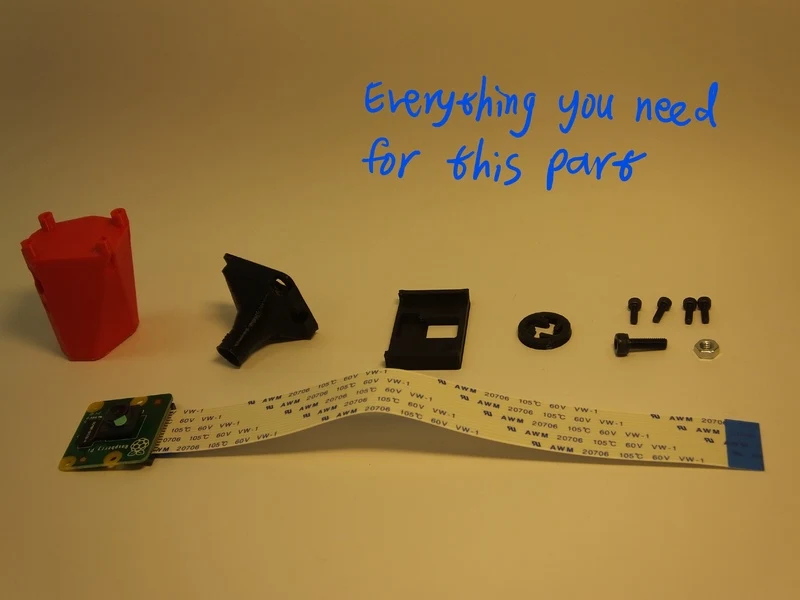
Image credit
docs/images/basic_optics_module_parts.jpg
Richard Bowman and OpenFlexure contributors · CERN-OHL-1.2Resized without cropping and converted to WebP.
Parts
- 1 Camera platform
- 1 Lens extension tube
- 1 Raspberry Pi camera module (ideally v2, though v1 should also work) - you could substitute a 6-LED webcam for an even lower-cost solution.
- 1 M3 steel nut
- 1 M3x10mm cap head screw
- 4 M2x6mm cap head screws
Tools
- 1 2.5mm hex key
- 1 1.5mm hex key
- 1 scalpel or craft knife (optional)
- 1 Tool for removing the lens
Assembly Instructions
Step 1
First, get the necessary tools and parts: the optics module plastic parts (the lens spacer and the camera platform), the Raspberry Pi camera module, the tools for removing the camera lens, two M2 screws to secure the camera. Depending on print quality, you might also need a sharp craft knife or some tape.
NB the lens removal tools, board gripper, and optics module are all specific to the camera you're using. This version of the instructions is for version 2 of the camera board, version 1 of the Rasbperry Pi camera module will also work, but you will need to remove the lens with pliers or tweezers instead. Version 2 of the camera module ships with a lens removal tool included, which is a white disc of plastic with a hole in the centre. This is better than the printed lens removal tool, if it's available.
If you are using the 6-LED USB webcam (available for around £3 from eBay or AliExpress) you will need to skip some of these steps and also disassemble the plastic casing to extract the circuit board for the camera. You can simply unscrew the webcam lens and tape or glue it upside down onto the holder, which is fixed onto the circuit board. There is a camera platform STL for the 6-LED camera in the build, substitute this for the Raspberry Pi camera platform part.
Step 2
We need to remove the lens from the camera. To do this, you need the two plastic tools (the board gripper and the lens remover) as well as the camera module. It's best to make sure you have completed the steps up to this point before removing the lens, to minimise the amount of time the sensor is exposed to air and dust.
WARNING! The camera board is static sensitive. Take the usual anti-static precautions (ideally use an anti-static wristband connected to ground, but at the very least make sure you touch an earthed object, such as a metal pipe, before working on the camera module.
Step 3
Remove the protective film from the camera lens.
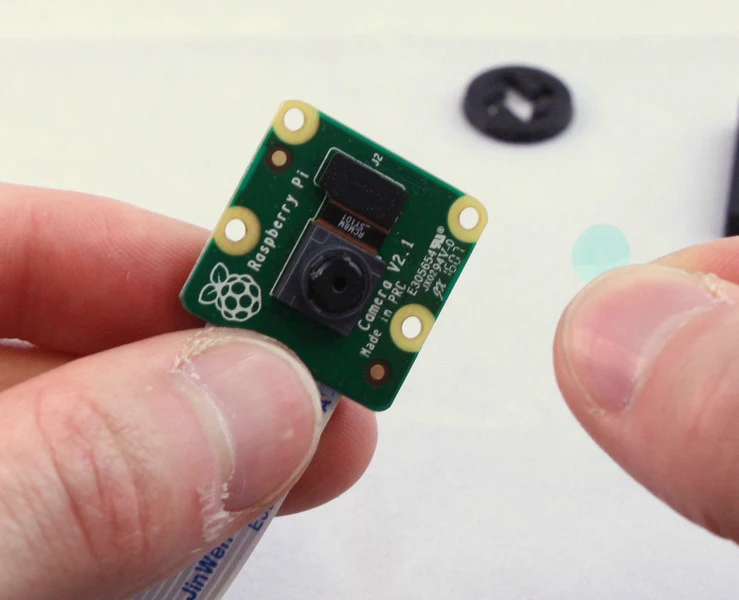
Image credit
docs/images/picam2_film_removal.jpg
Richard Bowman and OpenFlexure contributors · CERN-OHL-1.2Resized without cropping and converted to WebP.
Step 4
There is a small ribbon cable connecting the camera to the PCB that is very easy to break. There is a square plastic jig that fits over the camera and PCB (the "camera board gripper"), which stops the camera twisting and damaging the ribbon cable. Fit this over the camera as shown. Note that the part for v2 of the camera board will sort-of fit v1, but you need to be a little more careful as it's not a perfect fit.
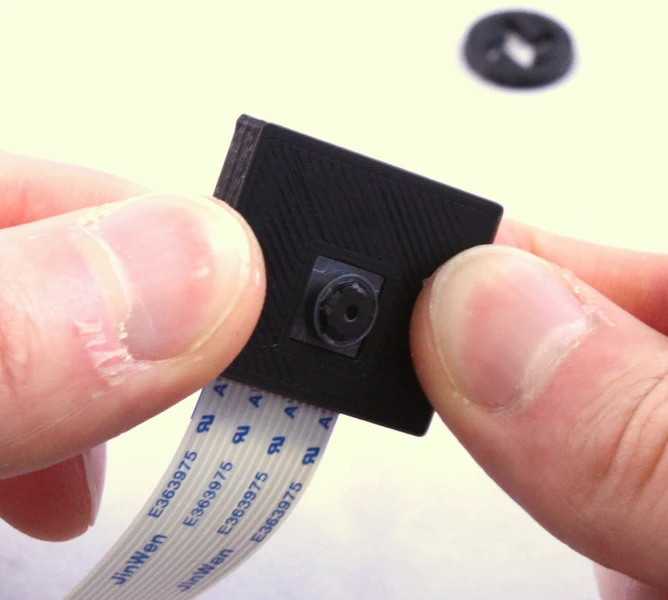
Image credit
docs/images/picam2_board_gripper_1.jpg
Richard Bowman and OpenFlexure contributors · CERN-OHL-1.2Resized without cropping and converted to WebP.
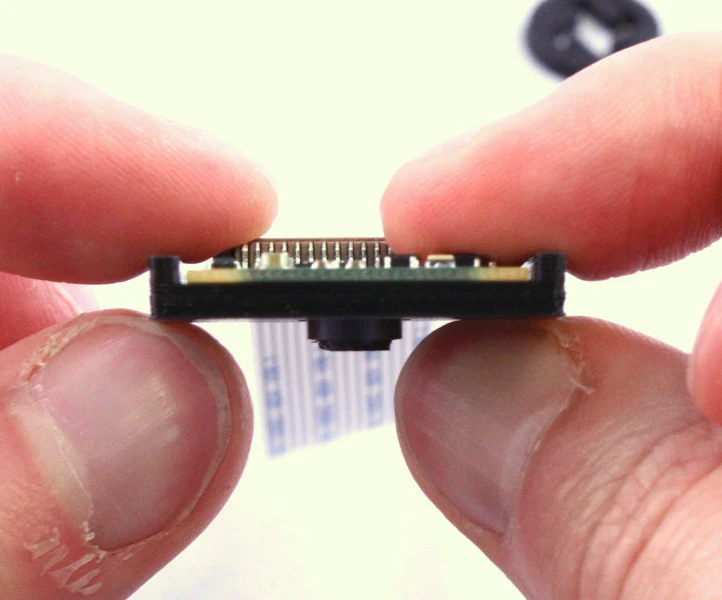
Image credit
docs/images/picam2_board_gripper_2.jpg
Richard Bowman and OpenFlexure contributors · CERN-OHL-1.2Resized without cropping and converted to WebP.
Step 5
Next, unscrew the lens from the camera module. Use the plastic tool to grip the lens module. This is a small circular part with four prongs that fits over the lens of the camera board (version 2 only) as shown. To remove the lens, push the removal tool onto the lens (just the top part, with the little plastic flanges) and turn anticlockwise to remove it.
The printed tool only works if the prongs are pointing anticlockwise, so make sure it's the right way round. It's important to use the board gripper to hold the camera chip in place and prevent damage to the delicate ribbon cable. After you've removed the lens, check that the little black or orange ribbon cable connecting the camera module (the black square of plastic from which you unscrewed the lens) to the PCB is still connected - pop it back in by pushing it with a finger if needed.
Once you've removed the lens, be sure to place the camera face down on the desk, or put a piece of tape over the square black lens holder; this will help stop dust settling on the sensor, which is extremely hard to clean.
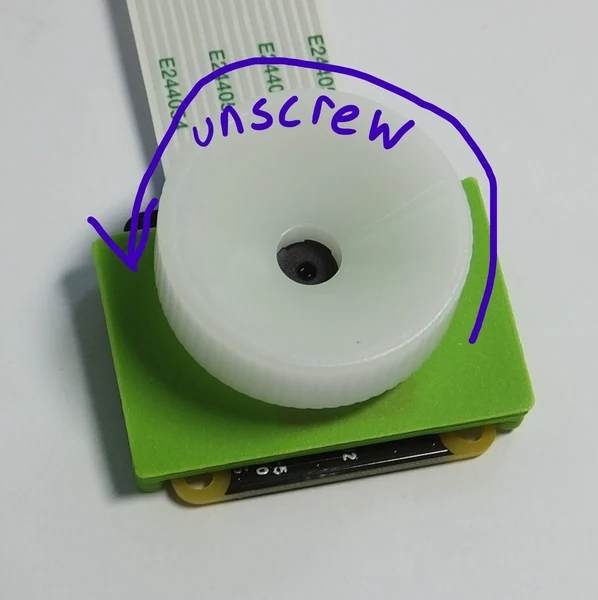
Image credit
docs/images/picam2_lens_removal.jpg
Richard Bowman and OpenFlexure contributors · CERN-OHL-1.2Resized without cropping and converted to WebP.
Step 6
Before assembling the parts into the holder, make sure it's free from dust by blowing some air through it, and check there are no strings of plastic in the central hole through the mount.
Step 7
Next, put the lens into the plastic extension tube. The lens should go in with the side that was next to the camera sensor on top, and the side that was facing outwards (the one with a small hole in the black plastic) facing into the extension tube. This should just push-fit, but may take a small amount of force, or require a layer of tape wrapped around the lens to make it fit tightly (depending on your printer). If you wrap tape around the lens, trim off any tape that protrudes above the lens with a scalpel or sharp craft knife.
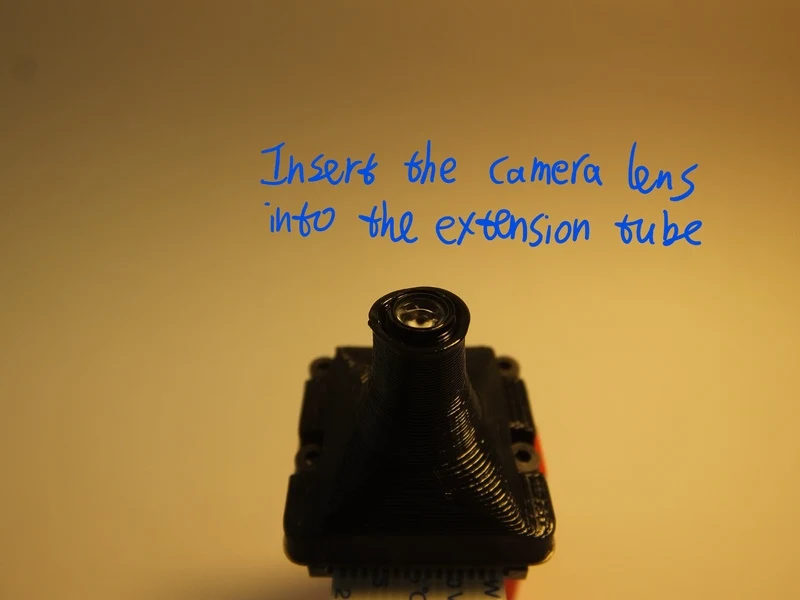
Image credit
docs/images/insert_camera_lens.jpg
Richard Bowman and OpenFlexure contributors · CERN-OHL-1.2Resized without cropping and converted to WebP.
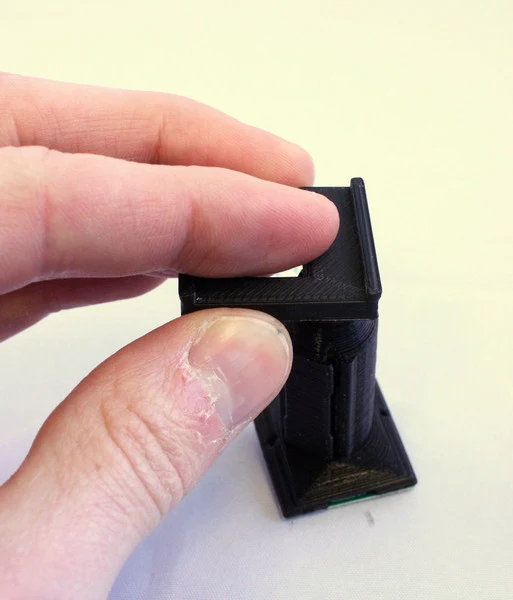
Image credit
docs/images/lens_insertion_2.jpg
Richard Bowman and OpenFlexure contributors · CERN-OHL-1.2Resized without cropping and converted to WebP.
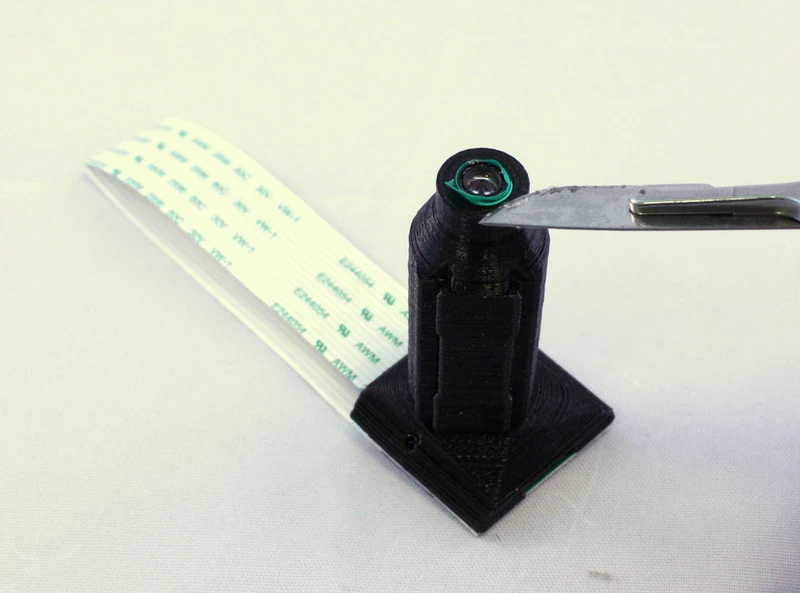
Image credit
docs/images/lens_insertion_3.jpg
Richard Bowman and OpenFlexure contributors · CERN-OHL-1.2Resized without cropping and converted to WebP.
Step 8
Fit the extension tube onto the camera board, then put the camera board and extension tube onto the camera platform. Secure it in place with two M2 screws, which go through the extension tube and the camera board, and into the platform. You can use two more M2 screws if available to make the joint stronger.
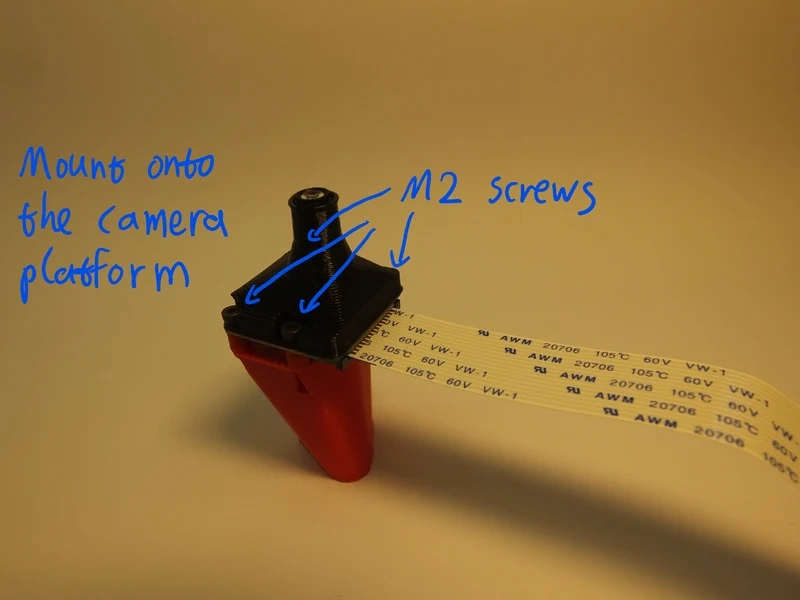
Image credit
docs/images/mount_to_camera_platform.jpg
Richard Bowman and OpenFlexure contributors · CERN-OHL-1.2Resized without cropping and converted to WebP.
Step 9
Slide a nut into the nut trap on the side of the camera platform. This probably doesn't need a tool, but you could use a 2.5mm hex key to push it in.
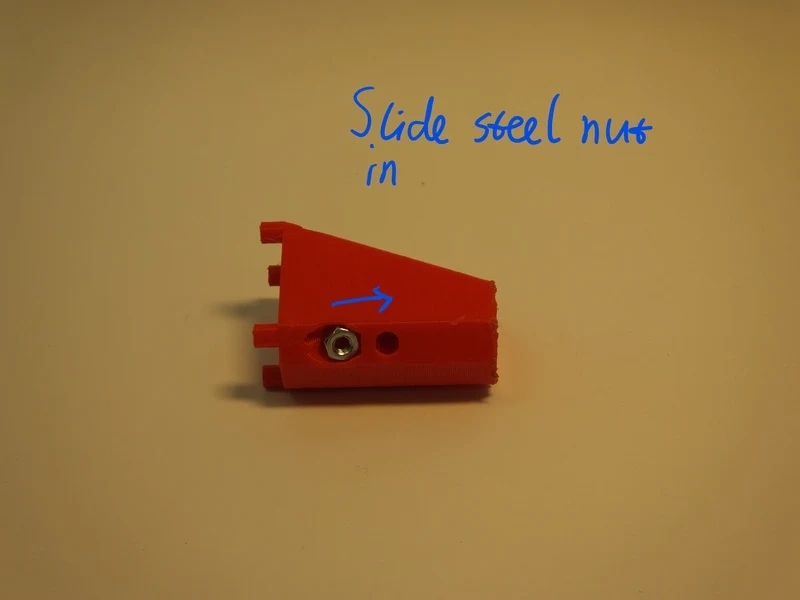
Image credit
docs/images/slide_in_nut_camera_platform.jpg
Richard Bowman and OpenFlexure contributors · CERN-OHL-1.2Resized without cropping and converted to WebP.
Step 10
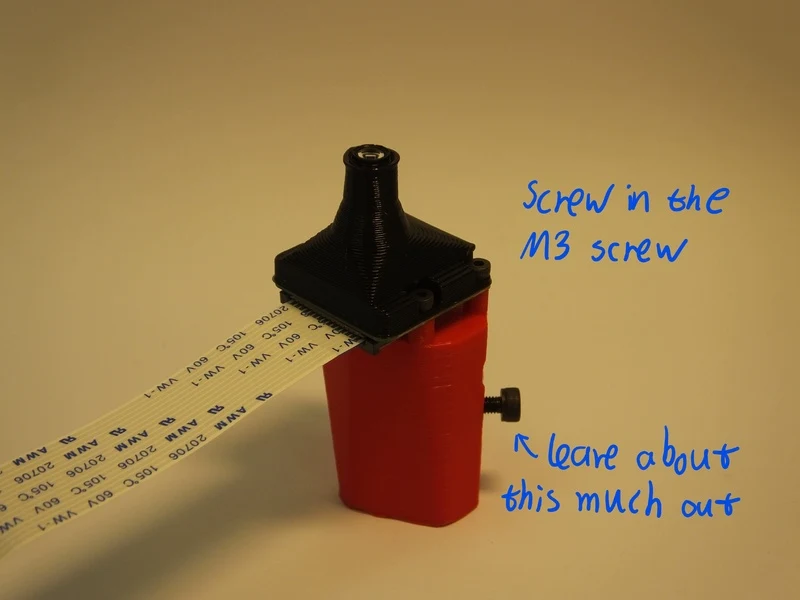
Image credit
docs/images/camera_platform_mounting_screw.jpg
Richard Bowman and OpenFlexure contributors · CERN-OHL-1.2Resized without cropping and converted to WebP.
Step 11
Well done - you have assembled the optics module.
High resolution optics module
To get lab quality images from your microscope, you need to use more sophisticated optics than a webcam lens. This optics module uses an RMS threaded microscope objective, with a tube length correction lens, to take very high quality images.
Requirements
You will need the parts shown in the picture below:
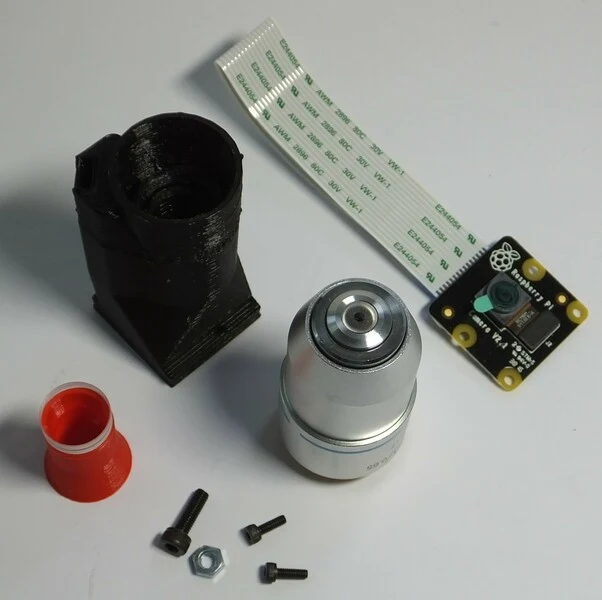
Image credit
docs/images/hires_optics_parts.jpg
Richard Bowman and OpenFlexure contributors · CERN-OHL-1.2Resized without cropping and converted to WebP.
Parts
- 1 RMS optics module casing
- 1 Raspbery Pi camera module (ideally v2, though v1 should also work)
- 1 M3 steel nut
- 1 M3x10mm cap head screw
- 2 M2x6mm cap head screws
- 1 12.7mm diameter, 50mm focal length achromatic lens
- 1 RMS threaded microscope objective
Tools
- 1 Tube lens insertion tool
- 1 2.5mm hex key
- 1 1.5mm hex key
- 1 scalpel or craft knife (optional)
- 1 Tool for removing the lens
Assembly Instructions
Step 1
First, get the necessary tools and parts: the optics module plastic part, the Raspberry Pi camera module, the tools for removing the camera lens, two M2 screws to secure the camera, the tube lens, and the objective. Depending on print quality, you might also need a sharp craft knife.
NB the lens removal tools, board gripper, and optics module are all specific to the camera you're using. This version of the instructions is for version 2 of the camera board, version 1 of the Rasbperry Pi camera module will also work, but you will need to remove the lens with pliers or tweezers instead. Version 2 of the camera module ships with a lens removal tool included, which is a white disc of plastic with a hole in the centre. This is better than the printed lens removal tool, if it's available.
Step 2
Before assembling the parts into the holder, make sure it's free from dust by blowing some air through it, and check there are no strings of plastic in the central hole through the mount - an example with strings of plastic is shown in the picture. Use a craft knife to remove these strings, and blow out any debris that remains inside the optics module.
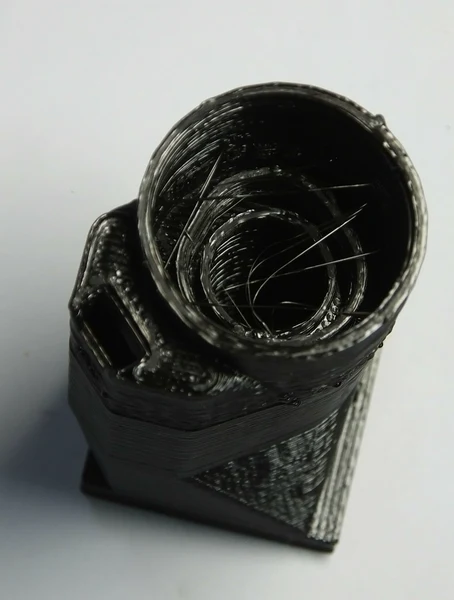
Image credit
docs/images/hires_optics_cleanup.jpg
Richard Bowman and OpenFlexure contributors · CERN-OHL-1.2Resized without cropping and converted to WebP.
Step 3
Slide the M3 nut into the plastic holder, and screw the M3 screw into it as shown. This will mount the optics module into the microscope.
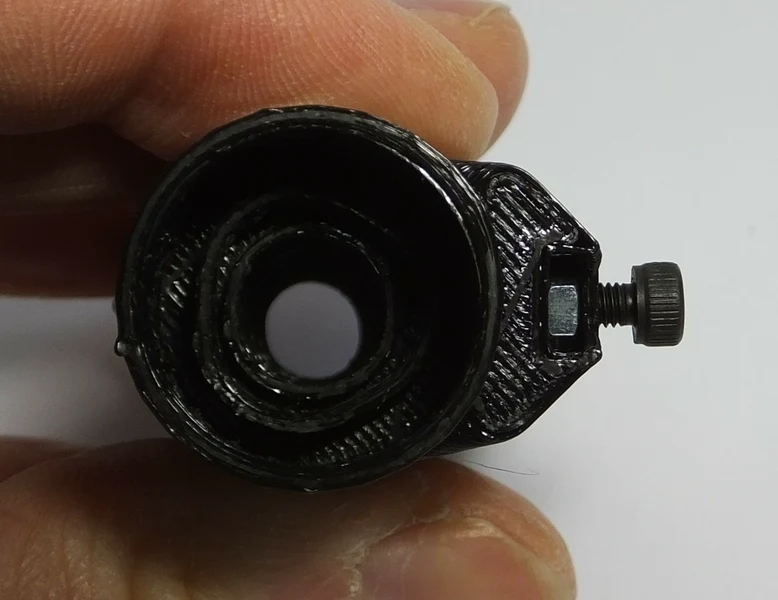
Image credit
docs/images/hires_optics_screw.jpg
Richard Bowman and OpenFlexure contributors · CERN-OHL-1.2Resized without cropping and converted to WebP.
Step 4
Next, put the lens into the push-fit holder. Start by placing the tube lens insertion tool on a table, with the larger end down. Then, put the lens on the tool (shown in red below), with the more convex side facing down. Next, carefully line up the optics module casing with the lens, and push it down on top of the lens. This might take a little force, I use the heel of my hand. The glass lens is harder than the plastic so is unlikely to crack, but try to avoid too much sideways motion, as this can scratch the surface of the lens.
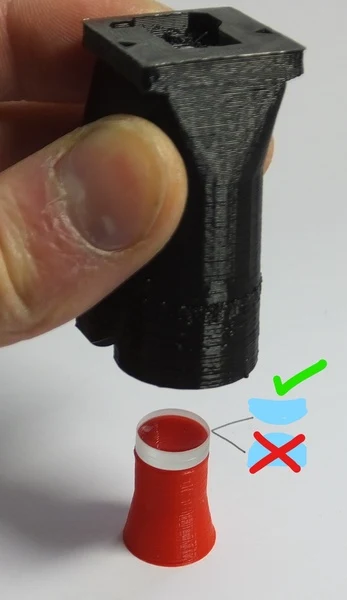
Image credit
docs/images/hires_optics_tube_lens_1.jpg
Richard Bowman and OpenFlexure contributors · CERN-OHL-1.2Resized without cropping and converted to WebP.
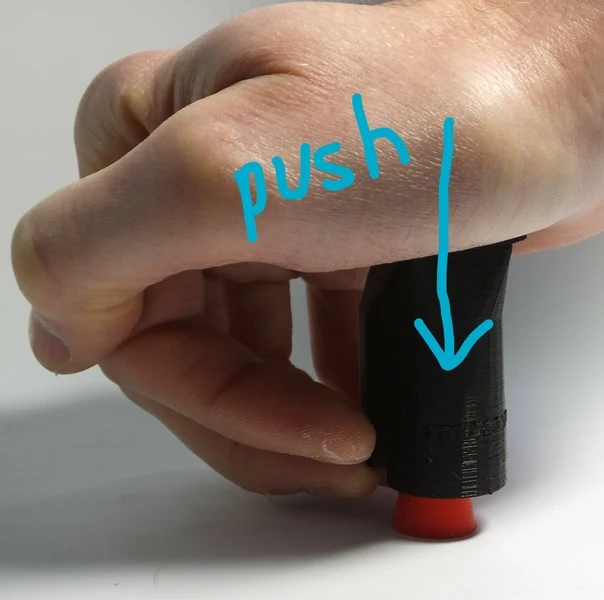
Image credit
docs/images/hires_optics_tube_lens_2.jpg
Richard Bowman and OpenFlexure contributors · CERN-OHL-1.2Resized without cropping and converted to WebP.
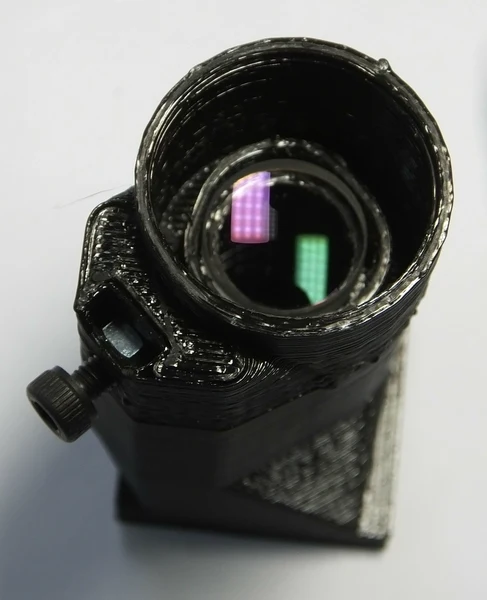
Image credit
docs/images/hires_optics_tube_lens_3.jpg
Richard Bowman and OpenFlexure contributors · CERN-OHL-1.2Resized without cropping and converted to WebP.
Step 5
Screw the objective into the plastic casing. The printed thread is not hugely strong, and may not have printed very precisely - the means it might be a little loose or a little tight, and you need to be very careful to screw the objective in straight in order to avoid cross-threading.
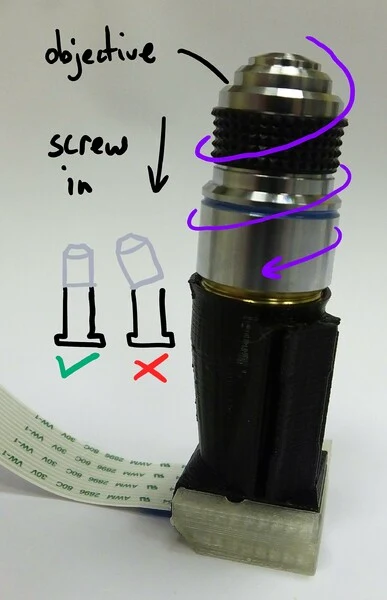
Image credit
docs/images/hires_optics_objective_1.jpg
Richard Bowman and OpenFlexure contributors · CERN-OHL-1.2Resized without cropping and converted to WebP.
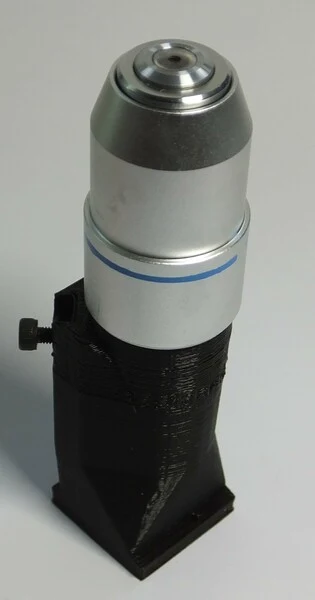
Image credit
docs/images/hires_optics_objective_2.jpg
Richard Bowman and OpenFlexure contributors · CERN-OHL-1.2Resized without cropping and converted to WebP.
Step 6
We need to remove the lens from the camera. To do this, you need the two plastic tools (the board gripper and the lens remover) as well as the camera module. It's best to make sure you have completed the steps up to this point before removing the lens, to minimise the amount of time the sensor is exposed to air and dust.
WARNING! The camera board is static sensitive. Take the usual anti-static precautions (ideally use an anti-static wristband connected to ground, but at the very least make sure you touch an earthed object, such as a metal pipe, before working on the camera module.
Step 7
Remove the protective film from the camera lens.
Image credit
docs/images/picam2_film_removal.jpg
Richard Bowman and OpenFlexure contributors · CERN-OHL-1.2Resized without cropping and converted to WebP.
Step 8
There is a small ribbon cable connecting the camera to the PCB that is very easy to break. There is a square plastic jig that fits over the camera and PCB (the "camera board gripper"), which stops the camera twisting and damaging the ribbon cable. Fit this over the camera as shown. Note that the part for v2 of the camera board will sort-of fit v1, but you need to be a little more careful as it's not a perfect fit.
Image credit
docs/images/picam2_board_gripper_1.jpg
Richard Bowman and OpenFlexure contributors · CERN-OHL-1.2Resized without cropping and converted to WebP.
Image credit
docs/images/picam2_board_gripper_2.jpg
Richard Bowman and OpenFlexure contributors · CERN-OHL-1.2Resized without cropping and converted to WebP.
Step 9
Next, unscrew the lens from the camera module. Use the plastic tool to grip the lens module. This is a small circular part with four prongs that fits over the lens of the camera board (version 2 only) as shown. To remove the lens, push the removal tool onto the lens (just the top part, with the little plastic flanges) and turn anticlockwise to remove it.
The printed tool only works if the prongs are pointing anticlockwise, so make sure it's the right way round. The plastic tool supplied with the camera module is better, and only fits one way up. It's important to use the board gripper to hold the camera chip in place and prevent damage to the delicate ribbon cable. After you've removed the lens, check that the little black (or orange) ribbon cable connecting the camera module to the PCB is still connected - pop it back in by pushing it with a finger if needed.
Once you've removed the lens, be sure to place the camera face down on the desk, or put a piece of tape over the square black lens holder; this will help stop dust settling on the sensor, which is extremely hard to clean.
Image credit
docs/images/picam2_lens_removal.jpg
Richard Bowman and OpenFlexure contributors · CERN-OHL-1.2Resized without cropping and converted to WebP.
Step 10
Fit the camera module on to the bottom of the plastic housing, and secure it in place with the two M2 screws.
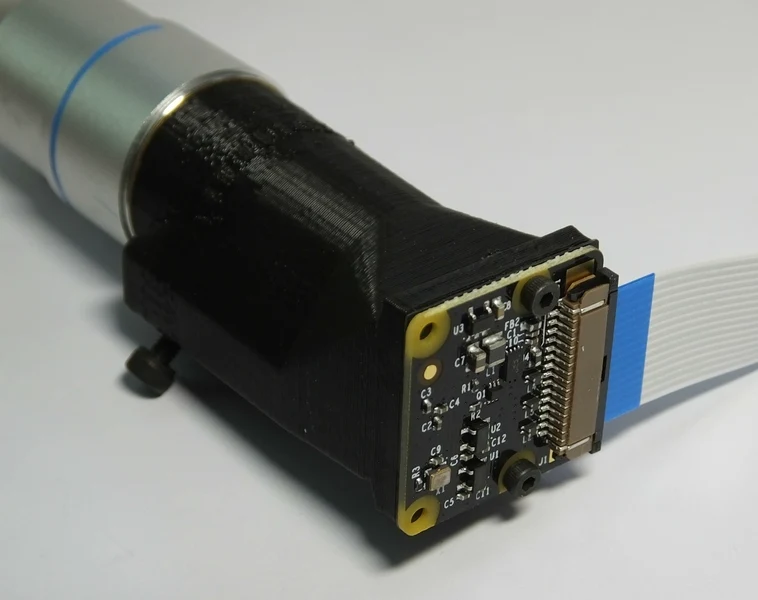
Image credit
docs/images/hires_optics_camera.jpg
Richard Bowman and OpenFlexure contributors · CERN-OHL-1.2Resized without cropping and converted to WebP.
Step 11
Well done - you have assembled the optics module.
Assemble the illumination
The microscope usually works by looking at light that has passed through the sample - so we need to illuminate the sample from above. This section takes you through the assembly of the illumination arm.
Requirements
Parts
- 1 Illumination dovetail
- 1 condenser arm
- 1 5mm LED ideally wired up to a 2-way female header
- 2 M3x8 cap head screws
- 2 M3 Washers
- 1 Condenser lens (optional)
Tools
- 2.5mm hex key
- Condenser lens insertion tool (if using a condenser lens)
Assembly Instructions
Step 1
To build the condenser, you will need the two parts of the mounting arm, two M3 screws and washers, the LED & cable. If you are using a condenser lens, you will also need the printed lens insertion tool to put the lens into the holder.
Step 2
This is an optional step. If you are not using the condenser lens, skip to step 3
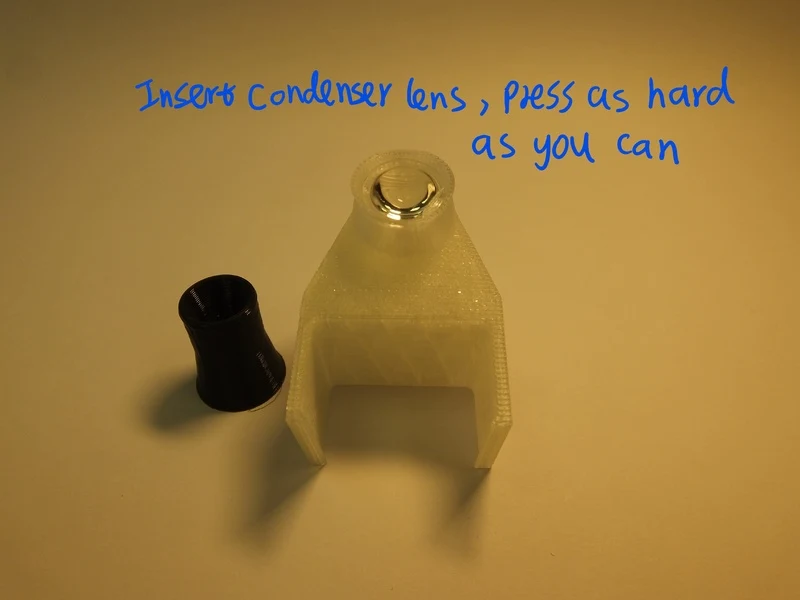
Image credit
docs/images/insert_condenser.jpg
Richard Bowman and OpenFlexure contributors · CERN-OHL-1.2Resized without cropping and converted to WebP.
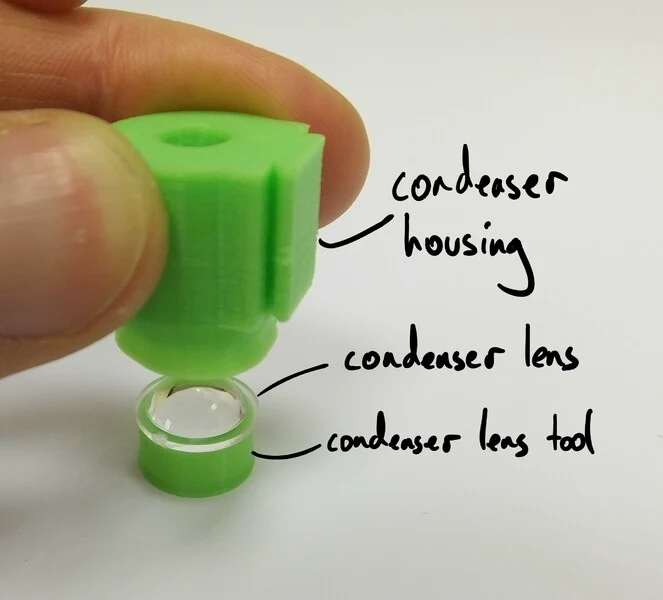
Image credit
docs/images/condenser_lens_1.jpg
Richard Bowman and OpenFlexure contributors · CERN-OHL-1.2Resized without cropping and converted to WebP.
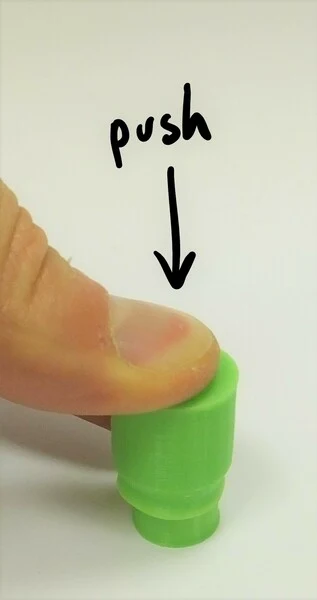
Image credit
docs/images/condenser_lens_2.jpg
Richard Bowman and OpenFlexure contributors · CERN-OHL-1.2Resized without cropping and converted to WebP.
Step 3
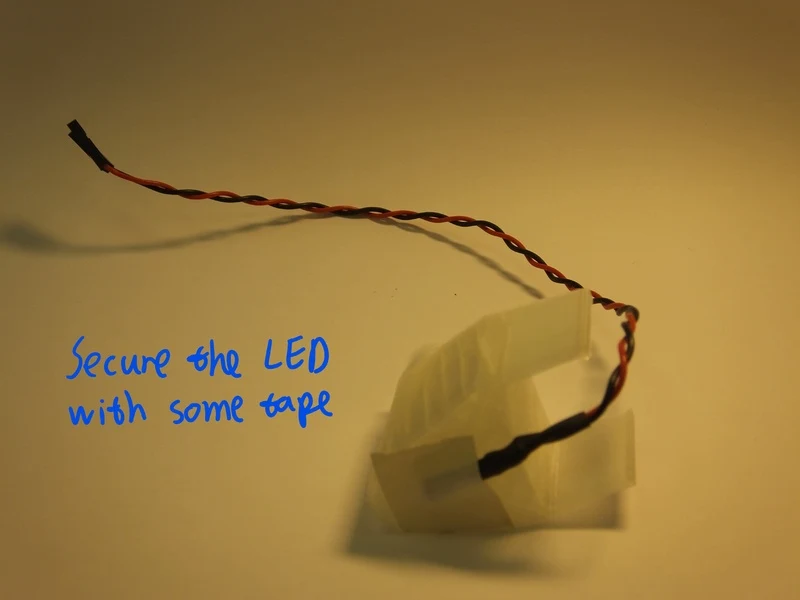
Image credit
docs/images/insert_led.jpg
Richard Bowman and OpenFlexure contributors · CERN-OHL-1.2Resized without cropping and converted to WebP.
Step 4
Assemble the cable for the LED, if you don't have one soldered on already. You just need to be able to light it up - we usually do this by soldering the LED to a resistor (about 80 ohms), then attaching about 20cm of cable with female crimps on the end. This can easily be plugged onto the Raspberry Pi's 5v GPIO pin.
Step 5
Place the illumination dovetail onto the platform on the microscope body, and secure in place with the two M3 screws. Use a washer between the screw and the dovetail. The holes on the microscope should be just the right size for the M3 screw, but you might need to use some force to get the screws in. Be careful to stop turning the screws as soon as the dovetail is mounted tightly, though - otherwise you might damage the threads.
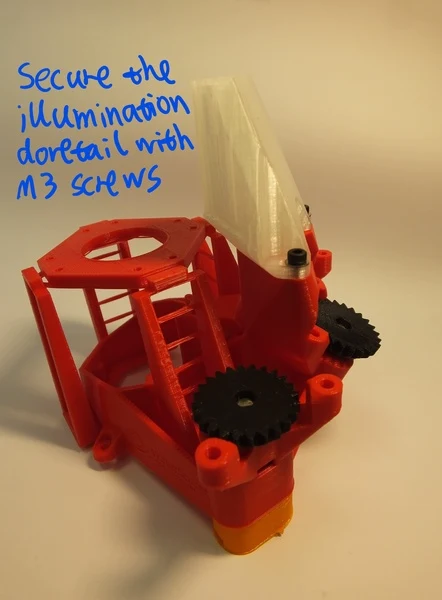
Image credit
docs/images/mount_illumination_dovetail.jpg
Richard Bowman and OpenFlexure contributors · CERN-OHL-1.2Resized without cropping and converted to WebP.
Step 6
Clip the horizontal part of the condenser onto the vertical dovetail.
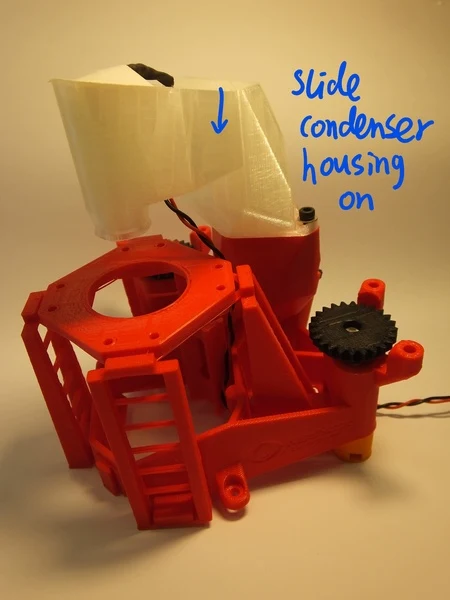
Image credit
docs/images/slide_on_condenser.jpg
Richard Bowman and OpenFlexure contributors · CERN-OHL-1.2Resized without cropping and converted to WebP.
Step 7
Neatly thread the cable for the LED through the gap between the condenser and the dovetail, and then down beside the optics module to the bottom of the microscope. Don't pass it through the hole in the centre of the flat stage - pass it between the stage and the dovetail.
Step 8
You have assembled the illumination - nearly there!
Sample mounting and wiring
Requirements
All the parts you need are shown below:
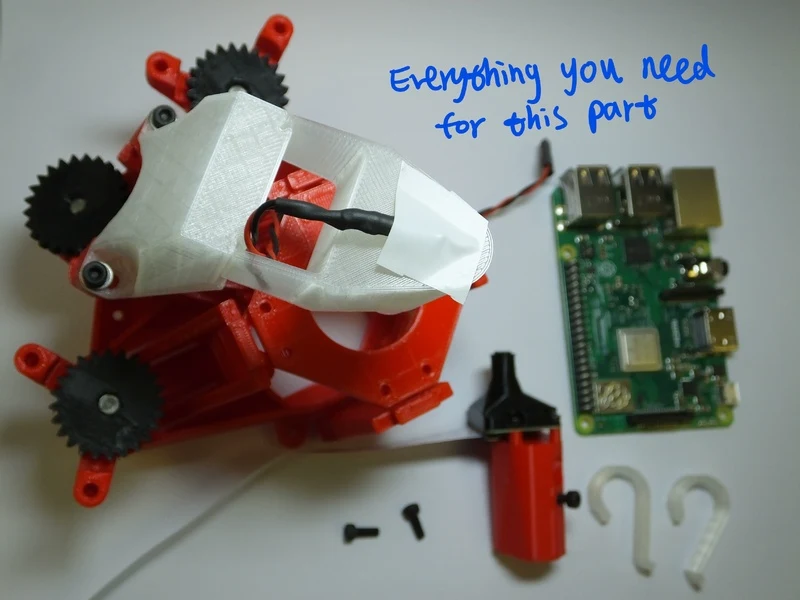
Image credit
docs/images/clips_and_wiring_parts.jpg
Richard Bowman and OpenFlexure contributors · CERN-OHL-1.2Resized without cropping and converted to WebP.
Parts
- 1 Microscope body, with 3 assembled actuators, an optics module, and the illumination attached.
- 2 M3x8mm screws
- 2 Sample clips
- 1 Raspberry Pi
Tools
- A 2.5mm ball-ended hex key
Assembly Instructions
Step 1
Plug the LED cable into the GPIO connector on the Raspberry Pi, to the 0v and 5v lines. These are the second and third pins from the top of the connector, on the outside edge - pins number 4 and 6.
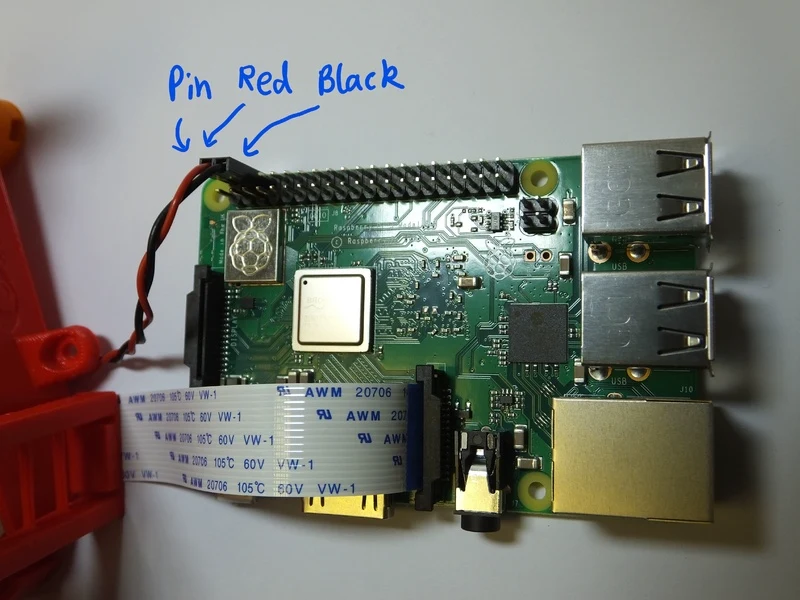
Image credit
docs/images/LED_wiring.jpg
Richard Bowman and OpenFlexure contributors · CERN-OHL-1.2Resized without cropping and converted to WebP.
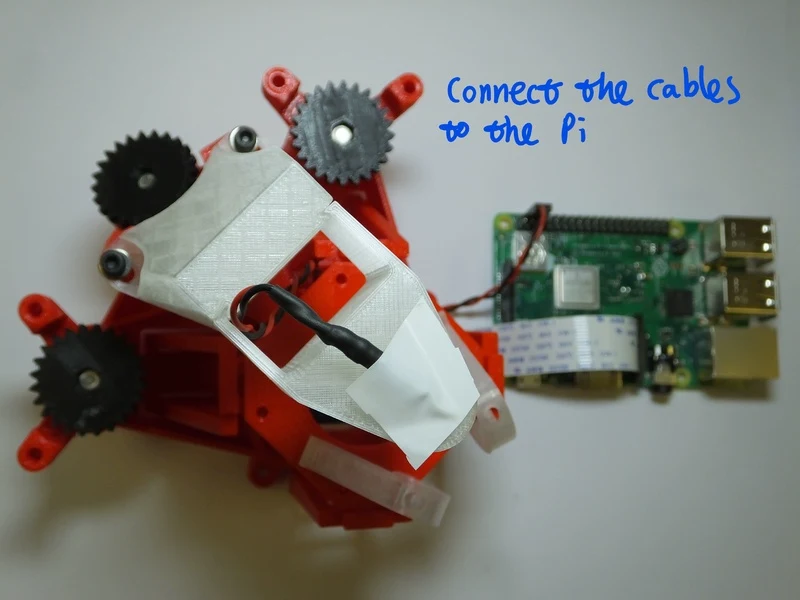
Image credit
docs/images/camera_wiring.jpg
Richard Bowman and OpenFlexure contributors · CERN-OHL-1.2Resized without cropping and converted to WebP.
Step 2
If you are using a tall optics module, e.g. if you are using a plan corrected objective, you may need to fit a sample riser between the microscope body and the microscope slide. This is not necessary if you are using the basic optics module.
Step 3
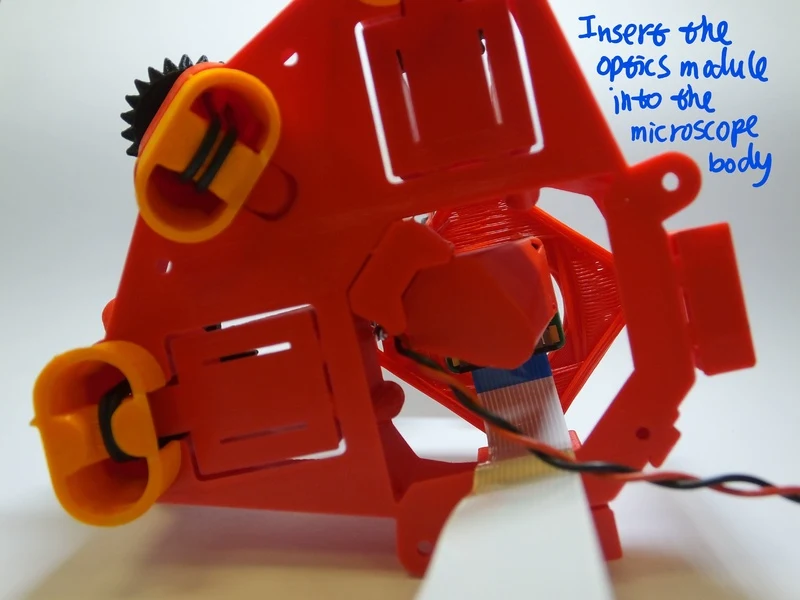
Image credit
docs/images/insert_optics_module.jpg
Richard Bowman and OpenFlexure contributors · CERN-OHL-1.2Resized without cropping and converted to WebP.
Step 4
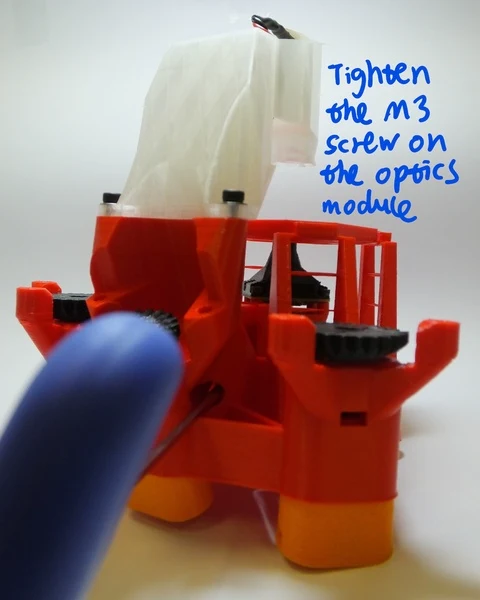
Image credit
docs/images/screw_on_optics_module.jpg
Richard Bowman and OpenFlexure contributors · CERN-OHL-1.2Resized without cropping and converted to WebP.
Step 3
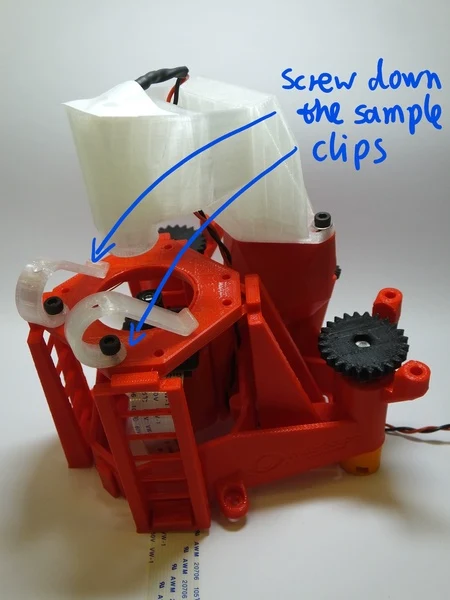
Image credit
docs/images/sample_clips.jpg
Richard Bowman and OpenFlexure contributors · CERN-OHL-1.2Resized without cropping and converted to WebP.
Step 4
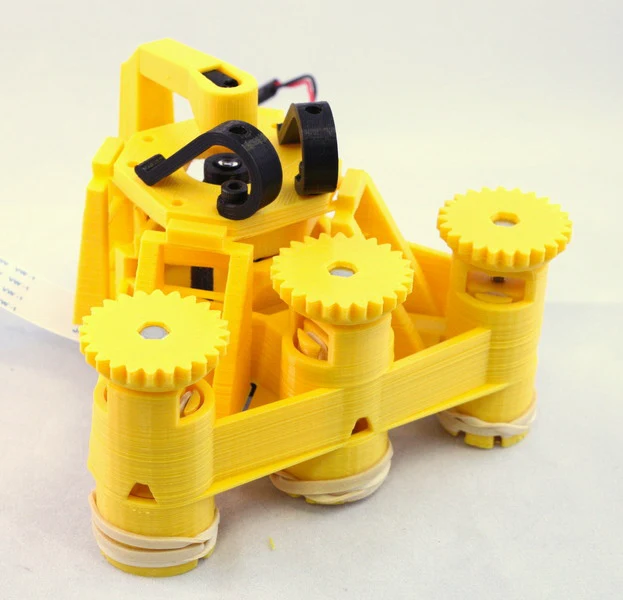
Image credit
docs/images/microscope_complete_1.jpg
Richard Bowman and OpenFlexure contributors · CERN-OHL-1.2Resized without cropping and converted to WebP.
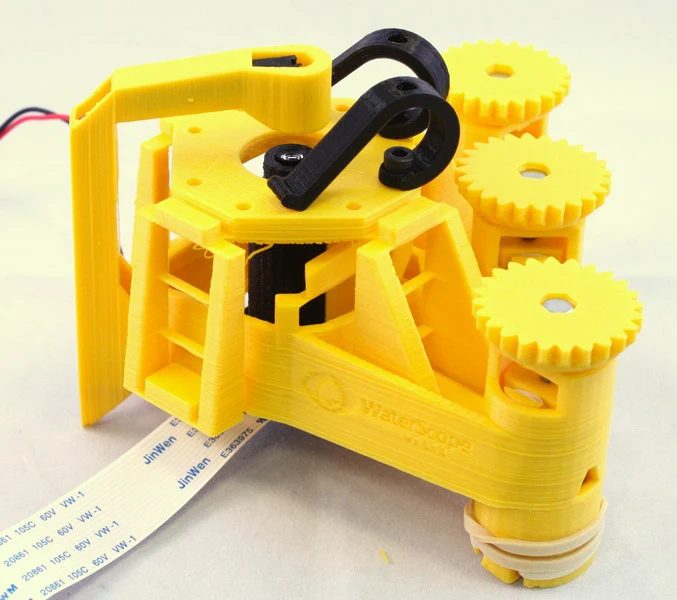
Image credit
docs/images/microscope_complete_2.jpg
Richard Bowman and OpenFlexure contributors · CERN-OHL-1.2Resized without cropping and converted to WebP.
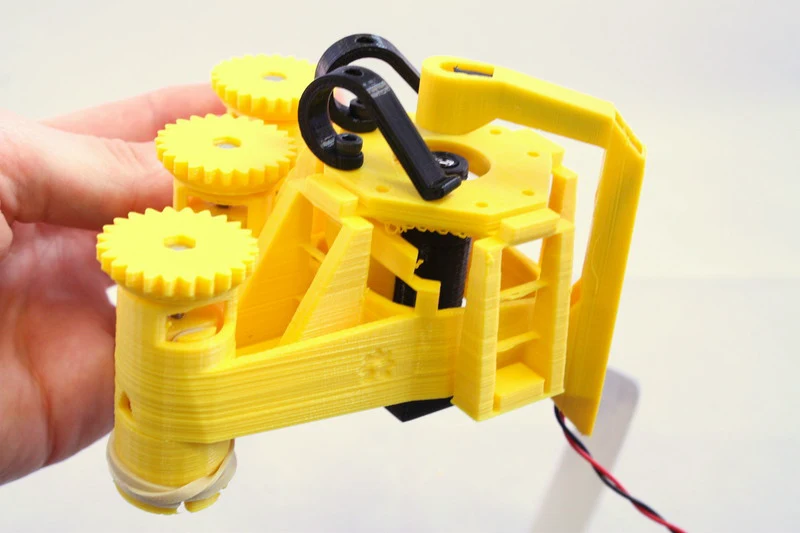
Image credit
docs/images/microscope_complete_3.jpg
Richard Bowman and OpenFlexure contributors · CERN-OHL-1.2Resized without cropping and converted to WebP.
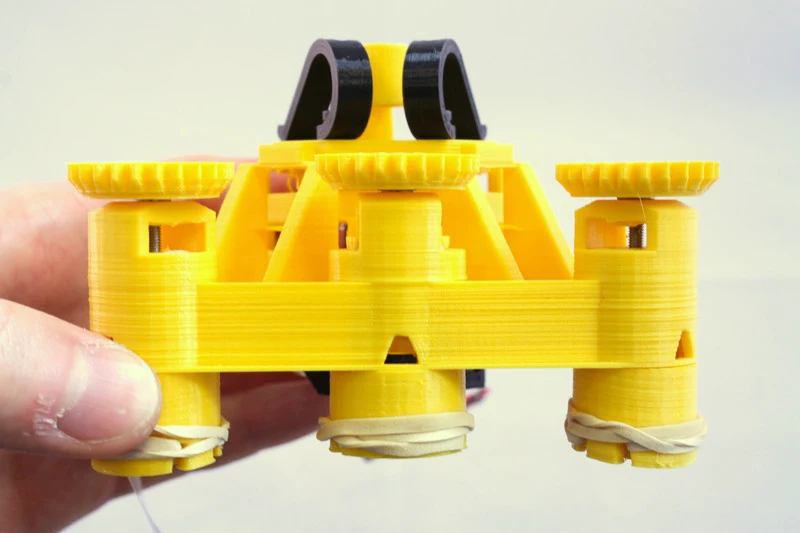
Image credit
docs/images/microscope_complete_4.jpg
Richard Bowman and OpenFlexure contributors · CERN-OHL-1.2Resized without cropping and converted to WebP.
Motor assembly
The OpenFlexure Microscope can be motorised, to allow you to run automated experiments. In order to do this, you will need to fit stepper motors to the X, Y, and Z axes.
Requirements
You will need the parts shown in the picture below:
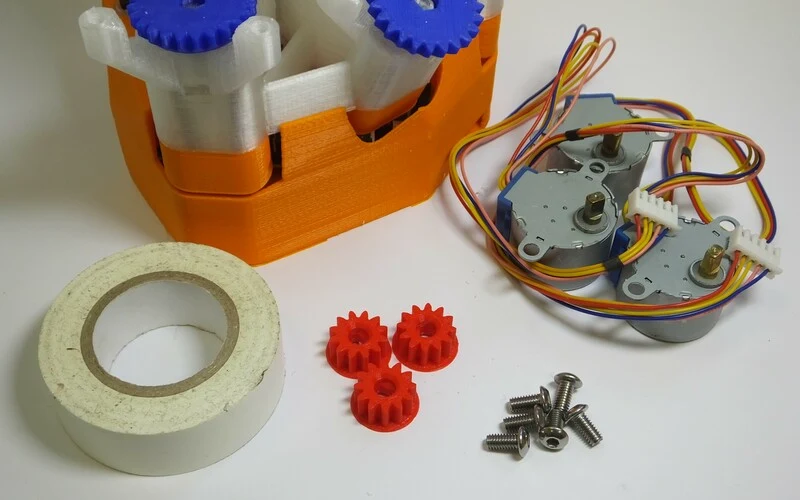
Image credit
docs/images/motors_parts.jpg
Richard Bowman and OpenFlexure contributors · CERN-OHL-1.2Resized without cropping and converted to WebP.
Parts
- 1 Microscope, with actuators already assembled
- 3 Small printed gears
- 3 28BYJ-48 micro geared stepper motors
- 6 M4x6mm button head screws
- 1 Motor board case
- 1 Motor driver board
- 1 Short mini USB lead
- 2 Small cable ties
Tools
- 1 2.5mm hex key
- 3cm insulating tape
Assembly Instructions
Step 1
First, fit the gears onto the motors. The gears are printed with a circular bottom - place them on the table, circular side down. They should be a tight fit onto the motor shaft - if they are not, place some insulating tape, sticky side up, on top of the gear as shown.
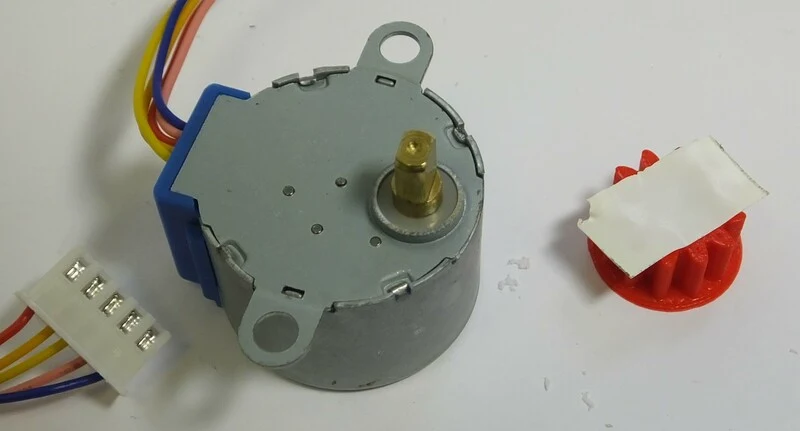
Image credit
docs/images/motors_tape.jpg
Richard Bowman and OpenFlexure contributors · CERN-OHL-1.2Resized without cropping and converted to WebP.
Step 2
Now, fit the gear (and tape) onto the motor shaft - with the gear on the table, press the shaft into the hole. NB you need to line the flat sides of the shaft up with the hole - it is not circular.
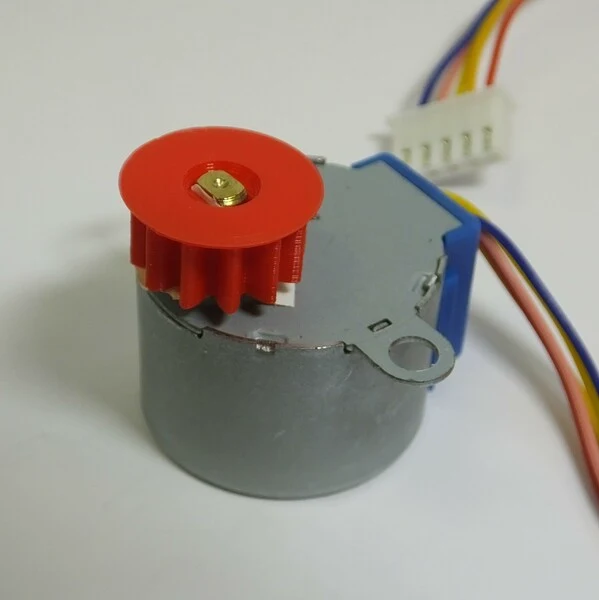
Image credit
docs/images/motors_gear.jpg
Richard Bowman and OpenFlexure contributors · CERN-OHL-1.2Resized without cropping and converted to WebP.
Step 3
Repeat steps 1 and 2 for all three motors.
Step 4
Fit each of the three motors onto the microscope body using two M4 screws. It is possible that this step will be easier if you tap the holes in the microscope body first. The screws should be done up tightly, otherwise the motor will wobble.
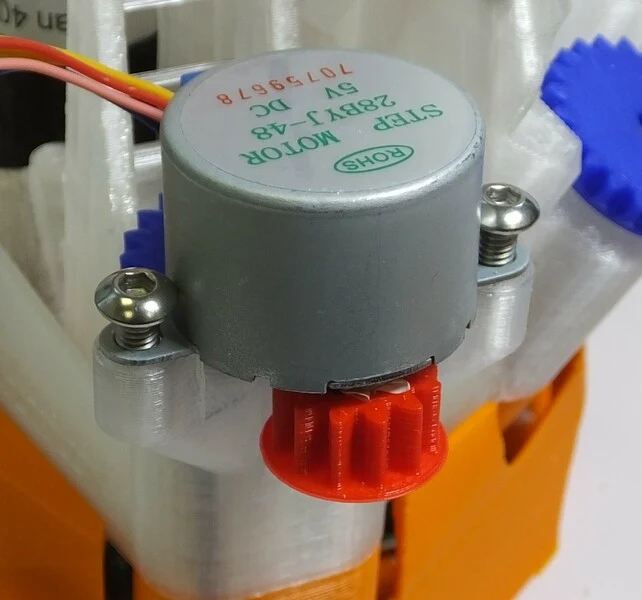
Image credit
docs/images/motors_mount.jpg
Richard Bowman and OpenFlexure contributors · CERN-OHL-1.2Resized without cropping and converted to WebP.
Step 5
Fit the mini USB lead to the motor board, and fit the motor board into the case as shown.
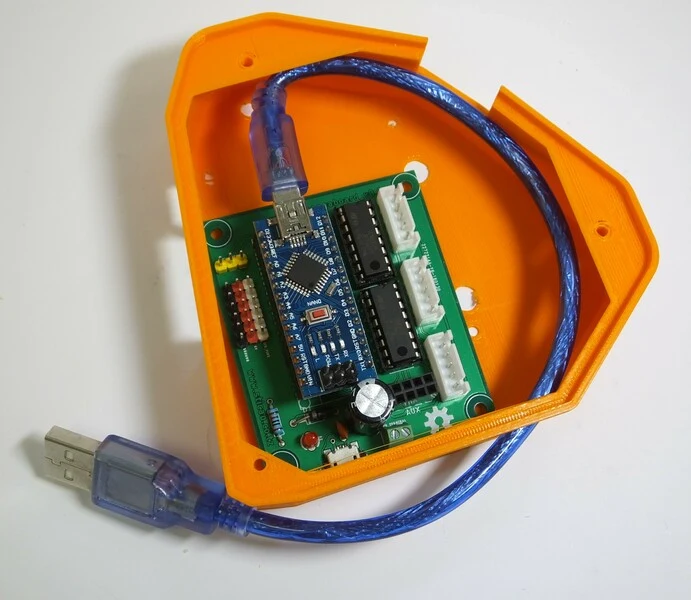
Image credit
docs/images/motors_board_in_base.jpg
Richard Bowman and OpenFlexure contributors · CERN-OHL-1.2Resized without cropping and converted to WebP.
Step 6
Connect the cables from the motors to the motor board as shown.
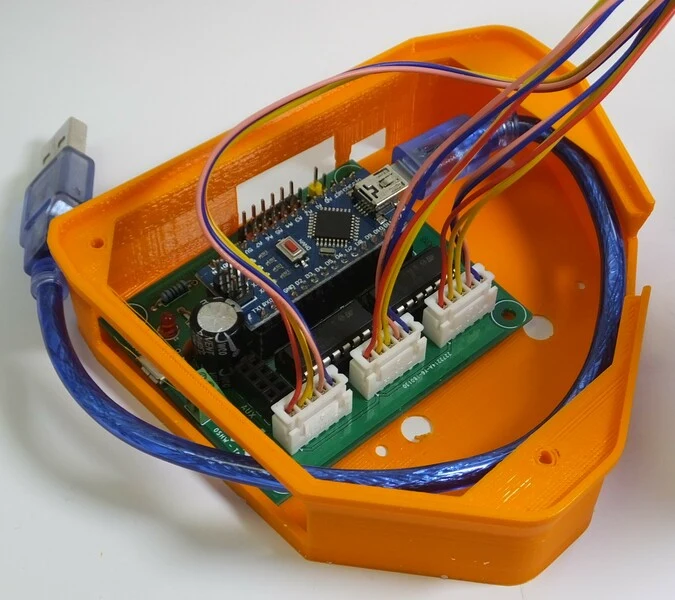
Image credit
docs/images/motors_wiring.jpg
Richard Bowman and OpenFlexure contributors · CERN-OHL-1.2Resized without cropping and converted to WebP.
Step 7
Finally, sit the microscope on top of the motor board case, and tidy up the wiring using the cable ties. You can more securely attach the motor board to the microscope using M3 screws at the corners, but you might want to wait until you have tested it in case you need to swap the wiring around.
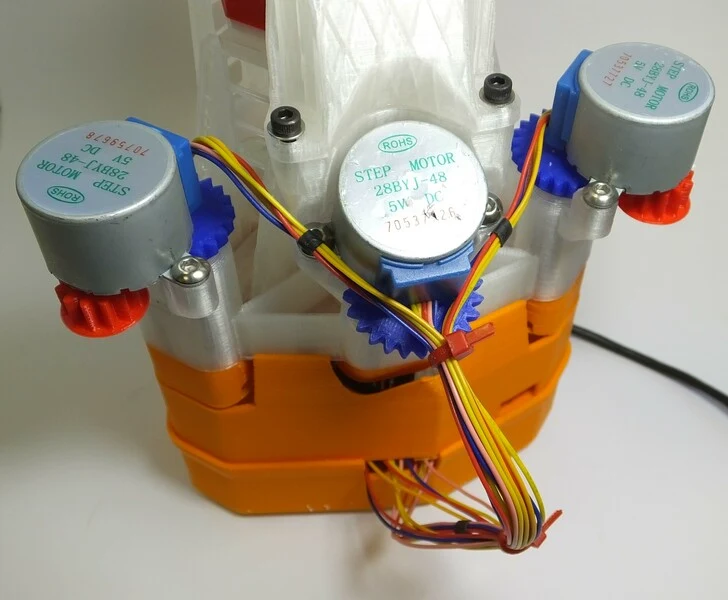
Image credit
docs/images/motors_assembled.jpg
Richard Bowman and OpenFlexure contributors · CERN-OHL-1.2Resized without cropping and converted to WebP.
Step 8
Congratulations, you have fitted the motors. You will need to upload the motor controller firmware using the Arduino IDE. Currently, the firmware resides on github.
OpenFlexure Microscope: Compiling from source
The microscope is modelled using OpenSCAD. This means there's a collection of scripts that, when run, generate STL files that you can then print. The best way to get hold of the latest STL files is to generate them yourself. To do this, you will need OpenSCAD (available for Windows, Mac and Linux). The simplest way to build all the necessary STL files is to use GNU Make. If you use Linux you will almost certainly have this, Mac OS should either have it or be able to get it from homebrew etc., and Windows you can get it through Cygwin or MinGW.
To build all the STL files (NB you don't need to print all of these, there are some alternatives), simply change directory to the root folder of this repository and run make all. This will compile the files and put them in the builds/ directory.
Make on Windows
I was happy to find out that you can use make in MSYS, which comes bundled with Git for Windows. If you install Git for Windows, you can then download a copy of the executable file for make and put it in the bin directory. For me, this was C:\Users\me\AppData\Local\Programs\Git\mingw64\bin though your installation may be different. NB to start MSYS on Windows, look for "Git Bash" in your Start menu.
OpenSCAD command line
You'll need to make sure OpenSCAD is in your executable path so the build script can run it from the command line. This is probably the case on Linux, but on Windows I just ran PATH="$PATH:/c/Program Files/OpenSCAD/" before running make. A more permanent solution is to put that command line into a text file .bash_profile in your home directory (i.e. C:\Users\me\.bash_profile). If it doesn't exist, just create a new text file with that as the only line. Once you've done this, OpenSCAD will automatically be added to your path every time you start MSYS (aka Git Bash). NB the filename does not have a .txt extension, and it won't work if you leave one there. Symlinking the OpenSCAD binary into your mingw64 binaries folder seems to break things like the OpenSCAD includes directory, so use the method above in preference if you can.
On mac, you may need to add a symlink as well, probably from /usr/local/bin/openscad -> /Applications/OpenSCAD.app/Contents/MacOS/OpenSCAD (I've not checked these paths but they should be approximately right).
Source and license
Download the editable republished documentation
Original documentation: Richard Bowman, OpenFlexure contributors. Reproduced under CERN-OHL-1.2. Individual image credits identify any separately licensed media. The full original copyright and permission notice is retained in that license file.
Republished the complete reviewed README and build chapters. Reformatted HTML as Markdown, resolved relative links, and served repository images locally. Photos resized without cropping; diagrams retain source resolution. Externally hosted or separately unverified media is linked at its original location. Introductory selection notes are by Meteor Makers; the original author is not responsible for those notes. Combined source chapters in build order and remapped chapter links to this page. Adapted on 2026-10-29 by resolving links, combining the original chapters, and resizing photographs without cropping. The adapted documentation remains under CERN-OHL-1.2 and is also available as an editable Markdown download. The external incubator photograph credited to other creators remains a source link, not a locally republished asset.
Source revision: 0cedf45238bb. Retrieved 2026-10-29. This is a source snapshot, not a claim that the project was first published today or that its creator endorses Meteor Makers.
Keep exploring
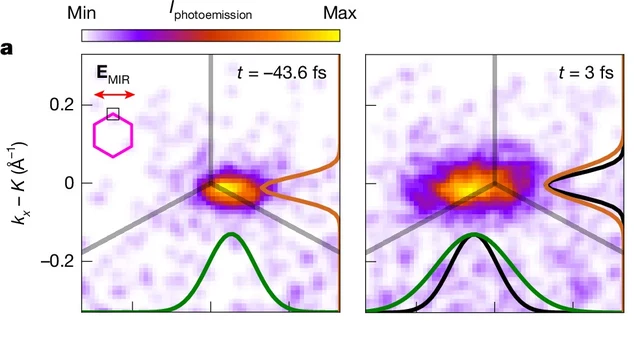
A Nature experiment maps light-driven electronic dynamics across graphene's momentum space. Sub-10-femtosecond frames and attosecond timing precision are different claims.
Image credit
Cropped measured momentum distributions from Figure 3a
V. Eggers et al. · CC BY 4.0Cropped to the two upper-left measured distributions in Figure 3a, retaining times, legend and axes; resized and encoded as WebP. Not a real-space photograph.
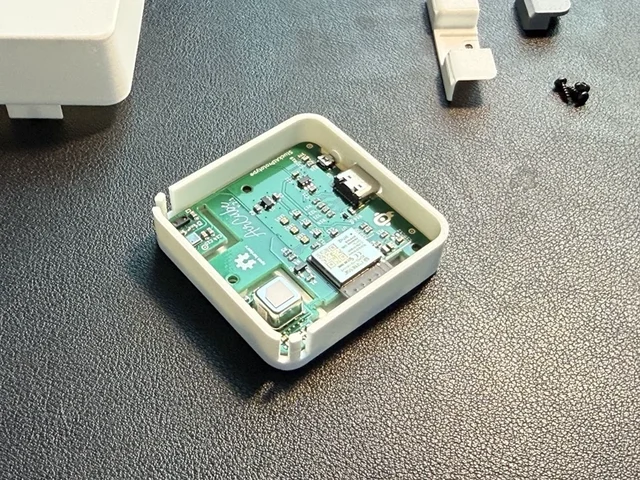
The creator's complete assembly, firmware, Home Assistant and integration documentation, with real Base and Pro build photographs.
Image credit
mechanical/guide_images/pro_C.jpg
StuckAtPrototype, AirCube contributors · Apache-2.0Resized without cropping and converted to WebP for the project card.
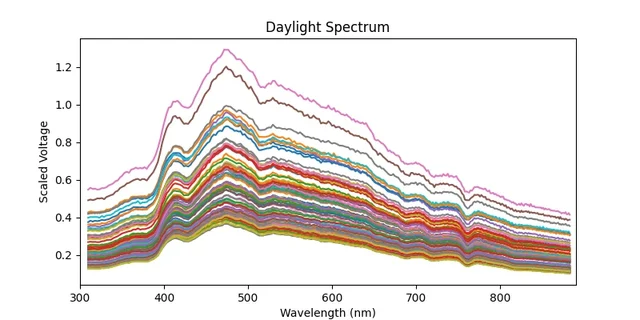
Bob Dougherty's complete guide to a networked Hamamatsu C12880MA spectrometer, with sensor connections, calibration requirements, API endpoints, and the original daylight measurements.
Image credit
examples/spec.png
Bob Dougherty · MITResized without cropping and converted to WebP for the project card.
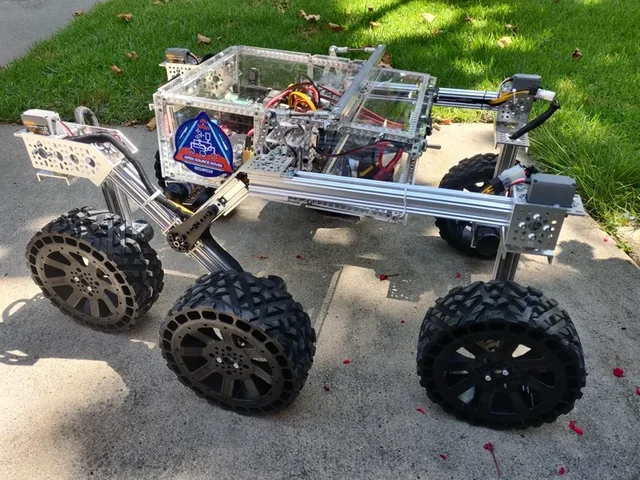
Choose a LEGO microscope, ESP32 oscilloscope, laboratory syringe pump, haptic dial, DIY e-reader, synthesizer, or JPL rover using complete credited source documentation.
Image credit
images/osr-side-outside.jpg
JPL / California Institute of Technology and Open Source Rover contributors · Apache-2.0Resized without cropping and converted to WebP for the project card.